TESTED · PDF WORKFLOWS
Remove hidden data from a PDF: metadata, comments and attachments
Inspect and remove PDF metadata, comments and attachments with three downloadable practice files that show what page previews miss.
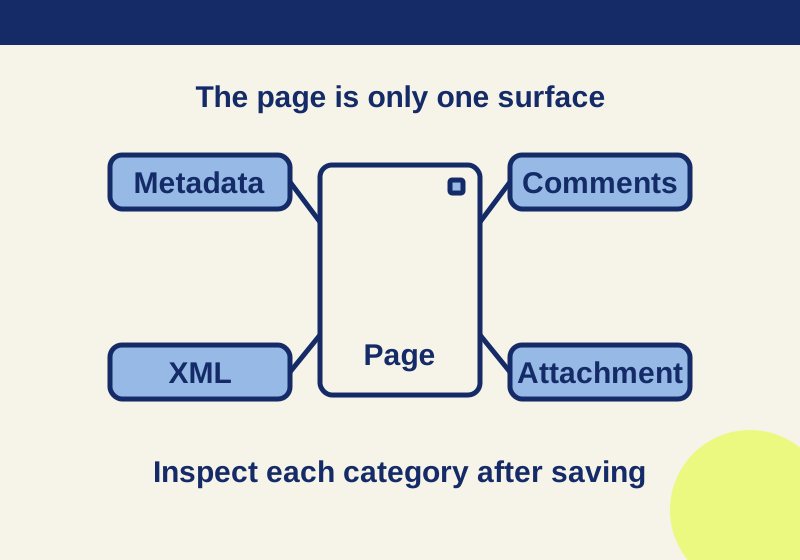
A PDF page can look ready to share while the file still contains a reviewer’s name, a draft comment or an attached document. To check the copy you plan to send, inspect those parts of the PDF, remove the ones you do not want to share, then reopen the saved copy and check again.
The practice files below make the difference visible. They contain invented names and phrases, including an attached draft. One version has its metadata removed but still contains the comment and attachment.
What the page view misses
Imagine sending a workshop handout outside your organization after revising its page text. If an earlier outline is still attached, the page view alone will not tell you it is there.
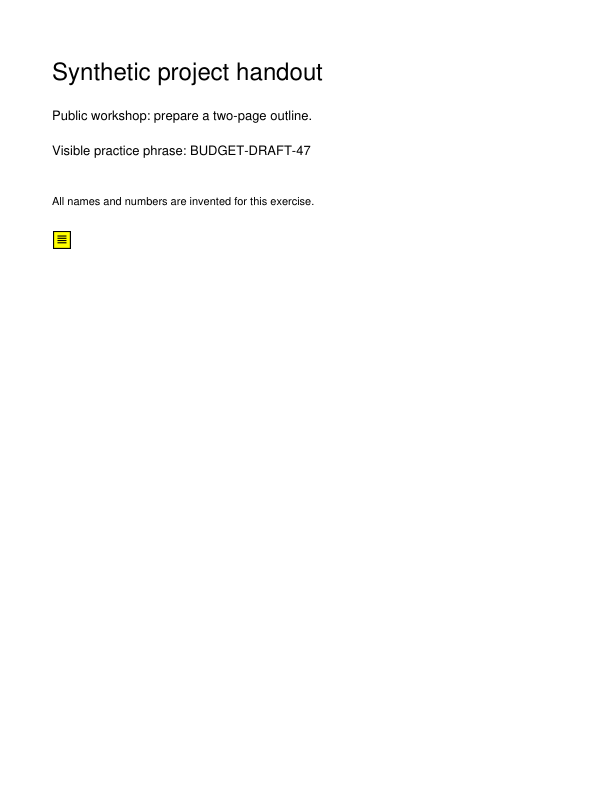
Download the synthetic original PDF and open its first page. The page includes BUDGET-DRAFT-47 as visible text. The file also has an author field naming Example Internal Reviewer, a subject field containing PRIVATE-METADATA-47, a comment reading COMMENT-DRAFT-47: replace workshop price before release. and an attachment named internal-outline.txt. Its XML metadata contains XMP-ONLY-47. The keywords also contain INTERNAL-PLAN-47.
The comment is attributed to Example Review Account, a different name from the document author. Removing the document author’s name would not remove the comment author’s name in this example.
In Acrobat, Adobe documents the Windows path for checking metadata as Menu > Document properties > Description > Additional Metadata > Advanced. On macOS, start from File > Document properties. The Adobe metadata instructions provide the platform steps. Check the document’s comments for the note and its author, too. To find the attached file in Acrobat, use Menu > View > Show/Hide > Side panels > Attachments on Windows; Adobe’s attachment instructions also give the macOS path.
The attached outline contains SYNTHETIC-ATTACHMENT-47 and the line “Draft price: 47 credits.” Reading the handout’s page and reading its attachment are separate actions: the page describes a workshop, while the attachment contains the draft-price line. In the practice file, find internal-outline.txt and open it to see that distinction yourself. All of those names and values are invented.
A viewer that does not expose attachments has not established that the PDF contains none. Use an application that shows the category you need to inspect. The supplied original contains one embedded file regardless of whether your current viewer displays it.
Does removing PDF metadata remove comments?
Removing metadata alone leaves the comment in this example. In metadata-only.pdf, the title, author, subject, keywords and XML metadata have been cleared. The same comment and internal-outline.txt attachment remain.
The original and metadata-only practice PDFs produced identical page renders. A page that looks exactly the same can therefore have different metadata, and clearing metadata can leave other unwanted objects in place.
| Checked item | Original | Metadata-only | Selected-clean |
|---|---|---|---|
| Author and subject | Example Internal Reviewer; PRIVATE-METADATA-47 | Empty | Empty |
| XML metadata | XMP-ONLY-47 | Empty | Empty |
| Comment | COMMENT-DRAFT-47 note | Same note remains | None found |
| Attachment | internal-outline.txt | Same attachment remains | None found |
| Visible page phrase | BUDGET-DRAFT-47 | Still visible | Still visible |
You can download selected-clean.pdf for the third comparison. In that file, the checked metadata, comment and attachment are gone. The visible phrase is still on the page.
Remove the items you found
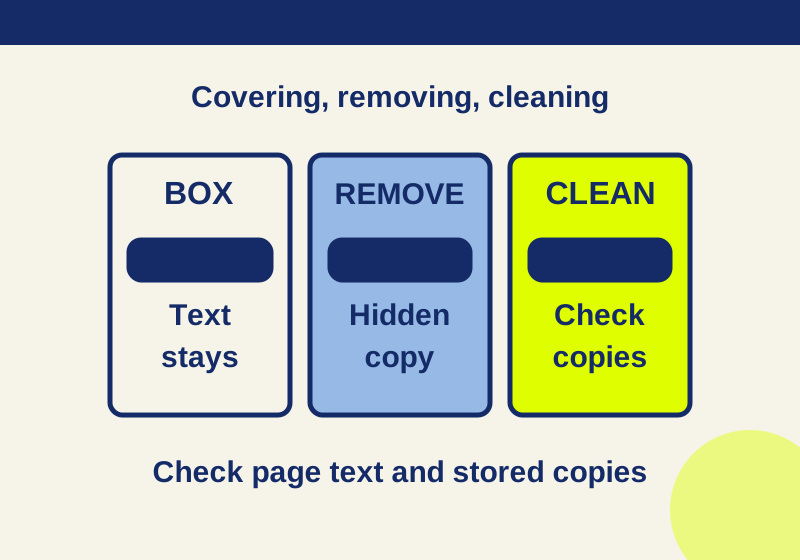
For a PDF you own and intend to share, keep the original as your reference and save the cleaned version under a new name. Adobe’s Sanitize document instructions start at All tools > Redact a PDF > Sanitize document. They describe Remove all followed by saving a named copy, or Selectively remove, where you check the target boxes under Hidden Information, choose Remove, and save.
Choose based on what you found during inspection, then reopen the saved copy. Check its metadata, comments and attachments again rather than assuming that a changed page appearance, or a smaller file, settles the question. The selected-clean practice PDF was created through a native PDF library by removing its known metadata, XML metadata, embedded attachment and comment, then saving a new file. It gives you a reference copy for those categories. It was not created with Acrobat’s Remove all command.
Check the saved copy you will send
Save the edited file with a name you can distinguish from the source, close it and reopen that exact copy. If you have several similarly named exports, check the filename before comparing results. An inspection of the original says nothing about which changes reached the saved copy.
For this exercise, write down the items to remove: Example Internal Reviewer in the author field, PRIVATE-METADATA-47 in the subject, the additional XML value, the draft comment and internal-outline.txt. The metadata-only file clears some of those targets while preserving others. Use it to recognize a partial result before trying your own removal.
Try the three-file comparison
- Open the original. Read BUDGET-DRAFT-47, then locate the metadata fields, the comment and internal-outline.txt.
- Open the metadata-only version. The named metadata has been cleared, but the same comment and attachment remain.
- Open the selected-clean version. Its comment and attachment are absent. Read the visible draft phrase again: it remains on the page.
The practice results record the checked categories if you want to compare your findings.
If you still see a comment or attachment after clearing metadata, that does not mean the metadata step failed: the metadata-only example deliberately keeps both. Inspect and remove each category you mean to clear. If a phrase is printed on the page, hidden-information cleanup is not a substitute for properly redacting that visible content. The same distinction matters for content concealed by page boundaries; the PDF crop margins guide covers that separate problem.
An empty metadata panel also does not establish that every kind of hidden content is absent. This exercise checks the named metadata fields, one XML metadata value, one comment and one attachment. Apply the same focused inspection to the actual copy you will share. This exercise does not test hidden layers, scripts or OCR text. If the material you need removed falls into another category, the empty fields in this table do not answer that question.
Source and test scope: Adobe’s linked instructions describe Acrobat controls; Acrobat was not tested for this article. The three synthetic PDFs were checked with PyMuPDF 1.26.7 on October 7, 2026. The results cover the categories shown in the table, not every possible PDF object.
KEEP GOING
More to explore.
TESTEDPDF workflows
How to redact a PDF so the hidden text is actually removed
Apply real redactions, sanitize hidden content, then reopen the saved PDF and check the text, comments, metadata and attachments.
TESTEDBusiness documents
Remove tracked changes and comments from Word before sharing
A Word document can look clean and still contain old edits. Use the fee-change sample to resolve the content before sharing.