TESTED · PDF WORKFLOWS
How to redact a PDF so the hidden text is actually removed
Compare real PDF redaction examples, see why black boxes leave readable text, and use Acrobat Pro to remove visible and hidden information.
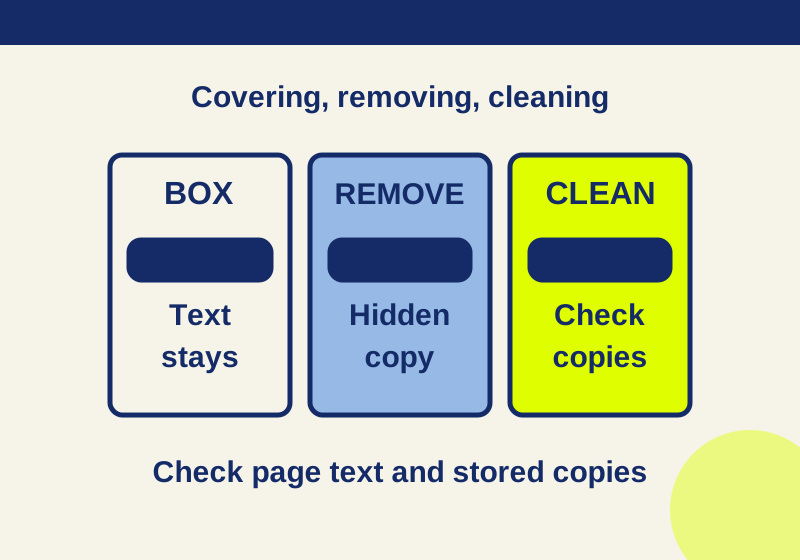
Use a PDF editor’s redaction tool, apply the redactions, remove hidden information, and check the saved copy. In Acrobat Pro, the starting point is All tools > Redact a PDF. Drawing a black rectangle over a name can leave the name available to search and copy.
The practice files below show two separate problems: text that remains underneath a box, and sensitive values that survive elsewhere after the visible text has been removed. Both matter when you’re about to post a document or email it outside your organization.
Try the black-box example before using a real document
Download the fictional original PDF and the copy covered with black boxes. Neither contains anyone’s personal information.
The original has a private reference, DEMO-7391, and a contact, demo-person@example.invalid. It also has two fields intended to remain public: the project, Lakeside reading room, and a budget of $1,240.
Open the covered copy. The private reference and contact have opaque black rectangles over them. Now search for DEMO-7391. You can also select the page’s text, copy it, and paste it into a plain-text editor. Our local text extraction recovered both the reference and the email address from that copy. The boxes changed the page’s appearance while leaving those text objects in the PDF.
That gives you a useful negative control: a file that looks redacted but fails the text-removal check. If you’re comparing PDF tools, run your own output through the same search and copy exercise. Use these fictional values for practice instead of uploading a private document to an unfamiliar service.
Visible removal can leave other copies behind
The visible-text-only redacted PDF has actual redactions applied to the reference and contact. Neither value appeared in extracted page text afterward. The public project and budget remained readable.
However, the original deliberately repeated the reference in three other places: the document’s subject metadata, a text comment, and an embedded attachment named fictional-note.txt. Those copies survived in the visible-only output. A search of the page’s text therefore returned a reassuring result while the embedded note still contained DEMO-7391.
The clean comparison PDF removes those known extra copies too. Its inspected metadata contained no marker; its comment count and attachment count were both zero. The project and $1,240 budget still appeared in the page text.
| Practice copy | Reference in page text | Reference in hidden copies |
|---|---|---|
| Original | Present | Present |
| Black-box overlay | Present | Present |
| Visible text removed | Absent | Present |
| Known extra copies removed | Absent | Absent in inspected categories |
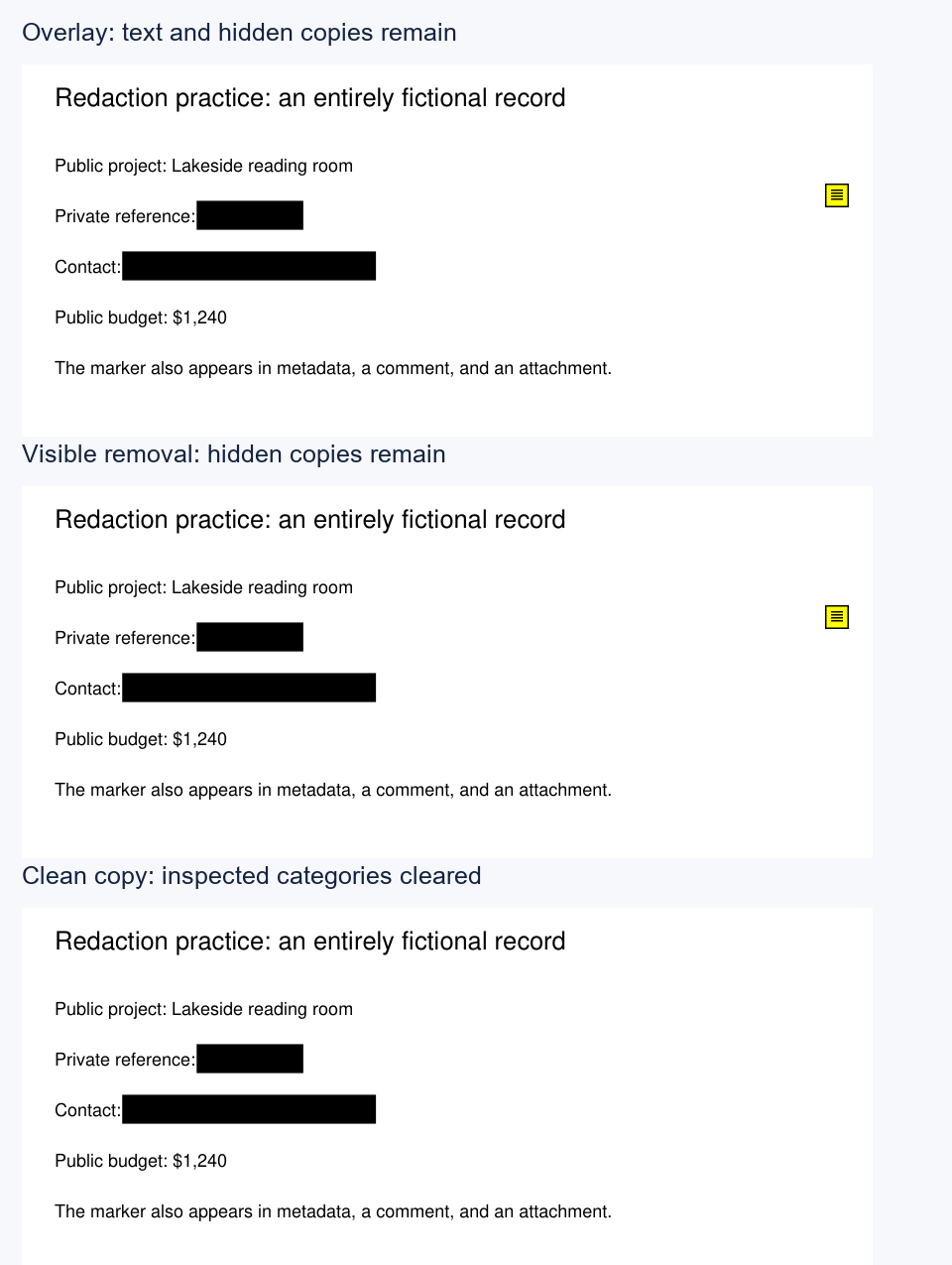
These examples were constructed and inspected locally with PyMuPDF. The computed results record each outcome. They demonstrate the difference between covering, removing page content, and removing separate stored copies. The Acrobat instructions below come from Adobe’s documentation; these practice files were not produced by an Acrobat interface trial.
Apply redactions in Acrobat Pro
Work on a copy of the document so that your private original remains available if you remove the wrong material. Review what should disappear and what the recipient still needs. In the example, the reference and contact must go, while deleting the public budget would make the document less useful.
Adobe’s current redaction instructions use this sequence:
- Open All tools > Redact a PDF.
- Choose Redact text and images, then drag over the content you want to remove.
- Inspect the selected regions, including their edges and neighboring text.
- Select Apply.
- Use the dialog’s sanitization toggle to remove hidden information when needed, then select Continue.
- Choose the new file’s name and location in Save Sanitized Document and save it.
The selection marks are a working stage. Reopen the saved result before treating the removal as finished. Adobe explains that applied and saved redactions are permanent, so checking the selection before applying it is less work than repairing an over-redacted document afterward.
Find repeated names and numbers
A private reference can appear in a heading, a footnote, and several pages of a report. Removing its first occurrence won’t remove the rest.
Acrobat Pro also has All tools > Redact a PDF > Find text and redact. Adobe’s search-redaction procedure lets you search a word, multiple phrases, or a pattern. Review the returned occurrences, choose the ones to remove, and use Mark Checked Results for Redaction. Return to the document and apply the selected results.
For the practice reference, searching the full DEMO-7391 value is easy. A real document may also use a shortened reference, a name with a middle initial, or a differently formatted number. Write down the variants you intend to remove and search each one. Review the matches so that a broad search doesn’t remove a public field you need to keep.
Check the exact file you’ll send
Close the working view and open the newly saved copy from its actual location. Search its page text for the private values. Copy the surrounding text into a plain-text editor and look for remnants. Compare the retained content with the original: in our example, the project and public budget should still be readable.
Then inspect the document properties, comments and attachment list. For the clean practice copy, the expected results are no marker in metadata, no comments, and no embedded files. A different document can contain other objects, so those three checks alone cannot certify every possible PDF as free of confidential data. Adobe distinguishes visible redaction from sanitization of hidden content.
Scanned pages need a visual review as well. An image of a private value may remain even when a text search finds nothing; an OCR text layer can be a separate place to inspect. The downloadable experiment here uses selectable text, not scanned images or OCR, so it provides no scan-redaction test result.
If you’re trimming a page’s margins, cropping a PDF is a separate operation. Our crop example shows how content outside the visible area can remain in the file.
Keep the original outside the folder you plan to publish. Attach or upload only the saved copy you just checked, and open that attachment once more if several similarly named versions are sitting beside it.
KEEP GOING
More to explore.
TESTEDPDF workflows
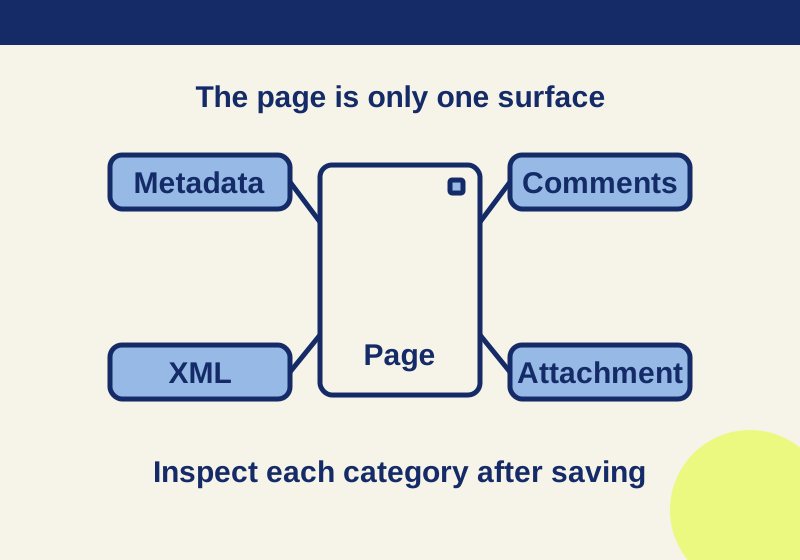
Remove hidden data from a PDF: metadata, comments and attachments
PDF metadata, comments and attachments need separate checks. Compare three real practice PDFs, then inspect the saved copy before sharing it.
TESTEDPDF workflows
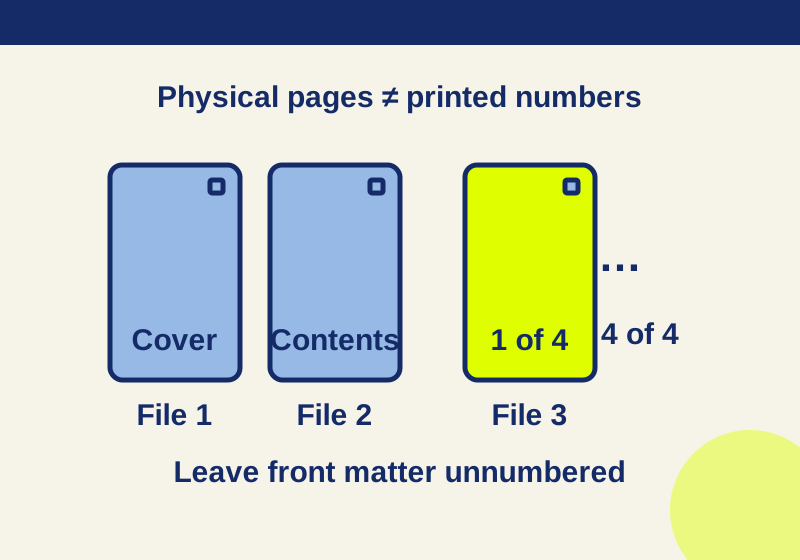
Add PDF page numbers without numbering the cover
Six physical pages can have a four-page body. Use the right range, starting number and total while leaving cover and contents unnumbered.