TESTED GUIDE · PDF WORKFLOWS
Add visible page numbers to a PDF
Place formatted page numbers in an Acrobat header or footer, choose the starting number, and review the numbered PDF.
To put numbers on the PDF pages, use Acrobat’s Header and footer tool. If you only want to change the numbers shown in thumbnails or page navigation, use Page labels.
Add visible page numbers
Open the PDF and select Edit > Header and footer > Add. If Acrobat finds an existing header or footer, inspect it before choosing Replace or Add. Replacing the setup may remove text you need; adding another may leave you with overlapping or duplicate content.
Select Page Number and Date Format, choose the format and starting number, then select OK. Click the header or footer field where the number belongs and select Insert Page Number. Choosing a position alone does not insert anything. Adjust the font if needed, check the preview, and select OK to apply the change. These are the controls in Adobe’s page-number instructions.
Check the resulting PDF itself, not just its thumbnail labels. Look at the first page that should be numbered and a later page. Confirm the number is visible, clear of other content, in the intended position, and advancing from the starting value you chose. If the preview or result has an empty number field, return to the header or footer setup and use Insert Page Number.
Change navigation labels instead
For a cover followed by a body that should start at page 1 in navigation, select All tools > Organize pages > Page labels. Set the relevant page range and begin a new numbering sequence, or extend the preceding one as appropriate. Adobe’s page-label instructions state that this changes thumbnail and navigation labels; it does not print numbers on pages.
Field note
In a locally made three-page PDF, the navigation labels were Cover, 1, 2, but extracted content on page 2 had no printed page-number marker. After footer markers were merged onto pages 2 and 3, extraction found PAGE NUMBER 1 and PAGE NUMBER 2, respectively. A Poppler PNG of page 2 also showed its footer marker. The PDF was made with reportlab 4.4.9 and pypdf 6.10.0. This check demonstrates the difference between labels and visible content in that synthetic file; it does not test Acrobat’s interface.
Source and verification: Adobe’s linked instructions were reviewed on 2026-09-29. The hands-on evidence is limited to the synthetic PDF and the tools named above.
We used controlled inputs and checked the resulting output as described above. The scope of that test is limited to the stated files and steps.
Primary sources:
KEEP GOING
Related checks.
TESTED GUIDEPDF workflows
Extract one PDF page and verify the download
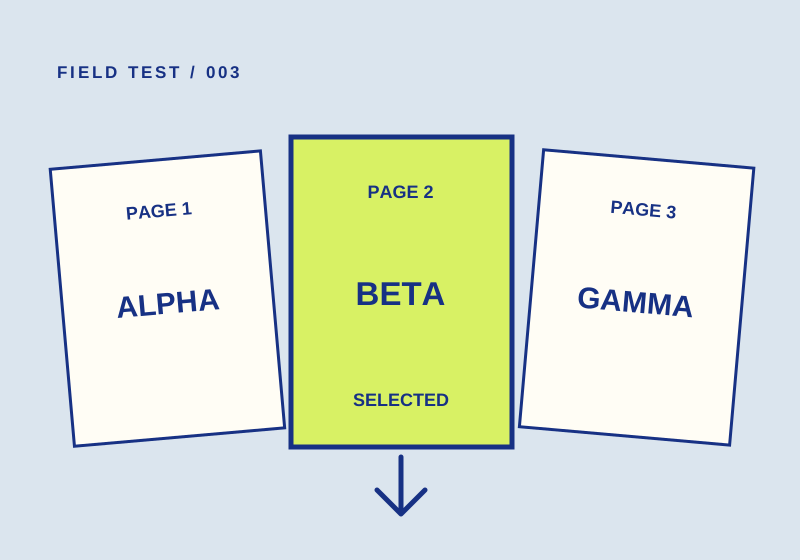
A 2-to-2 range produced one page marked BETA. Check both the page count and content before sharing yours.
TESTED GUIDEPDF workflows
Merge two PDFs and check the page order
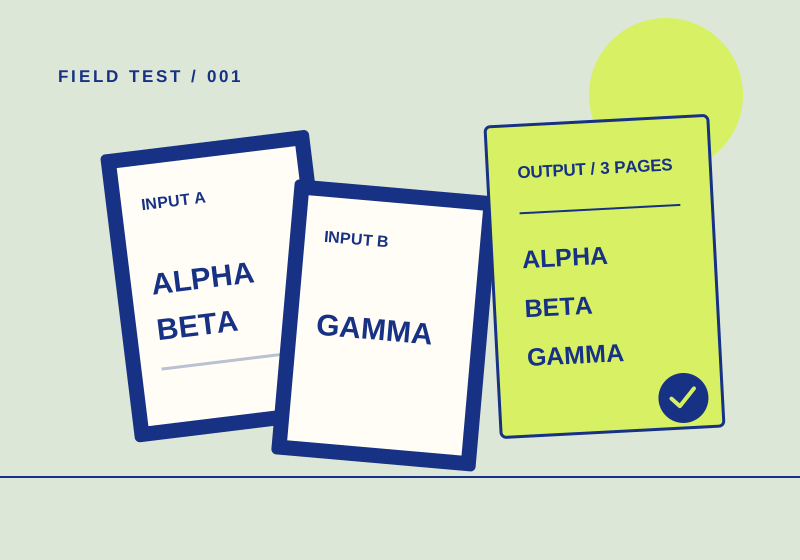
Two test PDFs went in; a three-page file came out in the expected order. Here's how to check your own.