TESTED GUIDE · PDF WORKFLOWS
Merge two PDFs and check the page order
A tested way to merge two PDFs online, with the downloaded page count and order checked against known input files.
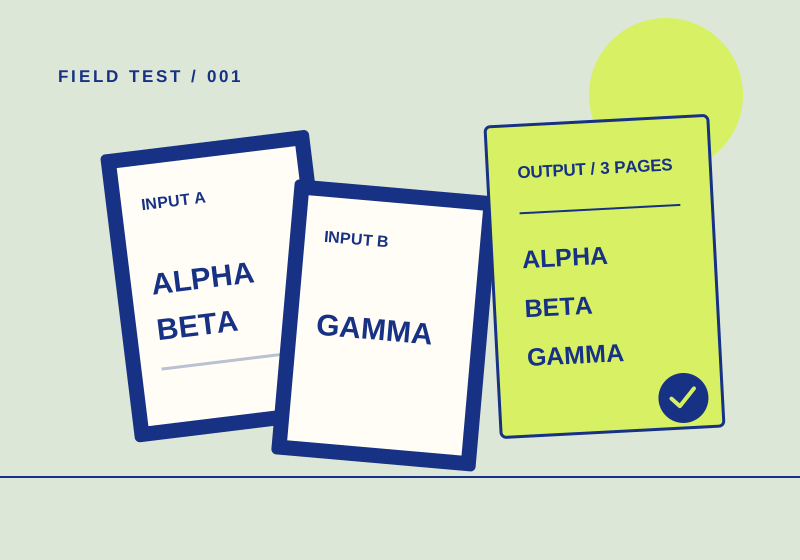
The order in the upload list matters. Put the PDFs in the sequence you want, run the merge, then open the downloaded file and check its pages. A completion screen tells you that a job ran; it doesn’t tell you whether the output reads correctly.
What came out of our test
On September 29, 2026, we made two synthetic PDFs. part-a.pdf had two pages marked ALPHA and BETA. part-b.pdf had one page marked GAMMA. We selected A, then B, at iLovePDF Merge PDF and PDF24 Merge PDF in browser sessions without signing in. Each service produced a downloaded PDF with three pages, with the markers ALPHA, BETA, GAMMA in that order. We checked the files with PyMuPDF, separately from the websites’ completion screens.
| File | Pages | Visible markers |
|---|---|---|
| Input A | 2 | ALPHA, BETA |
| Input B | 1 | GAMMA |
| iLovePDF download, 72,465 bytes | 3 | ALPHA, BETA, GAMMA |
| PDF24 download, 69,006 bytes | 3 | ALPHA, BETA, GAMMA |
We also uploaded the same files to Sejda. Its completion screen appeared, but we did not capture a downloaded result, so its output remains unverified here. The different byte counts of the two verified files do not, by themselves, establish a quality difference.
Merge your files
- Open both source PDFs and decide which should come first. Note their page counts and a recognizable item near the boundary between them.
- At a tested merge page—iLovePDF or PDF24—select the files. Check the displayed order before pressing Merge PDF. Both pages offer reordering; we selected the files in order and did not test dragging.
- Download the result and open that new file. Count its pages. Check the last page of the first source and the first page of the second source, then any other page that matters to your task.
For our files, the expected count was three and the boundary was BETA followed by GAMMA. If your result has the wrong order, return to the inputs and repeat the merge. Keep the originals until you’re satisfied with the output.
Where this check stops
The test checked page count and visible text markers for one pair of simple PDFs. It did not check form fields, annotations, bookmarks, accessibility tags, or every kind of PDF. If you need one of those features, inspect it in your own downloaded result. For confidential documents, decide whether a web upload fits your privacy requirements before selecting any online service; our files contained no personal information.
The test record explains how the files and results were inspected. No service paid for placement in this guide.
We used controlled inputs and checked the resulting output as described above. The scope of that test is limited to the stated files and steps.
Primary sources:
KEEP GOING
Related checks.
TESTED GUIDEPDF workflows
Compress a PDF and check what survived
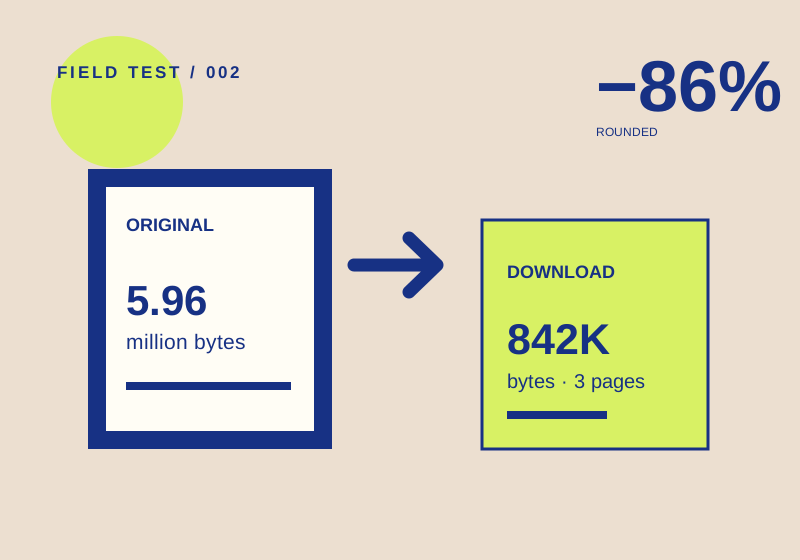
A test file became 85.9% smaller. Page count and labels survived, but visual detail still needs your own check.
TESTED GUIDEPDF workflows
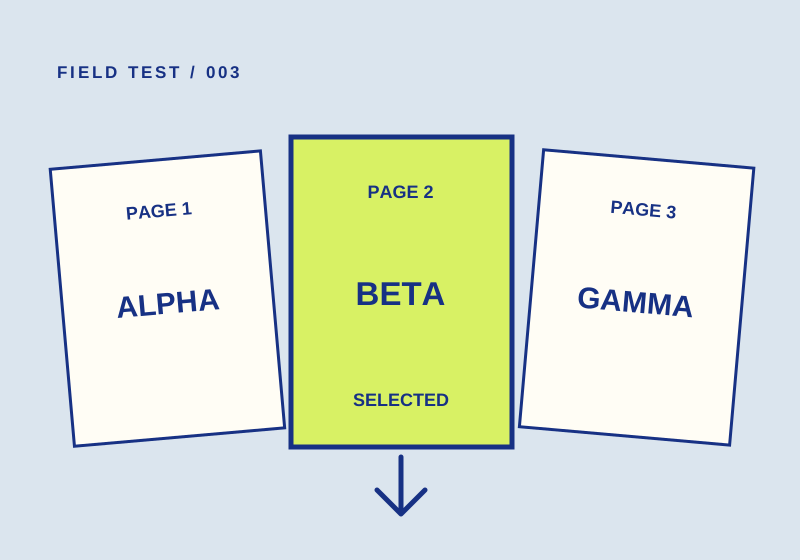
Extract one PDF page and verify the download
A 2-to-2 range produced one page marked BETA. Check both the page count and content before sharing yours.