TESTED · PDF WORKFLOWS
How to reorder PDF pages without accidentally copying them
Rearrange PDF pages with a four-page practice packet, compare saved results, and spot an accidental duplicate before sharing.
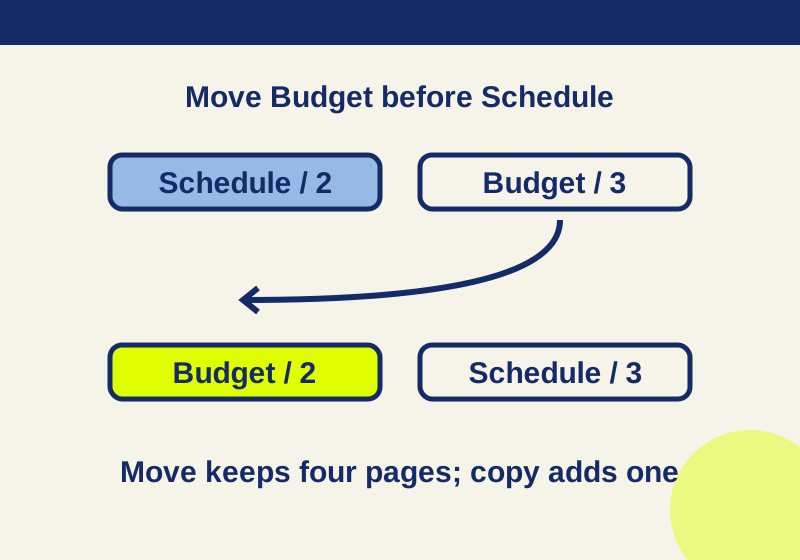
To change a PDF’s reading order, move the existing page to its new position. In Adobe Acrobat, use All tools > Organize pages, select the page thumbnail, and drag it to the new location. Adobe also documents a More > Cut, then Paste method using a blue insertion line. Copy followed by Paste keeps the original page and adds another one.
Before moving anything, identify pages by their contents, not just their current position or printed footer. After the move, reopen the saved PDF and check both its page count and its sequence. A count alone will miss pages that have been swapped.
Practice with a four-page packet
This example is a Cedar Workshop handout with a cover, budget, schedule, and equipment appendix. You can compare the wrong-order PDF with the correct-order PDF.
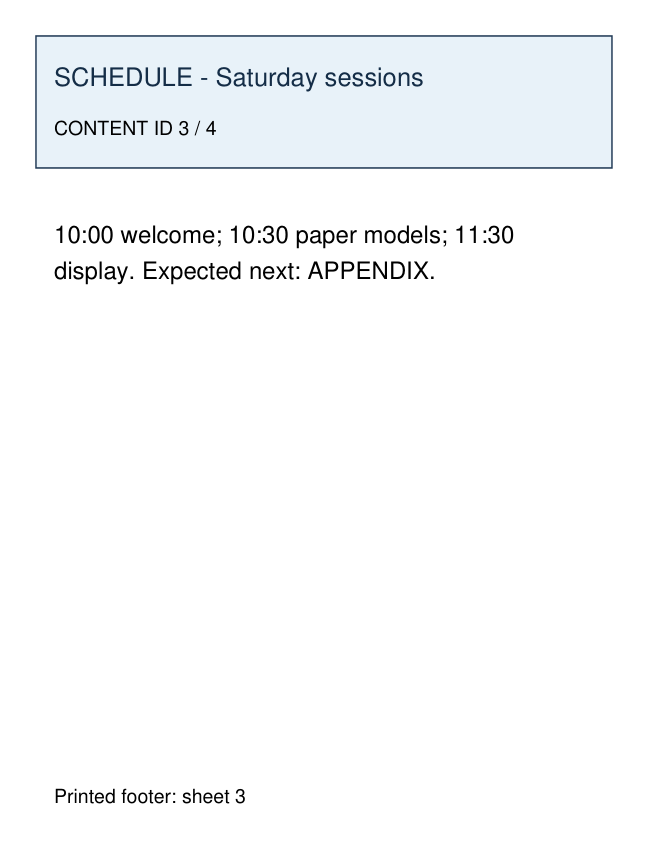
The page shown is file position 2 in the original. You can also open the full four-page preview to see the misplaced Budget beside it.
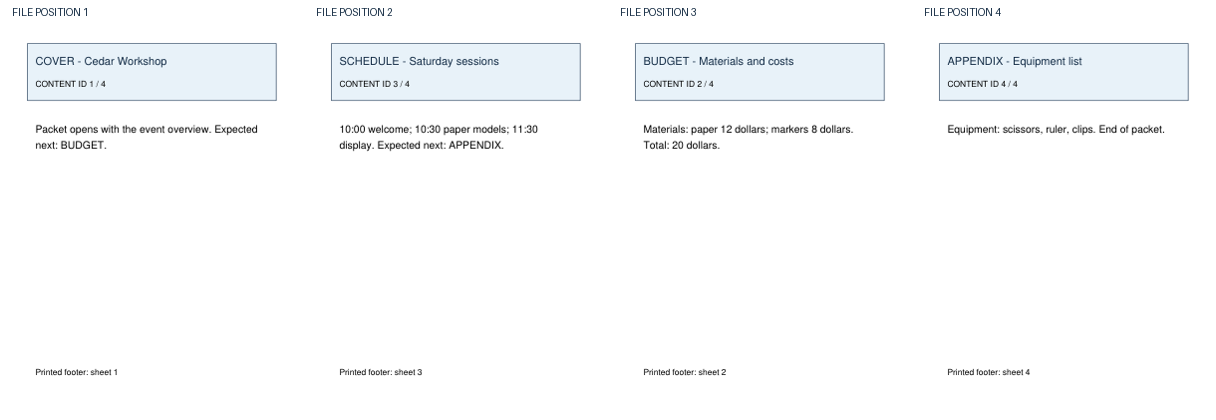
The wrong-order file contains all four sections. The problem is that the schedule comes before the budget:
| Current position | Page heading | Intended position |
|---|---|---|
| 1 | COVER - Cedar Workshop | 1 |
| 2 | SCHEDULE - Saturday sessions | 3 |
| 3 | BUDGET - Materials and costs | 2 |
| 4 | APPENDIX - Equipment list | 4 |
The needed edit is specific: move BUDGET - Materials and costs, currently at position 3, immediately before SCHEDULE - Saturday sessions, currently at position 2. The resulting order is COVER, BUDGET, SCHEDULE, APPENDIX. You do not need to rebuild the packet or add a page.
Make that outline before you start rearranging a longer document, too. A thumbnail’s position describes where it is now; the heading tells you which section you are handling. Once Budget moves, Schedule occupies position 3. A note such as “move page 3 next” becomes ambiguous after the first change. A note such as “Budget goes before Schedule” remains useful.
Move the page in Acrobat
Adobe’s Organize pages instructions describe two ways to move pages:
- Open All tools > Organize pages and select the Budget thumbnail. Drag the selected page to the position before Schedule.
- Alternatively, select Budget, choose More > Cut, and use Paste at the blue insertion line before Schedule.
Adobe also documents Ctrl on Windows or Command on Mac for selecting multiple thumbnails. For a chapter made of several pages, first identify every page that belongs to it, then select only those pages for the move. Check their reading order in the result. The four-page practice packet needs only one selected page.
Cut and Paste relocates the selected page. Copy and Paste retains the page in its old position while placing another instance elsewhere. A glance at the beginning of the packet may make that mistake look like a successful reorder.
Check the page, not just the number
In the practice packet, the visible footers read sheet 1, sheet 3, sheet 2, sheet 4 in the wrong-order PDF. They read sheet 1, sheet 2, sheet 3, sheet 4 in the correct-order PDF. Each printed footer stays with its page’s content as that page changes position.
That makes the footer a useful clue in this example, but it is not a substitute for reading the page. The Budget page contains the materials calculation: paper $12 plus markers $8 equals $20. The Schedule page lists 10:00 welcome, 10:30 paper models, and 11:30 display. Those details let you tell the two pages apart even if thumbnails are small or section headings look similar.
Check the saved result in two passes. First, confirm there are four pages and that the headings appear in the intended order. Then open each section start and confirm its contents belong under that heading. In this packet, Budget must contain the $20 materials calculation at position 2, while Schedule must contain the session times at position 3.
Moving a page changes its place in the file; it does not rewrite text printed on that page. The example’s footers happen to match the desired order after the move because they were already printed as sheets 1 through 4 on the corresponding content pages. If your own packet has a visible footer that is wrong for its final sequence, rearranging thumbnails alone will not correct that printed text.
Catch a copy that looks like a move
The accidental-copy PDF shows the trap. Its first three pages read COVER, BUDGET, SCHEDULE; the start of the desired sequence. But it has five pages:
COVER, BUDGET, SCHEDULE, BUDGET, APPENDIX
The original Budget remains at position 4. Budget at positions 2 and 4 has the same body content. If you checked only the first three pages, you could miss the extra copy; if you checked only that the expected headings appear somewhere, you could miss it as well. Here, the jump from four pages to five is the quickest warning. Reading both Budget pages confirms what was duplicated.
These checks catch different problems. A four-page packet can still have Budget and Schedule in the wrong order, so page count cannot prove the sequence. A packet can begin with the right sequence and still contain an extra page later, so a quick scan of the opening pages cannot prove the count. When two pages share a heading, compare their actual content to decide whether they are the intended pages or a duplicate.
Fix the result you actually see
If the file still has four pages but reads COVER, SCHEDULE, BUDGET, APPENDIX, Budget has not reached its intended position. Locate Budget by its heading and materials calculation, then place it before Schedule.
If the file reads COVER, BUDGET, SCHEDULE at the start but has five pages, inspect the remaining pages before making another move. In the practice copy, the extra Budget is at position 4. Repeating the original paste without resolving that extra page would not produce the four-page packet.
If the order seems unchanged after saving, check the name of the file you opened. Keeping the original and saving the reordered packet under a new name makes it possible to compare them, but it also makes it easy to reopen the old one by mistake. Close the output, open the newly named PDF, and check its headings there.
If an unexpected page moved with Budget, review which thumbnails were selected. Multiple selection is useful for a chapter block, but this example calls for Budget alone. Identify the selected pages by their headings and content before trying the move again.
Source note: The linked synthetic PDFs were created, saved, and separately reopened with PyMuPDF 1.26.7 on October 7, 2026. Their headings and page counts were read from the reopened files. The Adobe controls above come from Adobe’s documentation; this practice set was not tested in Acrobat’s interface.
KEEP GOING
More to explore.
TESTEDPDF workflows
Merge PDFs in the right order and catch missing pages
A three-page output can still be wrong. Practice merging two PDFs, then catch a reversed packet and a missing page hidden by a duplicate.
SOURCE-CHECKEDPDF workflows
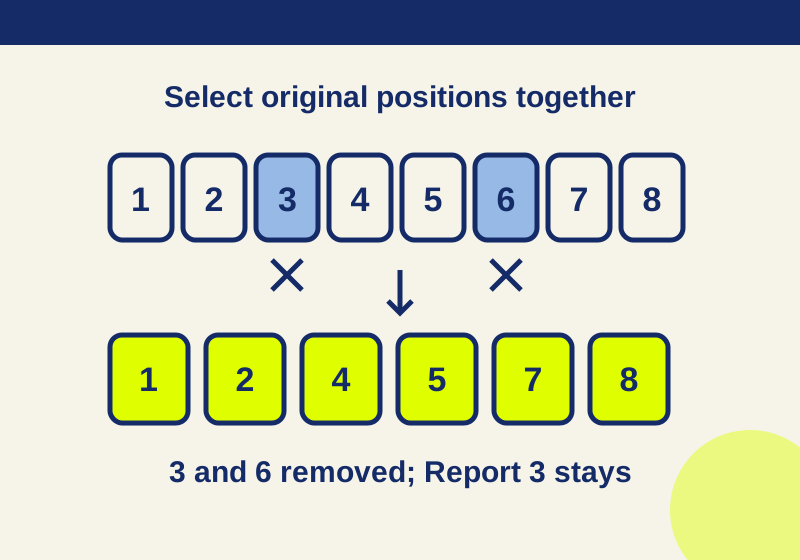
Delete PDF pages without removing the wrong ones
Select unwanted pages together in Acrobat Organize pages, confirm the content, and save a copy. Removing one page shifts every later position; matching page counts can hide a wrong deletion.