SOURCE-CHECKED · PDF WORKFLOWS
Delete PDF pages without removing the wrong ones
Delete PDF pages in Acrobat, avoid shifting page-number mistakes, and compare five downloadable examples with the exact pages that remain.
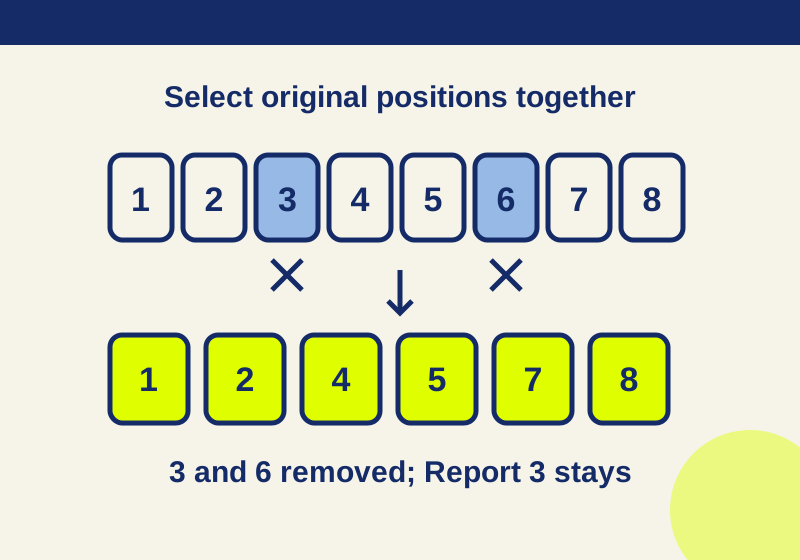
To delete pages in Acrobat, open All tools > Organize pages, select the unwanted page thumbnails or enter their numbers in Pages Selected, then choose Delete pages. Confirm the selected content before saving a separate copy.
Page positions shift as soon as a deletion changes the file. In the eight-page example below, removing page 3 and then the page now at position 6 loses a required report page. Both the correct result and that mistaken result have six pages.
You can follow the example with the eight-page original PDF. Its pages are:
- Cover
- Contents
- Draft Appendix
- Report 1
- Report 2
- Duplicate Report 2
- Report 3
- Appendix A
The goal is to remove the Draft Appendix and Duplicate Report 2: original positions 3 and 6. Report 1 should follow Contents, and Report 3 should come before Appendix A.
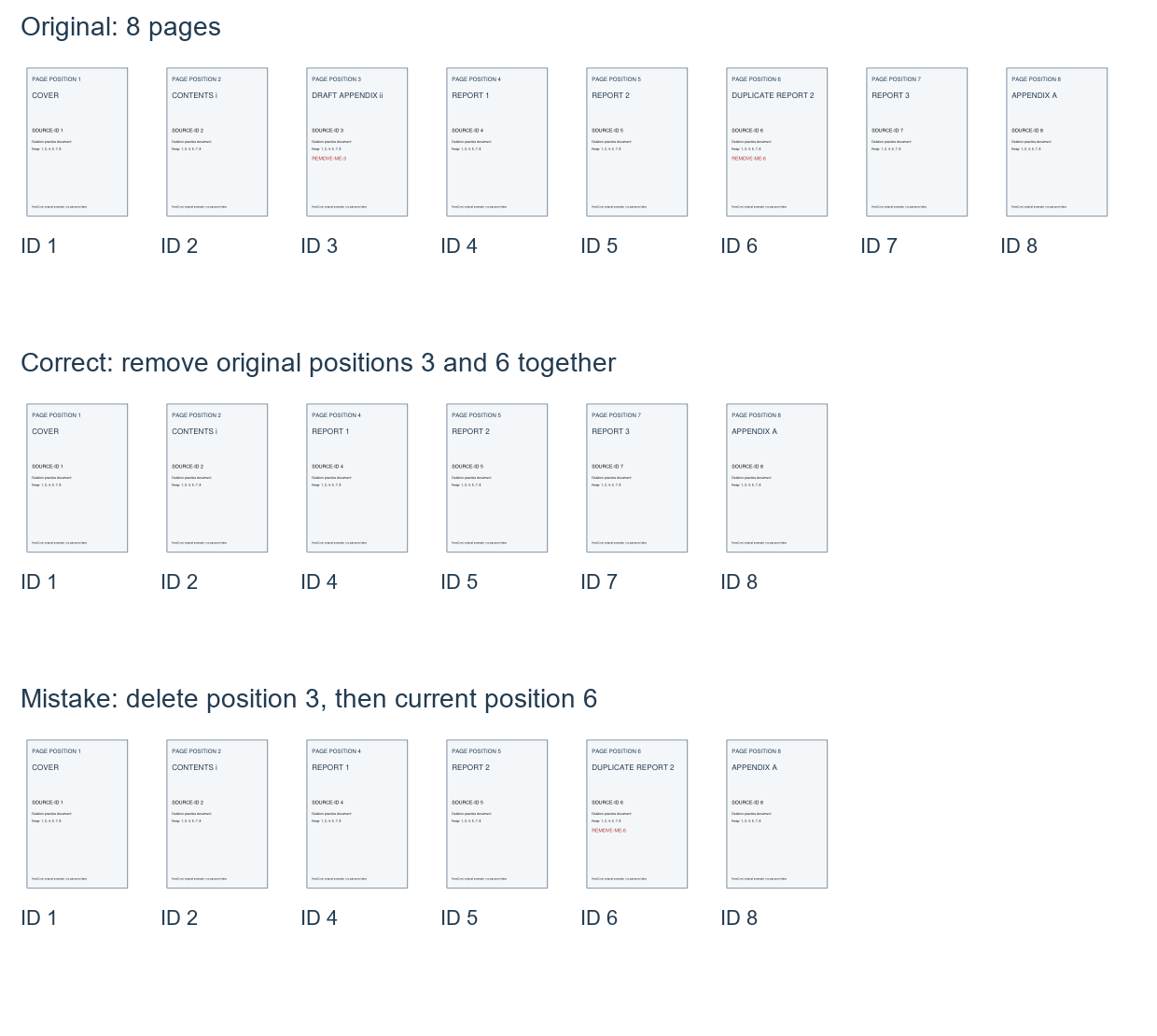
The image shows pages rendered from the PDFs, not screenshots of Acrobat. The correct and mistaken rows are both six pages long. Their contents reveal the difference.
Why deletion order matters
After you delete original page 3, every page that followed it moves forward one position. Original page 6, the duplicate, becomes current page 5. Original page 7, Report 3, becomes current page 6.
If you then delete current page 6, you remove Report 3 and leave the duplicate in place. That is what happened in the mistaken sequential example. Its retained original page IDs are 1, 2, 4, 5, 6, and 8.
Select original positions 3 and 6 together in one deletion instead. The correct six-page answer retains original page IDs 1, 2, 4, 5, 7, and 8:
| New position | Page retained from the original |
|---|---|
| 1 | Cover, original page 1 |
| 2 | Contents, original page 2 |
| 3 | Report 1, original page 4 |
| 4 | Report 2, original page 5 |
| 5 | Report 3, original page 7 |
| 6 | Appendix A, original page 8 |
If you must delete the two pages in separate operations, remove the higher original position first: page 6, then page 3. That ordering follows the page-position arithmetic; the sample’s recorded correct result used one batch deletion.
Delete the selected pages in Acrobat
First, keep an untouched original and note the page positions you mean to remove. If editing is restricted, Acrobat’s page deletion instructions say to check File > Document Properties > Security. Use a copy you are authorized to edit.
- Open All tools > Organize pages.
- For one page, hover over its thumbnail and choose Delete. For several pages, use Pages Selected to enter comma-separated page numbers or a range.
- Choose Delete pages in the left pane, confirm with OK, and save the result.
For the main example, enter 3,6 as one selection based on the original eight-page PDF. Check that the selection marks the Draft Appendix and Duplicate Report 2 before confirming. Acrobat requires at least one page to remain in the document. Save the edited PDF under a distinct name so the original remains available if your selection was wrong.
Commas and ranges select different pages
A comma-separated selection names individual positions. A range includes every position between its endpoints. Those two forms give different results when you want to keep a page in the middle.
The same eight-page original has two additional recorded examples. Deleting 5-7 removes Report 2, Duplicate Report 2, and Report 3. The range example has five pages and retains original page IDs 1, 2, 3, 4, and 8.
Deleting 5,7 removes Report 2 and Report 3 while keeping original page 6, Duplicate Report 2. The individual-page example has six pages and retains IDs 1, 2, 3, 4, 6, and 8. These illustrate two different selections; neither is the answer to the main task of removing pages 3 and 6.
Check positions against page labels
A PDF’s thumbnail or navigation label may differ from a number printed on the page. A cover and front matter can make “page 1” in the report appear later in the file. In the sample, Contents and Draft Appendix carry front-matter labels, while Report 1 starts at original position 4.
Use the position in the page-organizing view when selecting pages, and confirm it against the page’s heading or content. Adobe’s page-label instructions describe All tools > Organize pages > Page labels for changing viewer labels. Changing those labels does not change numbers already printed on a page; printed headers and footers are handled separately. Deleting a page also does not rewrite a printed report number on a retained page.
The same content check applies to an apparently blank page. Look at its neighbors and its purpose before removing it; a blank page may be there for a two-sided layout.
Reopen the saved copy
Close and reopen the saved PDF, then inspect its order rather than relying on its page count. For the main example, Contents should lead straight to Report 1, and Report 3 should sit immediately before Appendix A. The six-row mapping above gives you a position-by-position comparison.
The practice PDFs retain their printed PAGE POSITION and SOURCE-ID stamps from the original. The page stamped PAGE POSITION 4 becomes the third page in the correct copy. That stamp identifies the original page; it is not a live counter that changes when you remove another page. Use the viewer’s current position and the Report 1 heading to check the result.
In the recorded correct example, the reopened file had six pages with original IDs 1, 2, 4, 5, 7, and 8. Its retained page text and printed labels remained the same. Text extraction found neither removed page’s marker, and the sample bookmarks pointed to Report at new page 3 and Appendix A at new page 6. The mistaken example also had six pages, so page count alone would not have caught the error.
If you find the duplicate still present or Report 3 missing, return to the untouched original and make the selection again. Continuing from an already mistaken six-page copy means the original position numbers no longer describe that file.
Source note: The example PDFs were created, edited, reopened, text-checked, and rendered on October 7, 2026. The Acrobat steps come from Adobe’s linked instructions; the desktop interface was not independently run. The examples were not physically printed or tested for secure erasure.
KEEP GOING
More to explore.
TESTEDPDF workflows
How to add PDF bookmarks and fix ones that open the wrong page
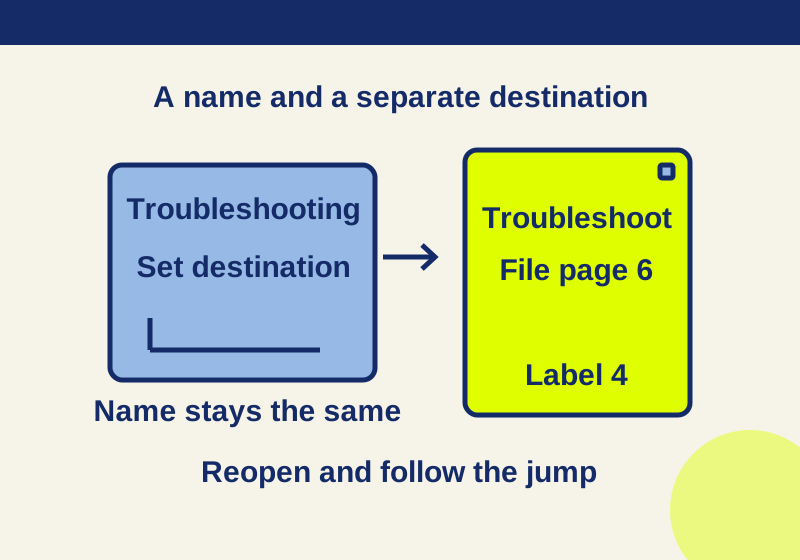
To fix a PDF bookmark in Acrobat, select it, open the intended page and view, then choose Options > Set Bookmark Destination. Use the downloadable wrong and corrected PDFs to see why renaming the entry leaves its destination unchanged.
TESTEDPDF workflows
How to reorder PDF pages without accidentally copying them
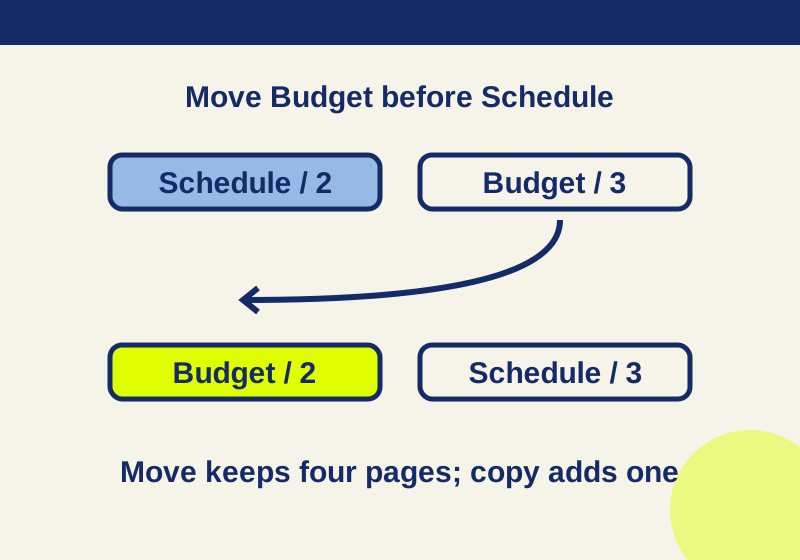
Use Organize pages to move a PDF page or Cut and Paste it. Reopen the saved copy and check both the order and page count; Copy and Paste leaves the original behind.