TESTED · PDF WORKFLOWS
How to add PDF bookmarks and fix ones that open the wrong page
Create a useful PDF bookmark tree, repair incorrect destinations, and understand page labels with two downloadable PDFs that demonstrate the same navigation mistake.
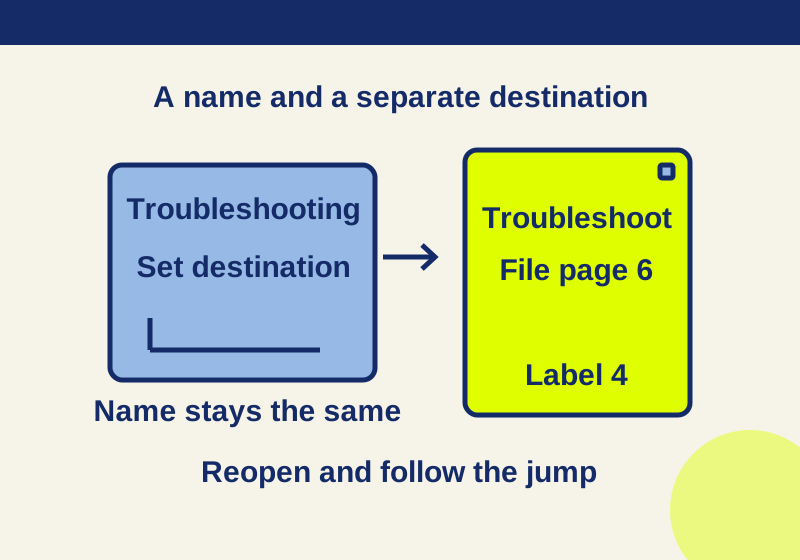
A PDF bookmark has a name and a destination. If “Troubleshooting” opens “Connect a device,” changing the name leaves the wrong jump in place. In Acrobat, select the existing bookmark, open its intended page and view, and choose Options > Set Bookmark Destination.
Two versions of an eight-page practice manual make that mistake easy to spot:
Both have the same pages, visible text, page labels, and six bookmark names. The first file sends “Troubleshooting” to the page headed “Connect a device.” The corrected file sends it to “Troubleshooting.” These are navigation examples with dummy instructions, so you can practice without editing your own document.
Try the wrong bookmark
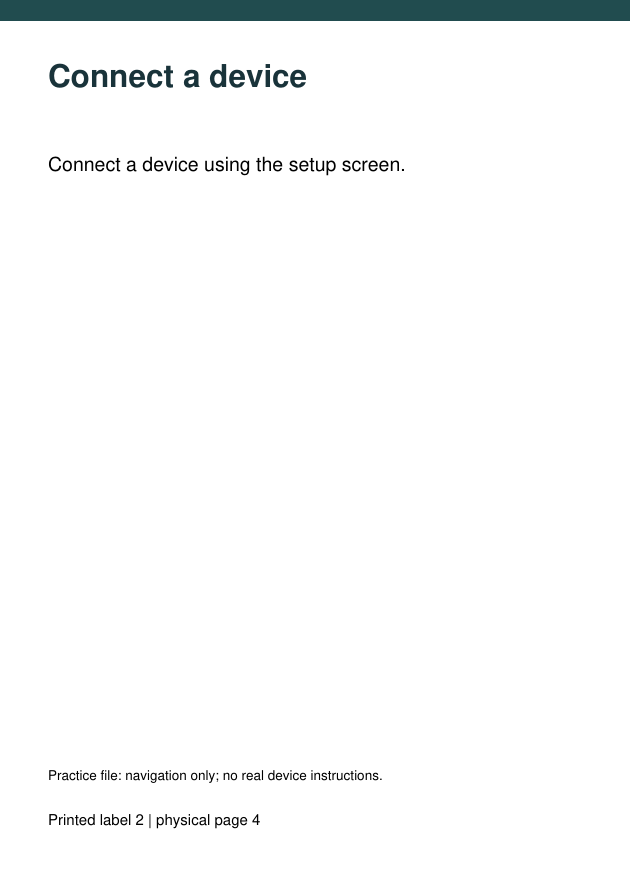
Open the first PDF in a reader that shows a bookmarks or outline panel. Select “Troubleshooting” in that panel and read the page heading. It says “Connect a device,” and the footer shows page label 2.
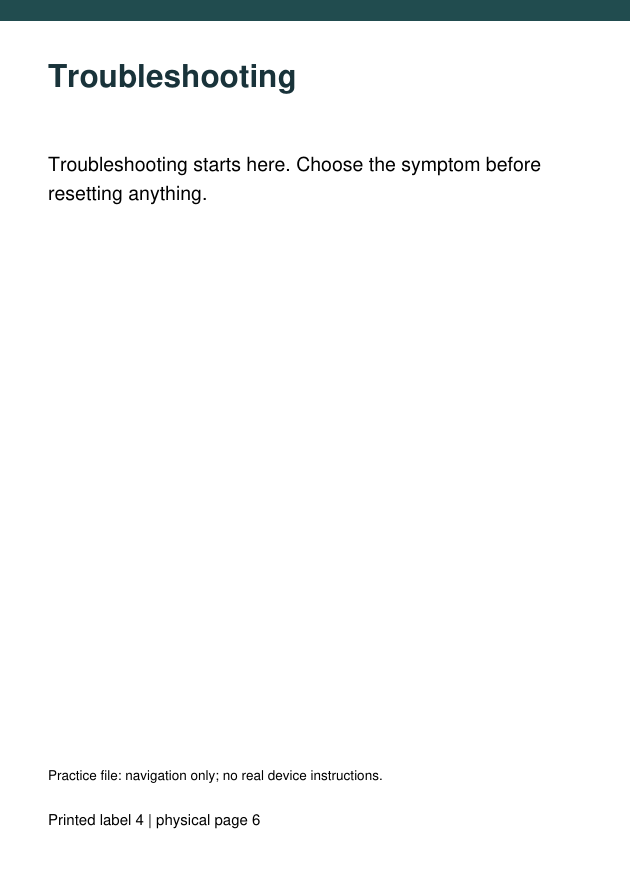
Open the corrected PDF and select the same entry. This time the page heading is “Troubleshooting,” with footer label 4. Compare the heading with the entry’s name each time; the words in the panel can look perfectly reasonable while the jump is wrong.
The wrong destination page and corrected destination page show the two landing pages. These images are rendered PDF pages, not Acrobat screenshots.
If a web viewer hides the outline, download the files and open them in a reader with a bookmark panel. The absence of that panel says nothing about the destinations stored inside this practice pair. You can also follow the plain-text tree below without relying on a particular viewer’s layout.
Why “page 4” can mean different things
The manual starts with two pages labeled i and ii. Its main text starts at label 1, on the third physical page. The two-page offset continues through the rest of the file:
| Destination | Physical position | Page label | Programming index |
|---|---|---|---|
| Wrong: Connect a device | 4th page | 2 | 3 |
| Correct: Troubleshooting | 6th page | 4 | 5 |
Physical position counts from the start of the file. The label is the document’s numbering for readers. The programming index starts at zero in the native PDF check used for this pair. It is included to explain technical inspection results; you do not need to enter that index into a PDF viewer.
In this file, “Troubleshooting, page 4” means the sixth physical page. Entering 4 into a control that counts physical pages would take you to “Connect a device.” A viewer may expose labels or physical positions differently, so the destination heading remains the useful check.
The downloadable page map CSV lists all eight headings alongside their labels, positions, and indexes. For your own document, a small map of the section openings is enough: cover pages and introductions are easy to forget when translating a contents page into navigation.
Build a tree that people can scan
The corrected PDF’s six entries are arranged like this:
- Getting started: page label 1, physical page 3
- Connect a device: page label 2, physical page 4
- Back up settings: page label 3, physical page 5
- Troubleshooting: page label 4, physical page 6
- Restore a backup: page label 5, physical page 7
- Appendix: shortcuts: page label 6, physical page 8
Download this bookmark tree as plain text.
The cover and contents pages are still in both files. They have no entries in this outline because its purpose is to help readers reach the instructions. A tree does not have to list every page to be complete for its purpose.
“Troubleshooting” opens a section introduction; its child “Restore a backup” opens a different page. Expand the parent and try both entries. This is a useful arrangement for a longer manual: readers can browse a section or jump directly to an operation they already know they need.
Use the words a reader recognizes from the page. “Back up settings” is easier to locate here than an entry called “Section 1.2” that forces the reader to remember the numbering. A second level suits this example’s few tasks. Add another level to a larger document only when it separates a meaningful group of entries; otherwise the reader has to open more branches just to reach a short section.
Create or repair entries in Acrobat
For a new entry, open the intended page and set its view. Open the Bookmarks panel, select a preceding entry if placement matters, and choose Options > New Bookmark. Selected page text can supply its initial name.
For an existing entry, select it, navigate to the intended page, adjust the view, and choose Options > Set Bookmark Destination. That command requires an existing selection. Rename changes the panel text.
Drag an entry beneath a parent to nest it without moving the page. Deleting a parent also deletes its subordinate bookmarks; document text remains. The PDF’s security settings must permit bookmark edits. These commands follow Adobe’s bookmark guide.
Check the destination, not just its name
In the wrong practice PDF, “Troubleshooting” is already spelled correctly. Renaming it to “Troubleshooting guide” would make the label longer while leaving the jump on the fourth physical page. The repaired copy keeps the original title and changes the target to the sixth page.
The corrected PDF was reopened and each of its six destinations was resolved to the matching page heading. All eight pages also had identical text, labels, and rendered pixels across the wrong and corrected files. The navigation repair therefore leaves the document pages unchanged.
For your own file, check where the heading appears after the jump as well as which page opens. If the chosen view starts below the section title, a reader may land halfway through the right section and still feel lost. Set a view that gives enough context to identify the section. The example’s destination images let you compare the headings before worrying about a particular editor’s zoom controls.
After saving, close the editor and reopen the saved PDF. Follow the repaired entry, then expand its parent and try the neighboring children. A successful parent jump does not verify a child’s separate destination. If you are sharing a manual, try the saved copy in the recipient’s reader when its outline controls or viewing scale affect how they use it.
The downloadable pair was created and its outline destinations checked with PyMuPDF; Acrobat instructions were checked against Adobe’s documentation. No Acrobat interface session was tested. The PyMuPDF document API explains the different page numbering used in the native inspection.
KEEP GOING
More to explore.
TESTEDPDF workflows
Add PDF page numbers without numbering the cover
Six physical pages can have a four-page body. Use the right range, starting number and total while leaving cover and contents unnumbered.
TESTEDEveryday tech
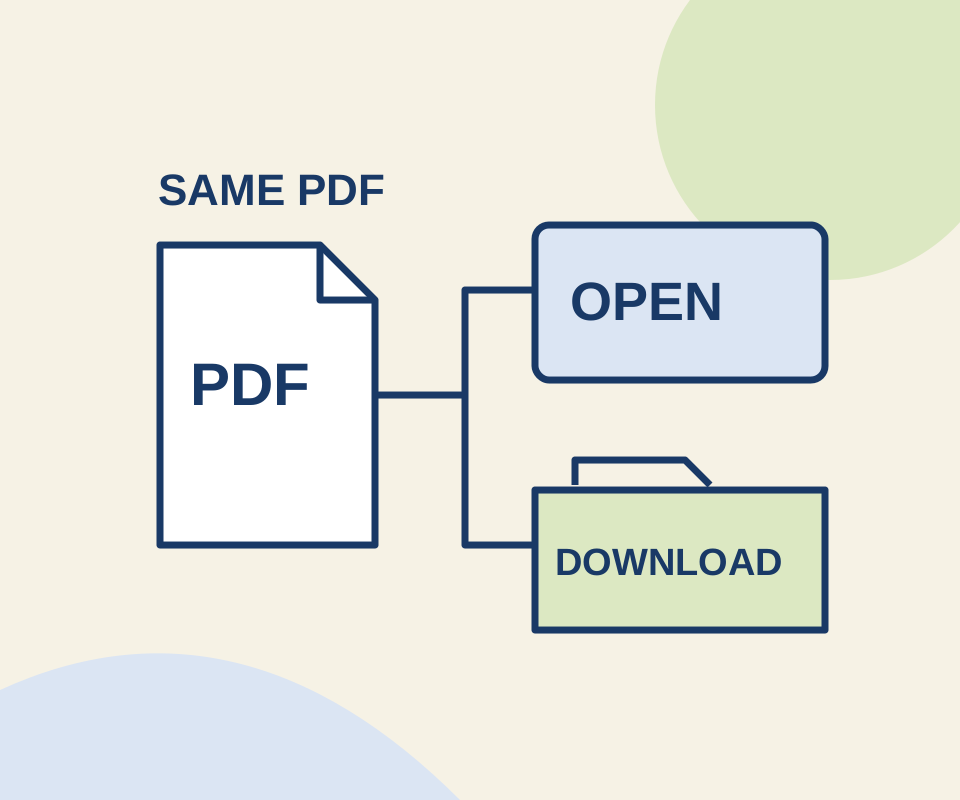
Chrome PDF open or download: fix the setting that changes the result
Two links use the same original PDF. A routing check shows why the Open setting does not make an explicit download link behave like an ordinary link.