TESTED · PDF WORKFLOWS
Extract one PDF page without choosing the wrong page number
Extract a single PDF page using its physical position, compare real downloads and practice with a booklet whose labels differ from page positions.
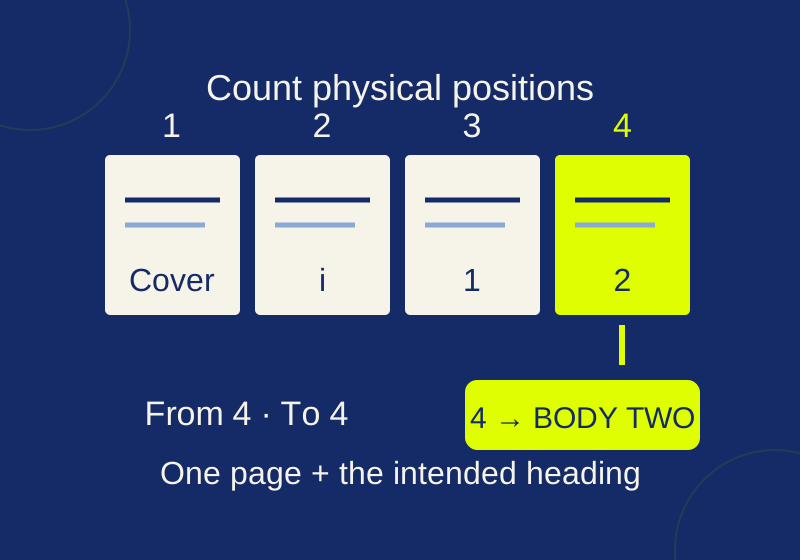
Find the page in the PDF’s thumbnails first. Count its physical position from the beginning of the file, and confirm it by its heading or other distinctive content. In iLovePDF’s Split PDF tool, choose Range and Custom, then enter that same position in From and To. Download the result and check two things before sending it: it contains exactly one page, and that page has the heading you intended.
The number printed on a page may not be the number the split tool needs. A cover, contents page, or other front matter can shift the physical position.
Find the physical page position
Three kinds of number can appear around the same PDF page:
- Physical position is where the page sits in the file, counting the first page as 1. This is the number to use for a range such as 4 to 4.
- Navigation label is what a PDF viewer may show for the page. It might say “Cover,” “i,” or “2.”
- Printed page number is text placed on the page itself. Some documents have no printed footer at all.
The six-page practice booklet makes the difference concrete. Its first page is a cover with the navigation label “Cover.” The second is contents, labeled “i.” The third is BODY ONE, labeled “1.” BODY TWO is the fourth physical page, although its navigation label is “2” and its body text identifies it as page 2. It has no printed footer.
To extract BODY TWO by a physical range, enter From 4, To 4. Entering 2 to 2 selects the contents page. You can compare the target with the image of the booklet’s fourth page.
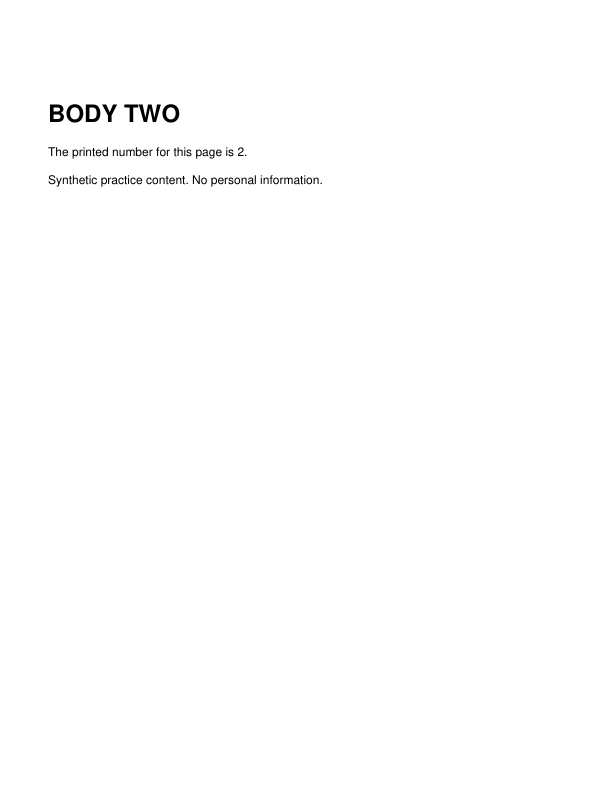
Open the booklet and count to BODY TWO from the first thumbnail. A locally extracted reference page contains BODY TWO; its navigation label starts at “1” in the new PDF, while the body still identifies the original page as 2. That reference was made locally, not by a new website run.
For another document, suppose two front pages precede a continuously numbered body. Body page 17 would be at physical position 19: the 17th body page plus two front pages. That is a hypothetical calculation, not a tested file. It works only if the two front pages are the entire offset and the body sequence is continuous. If numbering restarts by chapter or blank pages intervene, find the heading and count its physical position instead.
Enter a one-page range
The current Split PDF page shows Range, Custom, and From/To controls. Set both ends to the position you found. Range endpoints are inclusive: 4 to 4 specifies one position.
In the practice booklet, BODY TWO, BODY THREE, and BODY FOUR occupy physical positions 4 through 6. A range of 4 to 6 requests three pages because the count is 6 - 4 + 1. If you need only BODY TWO, use 4 to 4. This quick count catches a common entry error before you download or share the result.
The site also shows a Pages route with a “Pages to extract” field; its displayed example is 1,5-8, and a “Merge extracted” checkbox appears there. The website test used a custom range; the Pages route was not tried.
Decide whether uploading the document to a web service is appropriate for its contents. If you prefer to work on a PDF you control locally, the Python option below uses the practice booklet without a website upload.
Check the downloaded page
A successful download is not enough: open it, confirm that the viewer reports one page, and read the page’s heading. If the heading is wrong, return to the original PDF and recount from its first thumbnail. If the result has several pages, check both range endpoints; an inclusive range from 4 to 6 requests three pages.
The recorded iLovePDF custom-range test used a three-page PDF containing ALPHA, BETA, and GAMMA. A 2 to 2 range produced one page containing BETA. The input was 39,949 bytes and the output 38,119 bytes, a difference of 1,830 bytes. Size alone does not establish whether the correct page was extracted; page count and content do.
If you need to combine your extract with a second document, follow the merge PDF guide and check the page order.
Extract the practice page locally with Python
If you are comfortable installing Python, pypdf’s installation instructions specify Python 3.9 or later and pip install pypdf. Download cover-offset-booklet.pdf into an empty practice working folder, open a terminal there, and run python -m pip install pypdf. Save this script in the same folder and run it with Python:
from pypdf import PdfReader, PdfWriter

source = PdfReader("cover-offset-booklet.pdf")
position = 4

writer = PdfWriter()
writer.add_page(source.pages[position - 1])
writer.write("body-two.pdf")

result = PdfReader("body-two.pdf")
print(len(result.pages))
print(result.pages[0].extract_text())
position is the physical page number a person counts from 1. Python indexes source.pages from 0, so position - 1 selects the fourth page at index 3. add_page places that selected page in the writer, and write creates body-two.pdf. The final two lines check its page count and extracted text. pypdf documents page selection with PdfReader and PdfWriter. On the constructed practice booklet, this selection produced one page containing BODY TWO.
Source scope: The website’s custom 2-to-2 download was checked on September 29. The booklet extraction and the listed PDF artifacts were checked locally on October 7. There was no new cloud upload or trial of forensic content removal.
KEEP GOING
More to explore.
SOURCE-CHECKEDEveryday tech
Scan a multipage PDF in iPhone Notes without losing a page or cutting off a corner
Keep several paper pages in one scan and inspect the corners before treating the PDF as finished.
TESTEDPDF workflows
Add PDF page numbers without numbering the cover
Six physical pages can have a four-page body. Use the right range, starting number and total while leaving cover and contents unnumbered.