SOURCE-CHECKED · EVERYDAY TECH
Scan a multipage PDF in iPhone Notes without losing a page or cutting off a corner
Use iPhone Notes Scan Documents for a multipage PDF, distinguish it from Scan Text, and check page order and crop with two printable practice sheets.
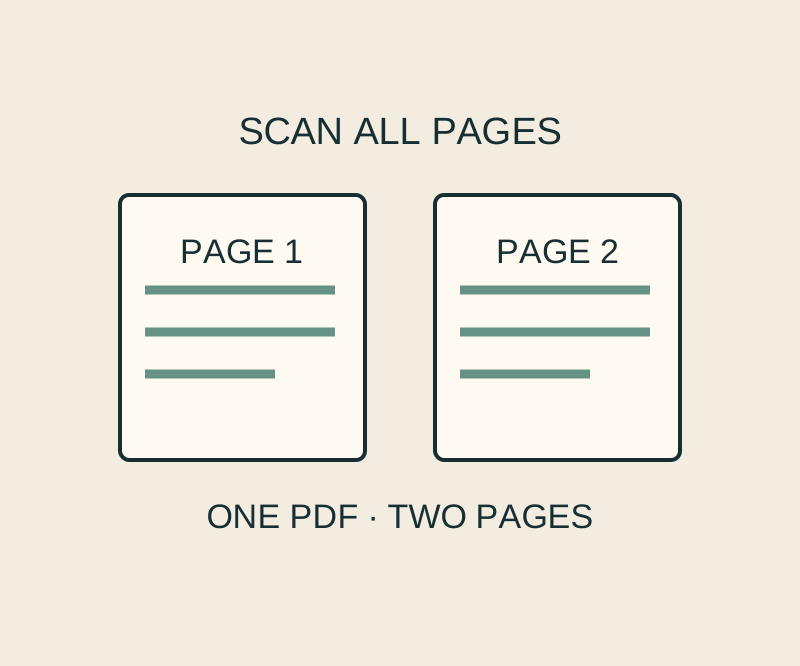
In Notes, scan each sheet before tapping Done. Check the page edges as you go: a scan can show the center of a document while leaving you unable to read a line near the bottom.
Scan both pages
- Open a note or create one, then tap Attachment > Scan Documents. Notes can detect and capture a page automatically. For manual capture, use the shutter button or a volume button. Apple’s Notes instructions
- Check the first capture before moving on. If a corner is misplaced, drag it to fit the page and tap Keep Scan. You can also tap a captured page’s thumbnail and use Adjust to correct an automatic crop. If the capture needs replacing, use Retake. Apple’s iPhone guide
- Capture the next sheet in the same scanning session. Tap Done only after you have added every page. Scan Documents saves the result as a PDF in the note. Apple’s Notes instructions · Apple’s iPhone guide
Choose Scan Documents for this task. The separate Scan Text command inserts selected recognized text into a note; it is not the command Apple describes for saving a scanned PDF. Apple’s iPhone guide
Open the PDF attachment, not just the note
In the note, open the PDF attachment’s Menu and choose Quick Look for a full-screen view. In Medium or Large preview, show thumbnails and swipe right to inspect more pages. A scanned page’s thumbnail menu also offers Crop Page and rotation. Use those page controls when a completed scan needs correction. The PDF attachment’s Menu has its own share action; select the attachment when you want to send the scan. Apple’s PDF-in-Notes guide documents these controls.
Rehearse once with two paper pages
The printable practice sheets give you specific details to check after a scan. They are fictional documents marked PAGE 1 OF 2 and PAGE 2 OF 2, both with the reference SCAN-15. Page 1 includes a return date of 18 October 2026. Page 2 includes Cedar notebook and the code 7B-04.
Each sheet also has TL, TR, BL, and BR corner labels and a paragraph near the bottom. After scanning, compare the saved PDF with the printed sheets. Check that it has two pages in order, that both carry the same reference, and that the corner labels and bottom text remain readable. The page 2 code is a useful final crop check because it sits in material you need to retain, not merely in the clean-looking center.
If you want to choose a save location instead of placing the PDF in a note, Apple also documents scanning in Files: tap More > Scan Documents, add the pages, tap Done, choose a location, and tap Save. Apple’s scanning instructions
Source note: The controls above come from Apple’s documentation. The practice sheets are sample inputs; no iPhone scan or resulting PDF was tested for this article.
KEEP GOING
More to explore.
SOURCE-CHECKEDPDF workflows
Scan paper into one PDF: keep small print and page order
In Acrobat, choose Create > Scanner > Create New PDF, scan all intended faces, and reopen the saved file to inspect order and fine print.
TESTEDImage workflows
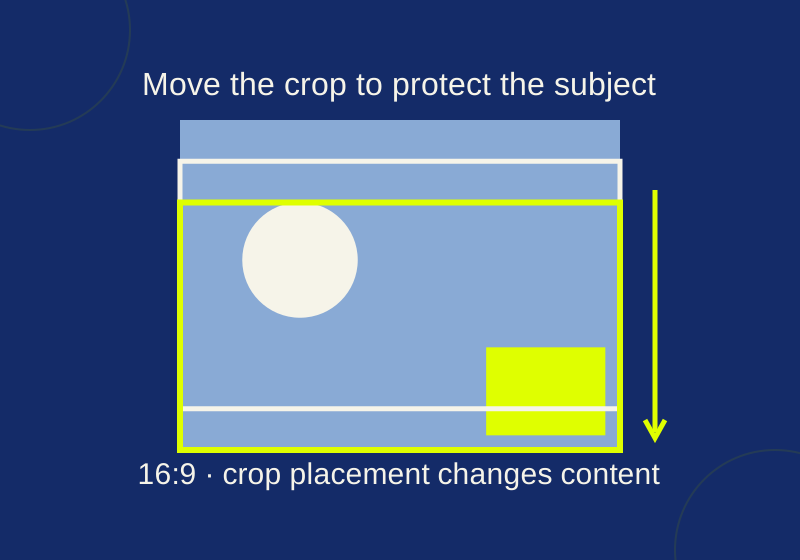
Crop a photo to 16:9 in Windows without cutting off the subject
Two 1200-by-675 crops have the same ratio but keep different content. Position the frame before you resize.