SOURCE-CHECKED · PDF WORKFLOWS
Scan paper into one PDF: keep small print and page order
Scan a readable PDF with Acrobat and check page order, tiny numbers, and pale notes using original printable targets and image comparisons.
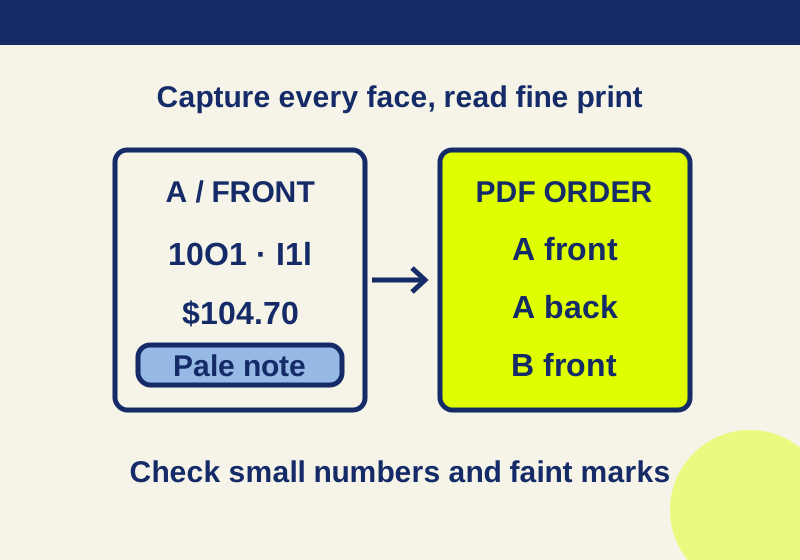
In Adobe Acrobat, start with Create > Scanner, choose your connected scanner, and set the output to Create New PDF. Choose a quality setting that suits the smallest print and faintest marks on the pages, then scan. Continue with Scan More Pages or Scan Reverse Sides as needed. Finish with Scan Is Complete and OK, then reopen the saved PDF to check it.
Before scanning a statement, receipt packet, or signed form, try the same process with this three-page printable target. It gives you known small text, a colored note, and page labels to find in your scanner’s output. The comparison PDFs below show different image treatments of that target. They are synthetic examples, not captures from a physical scanner.
Print the target at actual size
Print the target using Actual Size. Its three US Letter pages represent three faces: SHEET A / FRONT, SHEET A / BACK, and SHEET B / FRONT. For a manual duplex trial, put the first two pages on opposite sides of one sheet and print the third on a separate sheet. You can also print three separate sheets to practice checking PDF page order.
Look at the printed 6-point row before scanning. If your printer has already made it illegible, a higher scan setting cannot restore the missing detail. Keep the numbered labels at the bottom visible so you can check whether the scan captured the full page.
The target repeats an invoice ID, 10O1, and a code, I1l, at 12, 10, 8, and 6 points. These strings help you check similar-looking characters at different sizes. It also has a $104.70 total and a pale blue instruction note. You can practice without using personal papers.
Check every face and its position
If your device supports scanning both sides, select Both Sides in Acrobat. Otherwise use Front Sides and capture the reverse side according to your device’s instructions. Follow the device manual for paper orientation: scanners differ in whether paper should face up or down. These steps follow Adobe’s scan-to-PDF instructions.
For this target, the finished PDF should have three pages in this order:
- SHEET A / FRONT
- SHEET A / BACK
- SHEET B / FRONT
Check the page thumbnails, then open each page and read its bottom label. Capturing only the two front faces leaves out page 2. A three-page count does not prove the faces are in order or that their bottom edges were captured. If a label is cut off, check the whole page and capture that face again.
Choose quality by the hardest page
Acrobat’s scanned PDF settings include color mode, resolution, and paper size. Adobe recommends 300 dpi for grayscale or color and 600 dpi for black and white when using adaptive compression. Use that guidance, then inspect your saved result. The scanner’s dpi setting describes capture resolution; a PDF viewer’s 100% zoom describes display size.
The practice kit includes a 300 ppi color image PDF and a 150 ppi color image PDF. Each has the same three pages. The 300 ppi pages contain 2550 x 3300 pixels each; the downsampled 150 ppi pages contain 1275 x 1650. Doubling each dimension gives the larger sample four times as many pixels. That does not establish that every character will be readable, that OCR will improve, or that its PDF will be four times as large.
Open both files side by side at the same displayed page size, then enlarge the small invoice row in each. Compare O with 0, and I, 1, and lowercase l. Check the decimal point in $104.70 and the fine horizontal lines. This image shows the same physical region enlarged from each sample.
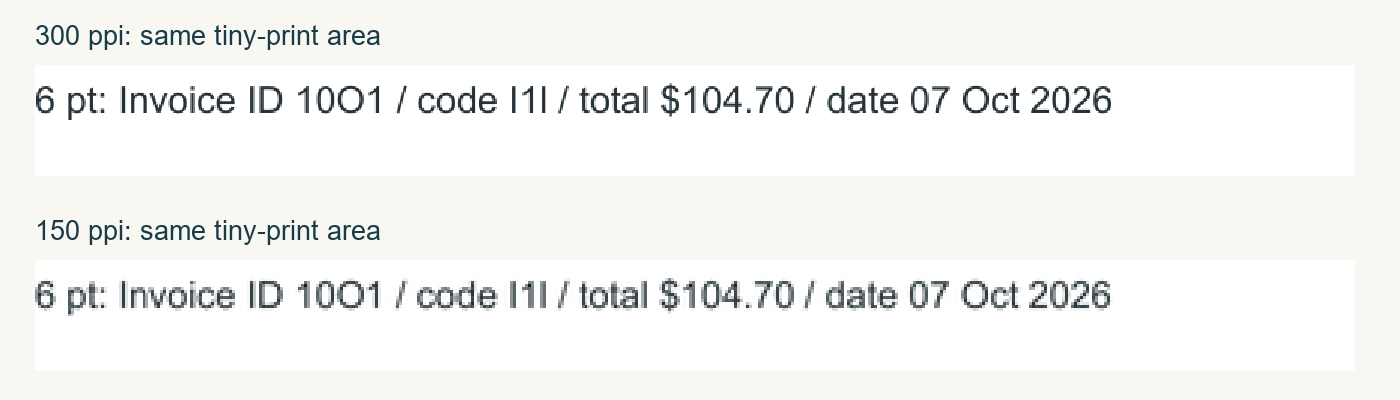
A 150 ppi image may serve larger print in a particular document. For your batch, test a page with the smallest numbers and a bottom label before capturing everything. If an edge is missing or the capture is blurred, compare the PDF with the paper and capture the page again. More pixels cannot recover detail that was already absent from the capture.
Keep notes that depend on color
In the threshold comparison PDF, the pale blue note disappears while the dark title and text remain. The file applies a fixed threshold to the example image. It does not represent a tested scanner’s black-and-white preset.
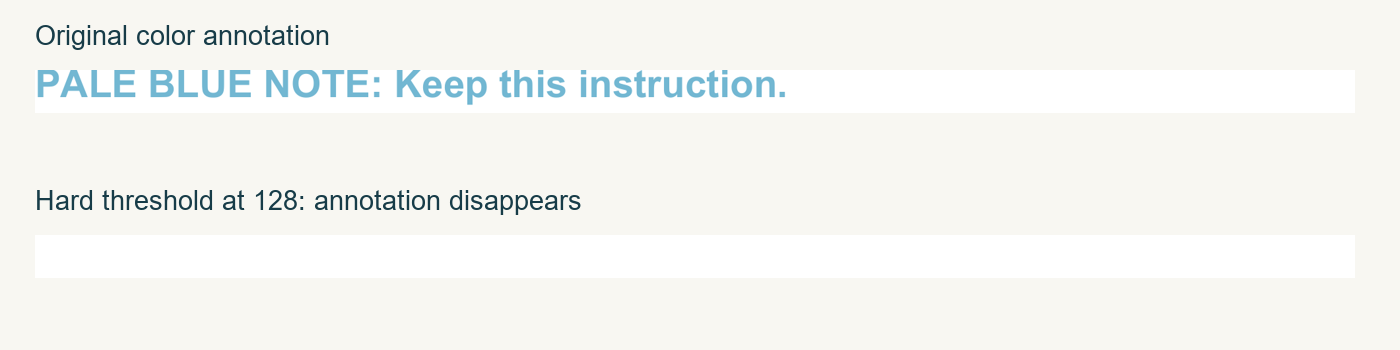
If color identifies instructions, signatures, highlights, or categories on your papers, scan a test page in color and inspect those marks in the saved PDF. Grayscale removes the color distinction even when a mark remains visible by its lightness. Inspect faint pencil or pale notes before relying on a black-and-white mode. Background removal and compression can also change the page image; compare their effect in your actual output.
Add OCR if you need searchable text
A readable PDF can contain only page images. All three supplied raster PDFs are image-only and have no searchable text. Printing a selectable original and capturing it as an image does not make the captured words selectable again.
If you need search and text selection, run OCR through your scanner workflow or Acrobat and choose the correct language setting. Search for the known invoice ID 10O1, select the resulting text, and compare the selected $104.70 total with the visible page. A successful search does not prove every recognized character is correct. The page image and the searchable text can differ.
Reopen the PDF before using it
Save the scan as one PDF and reopen that saved file. For the practice target, confirm three pages, the face order, all bottom labels, the small numbers, and the pale blue note. Check search and selection if you ran OCR. Keep the initial scan until you have checked any working copy, particularly before further compression.
To add pages to an existing PDF, Acrobat offers Append to File. Save Multiple Files splits output instead of keeping this job together. Confirm the first saved PDF opens correctly before appending pages, and check the combined file afterward.
Sources and scope: Adobe’s scanning instructions and scanned PDF settings were checked October 7, 2026. The original practice files were created and inspected that day using ReportLab, Pillow, and Poppler. They are synthetic comparisons, not hardware captures. No scanner, feeder, Acrobat interface, or OCR engine was tested.
KEEP GOING
More to explore.
SOURCE-CHECKEDEveryday tech
Scan a multipage PDF in iPhone Notes without losing a page or cutting off a corner
Keep several paper pages in one scan and inspect the corners before treating the PDF as finished.
SOURCE-CHECKEDPDF workflows
Insert a blank page into a PDF: get the position and print order right
Insert one blank after the preceding page or before the following page. A five-page PDF becomes six pages, and every later page changes physical position.