SOURCE-CHECKED · PDF WORKFLOWS
Insert a blank page into a PDF: get the position and print order right
Add a PDF separator in Acrobat, see exactly how page numbers shift, and compare downloadable five-, six-, and seven-page examples before printing.
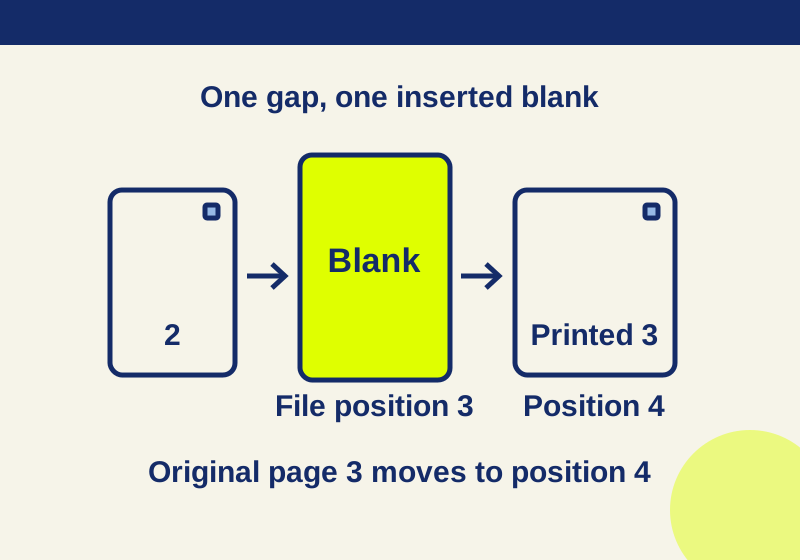
To place a separator between pages 2 and 3, insert one blank page after the original page 2. Choosing before page 3 is another way to identify that same gap in the original file. Choose one location. In a five-page PDF, the result has six physical pages: 1, 2, blank, 3, 4, 5.
The original page with a “page 3” footer moves to the fourth position in the PDF. Its printed footer still says “page 3.” That difference affects which thumbnail you select and, when you print both sides, which side of a sheet receives the next section.
Insert the page in Acrobat
According to Adobe’s blank-page instructions:
- Open the PDF and choose All tools > Organize pages.
- Choose Insert > Blank page.
- In the Insert Pages dialog, select a position before or after the first page, last page, or a specific page.
- Select OK.
Adobe also describes a thumbnail method: right-click a page thumbnail and choose Insert Pages > Blank Page. For the example here, the desired location is after the original page 2. Save a separate result using your normal save control, then reopen it to check the order.
See exactly which pages move
Download the five-page original, the six-page copy with one blank after page 2, or the seven-page copy with two blanks after page 2. These are original practice files you can use without uploading your own document.
All five content pages are US Letter size. They have headings Brief, Scope, Working notes, Review, and Appendix, and printed footers numbered 1 through 5. The inserted pages are the same size and have no printed numbers.
| Physical PDF position | Original | One blank after page 2 | Two blanks after page 2 |
|---|---|---|---|
| 1 | Printed 1 | Printed 1 | Printed 1 |
| 2 | Printed 2 | Printed 2 | Printed 2 |
| 3 | Printed 3 | Blank | Blank |
| 4 | Printed 4 | Printed 3 | Blank |
| 5 | Printed 5 | Printed 4 | Printed 3 |
| 6 | Absent | Printed 5 | Printed 4 |
| 7 | Absent | Absent | Printed 5 |
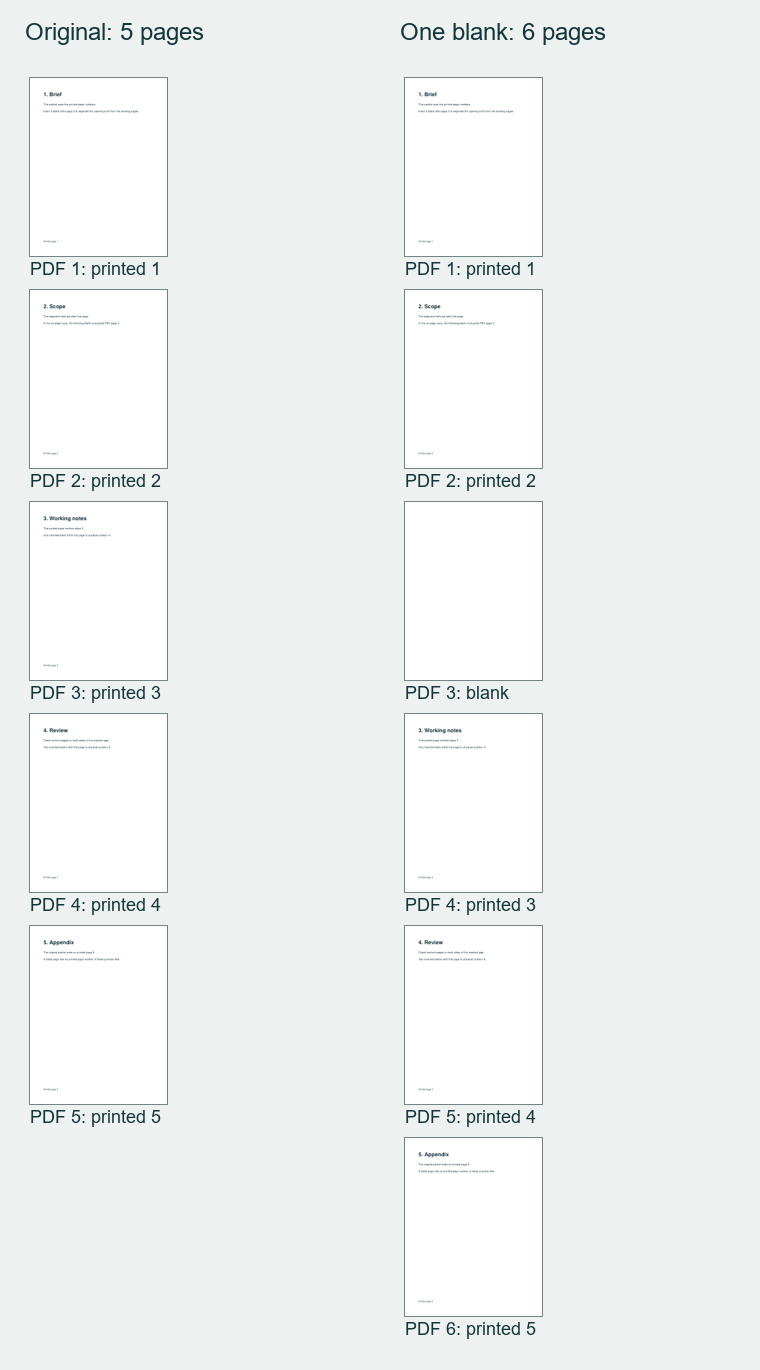
In the one-blank file, original pages 1 and 2 stay in place. Original pages 3, 4, and 5 move to physical positions 4, 5, and 6. Their printed footer numbers stay unchanged. The Working notes page even contains a sentence describing its move to physical position 4, so you can check its content as well as its footer.
Inserting one blank immediately before a page at original physical position n moves that page to n + 1. The document has one more page. A blank before the first page shifts every original page; a blank after the last shifts none. Those endpoint cases follow from the order calculation. The downloads demonstrate insertion after page 2.
For a file with front matter numbered differently from its main text, locate the content beside the intended gap. A printed footer, a viewer’s page label, and a page’s physical position can be different. The practice files use simple physical ordering; they do not demonstrate a custom page-label scheme.
Check the neighboring content before accepting the result
A five-page original becomes six pages whether the blank is placed after page 2 or after page 3. The count alone cannot confirm the location. For the intended separator, open the three consecutive pages that should read printed page 2, blank, printed page 3.
In our separate wrong-position comparison, placing the blank after original page 3 also produced six pages. The sequence was 1, 2, 3, blank, 4, 5. Working notes came before the gap, which failed the requested placement even though the total was correct.
If your result has seven pages, check whether you inserted twice. Applying “after page 2” and then “before original page 3” adds two blanks to the same gap when the references still identify those original content pages. Those choices are alternatives for a single blank. The supplied two-blank copy shows the seven-page result, with blanks at physical positions 3 and 4.
Reopening the six-page copy changes the context of a later instruction. Physical position 3 is now the existing blank. Original printed page 3 is at position 4. Inspect the current thumbnails before another insertion; a number remembered from the original file may now identify different content.
The blank pages in these samples have no text, images, annotations, or content streams. Each rendered entirely white when checked. All five original pages retained their extracted text in both the one-blank and two-blank copies. You can open the downloads beside each other to inspect the content yourself.
Update any page range you planned to use
Suppose you want only Working notes through Appendix from the practice packet. In the original, that is physical positions 3 through 5. After one blank is inserted, the same content occupies positions 4 through 6.
Taking physical positions 3 through 5 from the six-page version includes the blank, Working notes, and Review. It leaves out Appendix. This is an easy error to miss when the visible footer still matches the old page number.
Confirm the first and last content pages in the selected range before sharing or printing it. If your viewer accepts custom labels instead of physical positions, inspect its selection preview; the arithmetic above describes positions in the file, not the behavior of every page-number input field.
Decide whether you need a blank side or a whole blank sheet
For ordinary sequential two-sided printing that starts PDF page 1 on the front of the first sheet, odd physical positions are fronts and even positions are backs. Positions 1 and 2 form the first sheet; positions 3 and 4 form the second.
Original printed page 3 begins at physical position 3, a front. One blank after page 2 moves it to position 4, a back. The blank occupies the front of that sheet and Working notes occupies its reverse. Every later original page also changes front/back parity.
Two blanks after page 2 move printed page 3 to position 5, a front again. In that sequence, blank positions 3 and 4 occupy both sides of one blank sheet. This explains why adding a separator sheet can require two PDF pages when adding one empty side requires only one.
The choice depends on the original position of your next section. A chapter starting at physical position 4 would move to position 5 if you inserted one blank immediately before it. Under the same printing assumptions, that moves the chapter from a back to a front. This second chapter example is page-order arithmetic, not an additional downloaded specimen.
Booklet layout, multiple pages per sheet, an excluded cover, odd-page-only selection, or skipping blank pages changes the assumptions. Run a small print check with the settings you will actually use before producing the full packet. A blank inserted into the PDF remains a page when someone opens the file; a blank added only during printing may exist solely in the paper output.
Adobe’s insertion controls were checked against its official instructions on October 7, 2026. The practice PDFs were created and inspected independently with PDF libraries. The Acrobat interface and physical printing were not tested.
KEEP GOING
More to explore.
SOURCE-CHECKEDPDF workflows
Scan paper into one PDF: keep small print and page order
In Acrobat, choose Create > Scanner > Create New PDF, scan all intended faces, and reopen the saved file to inspect order and fine print.
TESTEDPDF workflows
How to reorder PDF pages without accidentally copying them
Use Organize pages to move a PDF page or Cut and Paste it. Reopen the saved copy and check both the order and page count; Copy and Paste leaves the original behind.