TESTED · BUSINESS DOCUMENTS
Remove tracked changes and comments from Word before sharing
Practice with real before and after Word files, resolve the right edits, delete comments, and inspect a saved client copy without relying on No Markup.
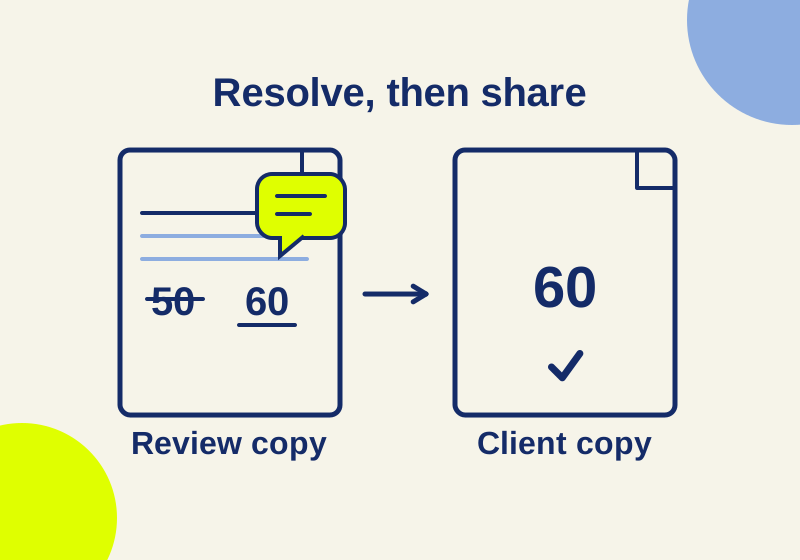
Before sending a Word document, decide which edits belong in its final text, delete the review comments, and check the file you saved. No Markup can make a document look finished while tracked changes remain. Turning off Track Changes also leaves earlier revisions unresolved.
Work on a separate copy, such as client-final.docx, and keep the reviewed original as internal-review.docx. The internal copy preserves the discussion and proposed edits; the client copy is where you resolve what the recipient should receive.
Practice with a fee that changes from 50 to 60
The before document contains a synthetic quote. Its original fee of 50 dollars has a pending replacement with 60, and a comment asks for confirmation.
The replacement consists of two tracked revisions: a deletion of 50 and an insertion of 60. Those are two parts of one proposed change to the sentence. The file’s final-text view already says 60 while both revisions and the comment remain.
First establish which fee was authorized. If 60 is correct, accept the deletion of 50 and insertion of 60. If the proposal is wrong, reject those revisions to retain 50. Deleting the comment removes the question, without deciding which price belongs in the quote.
The after document contains the accepted 60-dollar outcome. It has no tracked revisions or comments. The rejected 50-dollar outcome is an exercise you can perform on another copy; no third native practice file is supplied.
Compare appearance with stored review data
Open a copy of the before file. In Review, switch to All Markup to examine the pending replacement and comment, then try No Markup and return to All Markup. The difference illustrates why the view setting cannot settle a review decision. These are reader practice steps; the original file check used Word automation rather than clicking this interface.
The two supplied files had these results when reopened through native Word:
| Saved file | Final-text reading | Tracked revisions | Comments |
|---|---|---|---|
| Before | Fee is 60 dollars | 2 | 1 |
| After | Fee is 60 dollars | 0 | 0 |
Both files can therefore yield the same final-text sentence while storing different review data. The before DOCX package also still contains the deleted 50; the after package does not retain that tracked deletion. Making the page look like the after file is insufficient to produce its resolved state.
The sample separates two checks you need in a real handoff. The wording must say the correct price, and the saved copy must contain the review data you intend to disclose. A markup-free document with the wrong price fails the first check.
Resolve each tracked change
In the client copy, open Review and display the pending markup. Microsoft’s tracked-changes instructions explain that No Markup temporarily hides changes and that accepting or rejecting removes the pending revisions.
Use Next and Previous to move between edits. Read the surrounding sentence before choosing Accept or Reject. Microsoft’s training page describes Accept as making a change permanent and Reject as discarding it. For the fee replacement, consider the deletion and insertion together so the result expresses the authorized amount.
A revised date, corrected name and changed contract term can require different decisions. If your view offers reviewer filters, include all reviewers when checking for remaining edits. A filter can leave part of the review work outside the current display. Use Accept All Changes or Reject All Changes only when that decision applies to every remaining proposal.
For the practice accepted outcome, resolve the replacement so the sentence reads 60 dollars. In your own document, read the resulting text after each decision where the edit changes a figure or obligation. Resolving the mark does not establish that the new wording is correct.
Delete comments after answering their questions
Accepting the fee replacement does not delete its comment. Verify the answer you need for the quote, then delete the comment from the client copy. For modern comments, Microsoft’s training page gives More thread actions (…) > Delete comment as a documented route.
Review each remaining thread for an unresolved instruction before deleting it. If a colleague asked to insert the approved payment date, confirm that the date reached the document’s ordinary text. The client should not have to reconstruct an agreed term from an internal comment that you are about to remove.
Inspect the copy without stripping its letterhead
In Windows desktop Word, the documented route is File > Info > Check for Issues > Inspect Document. Select the relevant categories, inspect, read the findings, remove only the material you intend to remove, and inspect again. Microsoft recommends using a copy because some removals cannot be undone.
The Inspector’s categories include comments and revisions, document properties, headers and footers, watermarks, hidden text, custom XML and invisible content. A client letterhead or approved watermark may be wanted content. Review a finding before applying Remove All to its category.
Microsoft identifies detection limits: white text on a white background and objects covered by other objects may escape those checks. Read the document for confidential ordinary sentences and outdated figures as well. Review-markup cleanup will not rewrite a sentence that is already part of the accepted text.
Reopen the exact file you will send
Save, close and reopen the intended client file with All Markup. Confirm the final wording and check for remaining comments or revisions there. Use the actual saved filename and folder or attachment you plan to share, rather than an older master still open in another window.
For the sample, the target is the 60-dollar sentence with zero revisions and zero comments. Those results were checked through Word automation, DOCX package contents and native reopening. They apply to these two supplied files. The comments interface and Document Inspector procedure were documented from Microsoft and were not exercised in that trial.
KEEP GOING
More to explore.
SOURCE-CHECKEDBusiness documents
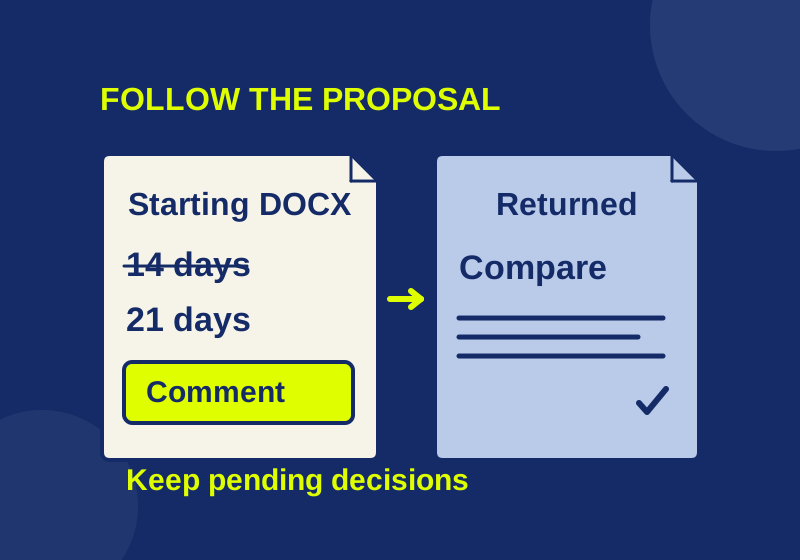
Check a Google Docs export in Word before sending it for review
Find missing review material with Word controls and a read-only DOCX inventory before reconciling returned edits.
SOURCE-CHECKEDBusiness documents
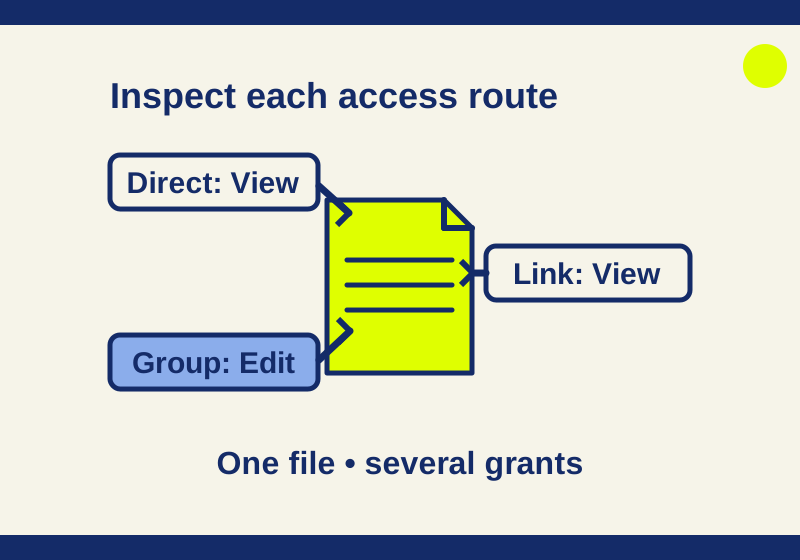
See who can access a OneDrive or SharePoint file
Find the permission route behind unexpected access, including a View link that coexists with Edit rights.