SOURCE-CHECKED · BUSINESS DOCUMENTS
Check a Google Docs export in Word before sending it for review
Inspect tracked suggestions and comments in a Google Docs Word export, try two diagnostic DOCX files, and compare a returned review with its starting copy.
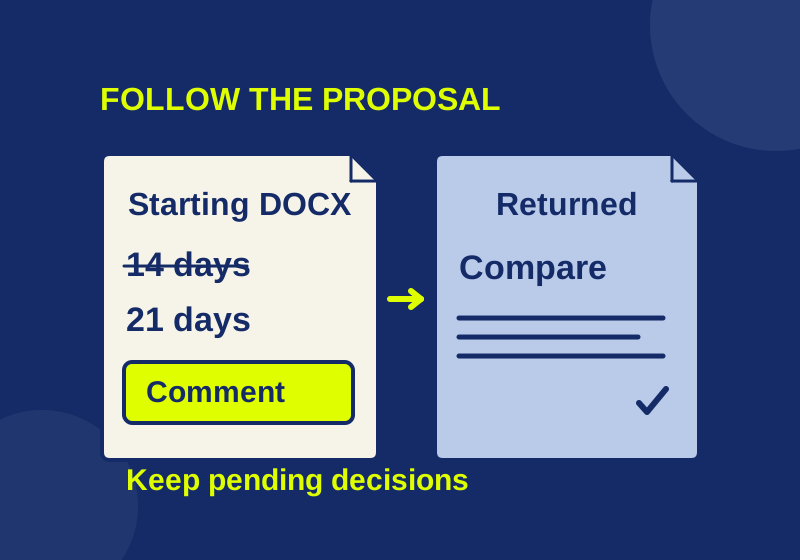
Open the downloaded .docx in Word before sending it for review. Show the tracked changes, find one suggestion and its comment, and check their wording against the Google document. Keep an untouched copy of the download so you can compare it with the file the reviewer returns.
Google documents the conversion between suggestions and Microsoft Office tracked changes. Comments and page layout still need inspection in your particular file. A proposed delivery date that arrives as ordinary text is a different review problem from a table that wraps onto another page.
Pick one change to follow through the export
Choose a short passage with an unresolved suggestion before downloading. Record the current wording, the proposed replacement, and the text of a nearby comment. You should be able to identify the passage without relying on its color.
The practice files below use a sentence that changes delivery from 14 days to 21 days. A useful comparison records both numbers and the pending decision. Writing down only “21 days” loses the information you need to tell whether a reviewer received a proposal or an approved date.
In Google Docs, choose File > Download and select Microsoft Word. Set the resulting file aside as the starting copy. Google’s file instructions also describe Make a copy and its comment-and-suggestion options. Those options apply to creating a Google Docs copy; they do not establish what your Word download contains.
Give the file you will edit a different name. You can inspect the starting copy without making decisions in it, then use the working copy for review. This preserves the exact version that arrived from Google if a later edit becomes difficult to reconcile.
Show pending edits in Word
Open the Word file and use Review > All Markup to inspect the proposed wording. If “21 days” appears alone, check the display setting before deciding that the original date disappeared. No Markup changes the view of revisions. Accepting or rejecting them changes the review state. Microsoft explains these controls in its Track Changes training.
Read the entire sentence and locate the comment at the expected passage. A comment can remain present while its anchor no longer makes sense after a large edit. Compare what the reviewer is being asked to decide with the Google source, including any surrounding text that explains the proposal.
For a table, read across each row and check the association between values and headings. Pay particular attention to a final column that contains the proposed wording or an approval decision. These are checks to perform in your own copy, not defects observed in a conversion for this article.
Keep unresolved changes available for the reviewer. If the owner already approved a change, compare the resulting sentence with the approved wording. You should expect a settled sentence in that case, rather than a pending suggestion.
When an expected change is missing
Start with the source document. Confirm that you selected the correct file and that the suggestion still exists there. Then make a fresh Word download and inspect it with All Markup before anyone edits it.
That sequence separates two questions: whether the material was present when exported, and whether Word is showing it. If you have both the original download and a returned copy, inspect each. A change missing only from the returned copy needs a different investigation from one missing from the untouched export.
Ask the reviewer what they accepted or rejected if their returned wording differs from the recorded proposal. Do not infer a converter fault from a clean-looking document. The source could have contained a settled suggestion, the wrong version could have been downloaded, or a reviewer could have made a decision afterward. The file alone may not tell you which event occurred.
Inspect the DOCX contents without changing them
For a structural check, download the read-only Python inspection script. It reads the XML inside a conventional, unencrypted DOCX package and prints a JSON inventory. It does not upload, extract, or edit the document.
With Python 3 available, place the script beside copies of the documents you want to examine. For the practice files, run:
python inspect-review.py review-with-changes.docx settled-copy.docxFor your own export, replace those filenames with the downloaded copy and the returned copy. Filenames containing spaces need quotes. Running the command prints the results; it does not create a report file or accept revisions.
The inventory includes insertions, deletions, moves, certain formatting and table changes, comments, comment references, and tables. It scans the Word XML parts, including parts outside the main document, and flags modern comment extension parts separately. The script refuses a package with more than 16 MiB in one XML part or 64 MiB of XML in total. An encrypted Office file or an unsupported package needs inspection in an application that can open it.
Try the two practice files
The review copy with changes proposes replacing 14 days with 21 days and includes a comment asking the recipient to confirm the revised delivery date. The settled control copy contains the 21-day sentence without pending review elements. Both have a small, two-row, three-column table.
The actual XML inventory was:
| File | Insertions | Deletions | Comments / references |
|---|---|---|---|
| Review copy | 1 | 1 | 1 / 1 |
| Settled control | 0 | 0 | 0 / 0 |
The control file was constructed separately. It was not produced by accepting the first file’s changes in Word. Neither file is a Google Docs export.
A replacement can contain a deletion of the old text and an insertion of the proposed text. In this example, the single delivery-date proposal occupies two revision elements. The script counts XML elements, so its numbers need not match the number of changes grouped in Word’s interface. Microsoft’s Open XML reference describes the w:ins element used for a tracked insertion.
Use the counts to locate a discrepancy, then read the document. Zero comment references does not prove that every original Google comment exported correctly. Zero insertion and deletion counts does not prove that a reviewer made the right decision. The tool also does not assess page layout or reconstruct the full meaning of modern comment threads.
Compare the file the reviewer returns
Keep the returned Word document beside the untouched download. Read the delivery sentence, the associated comment, and other material changes against the version sent. Record which proposal remains open and which wording the reviewer approved or replaced.
If collaborators continued editing Google Docs during the Word review, the live Google document may have newer changes that the reviewer never received. Compare those edits separately before applying the returned Word content. Replacing the whole live document with a returned attachment can discard work made after the export.
Once review decisions are complete, removing Word review markup is a separate task. During an active review, the pending proposal and its explanation should remain available to the person making the decision.
Source and practice scope: Google and Microsoft guidance was checked October 7, 2026. The practice results come from local ZIP/XML readback of synthetic DOCX files. Google conversion, Word page rendering, and a returned-review exchange were not tested.
KEEP GOING
More to explore.
TESTEDBusiness documents
Remove tracked changes and comments from Word before sharing
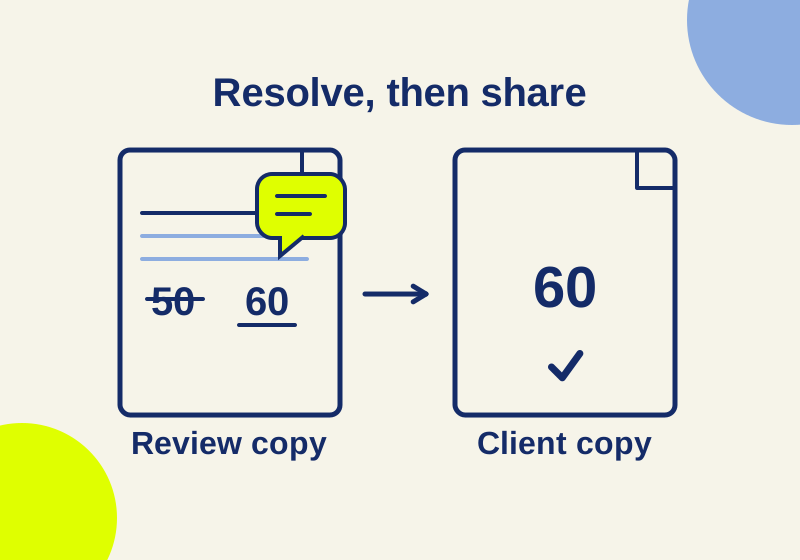
A Word document can look clean and still contain old edits. Use the fee-change sample to resolve the content before sharing.
SOURCE-CHECKEDBusiness documents
Asana CSV subtasks: fix duplicate parent names before import
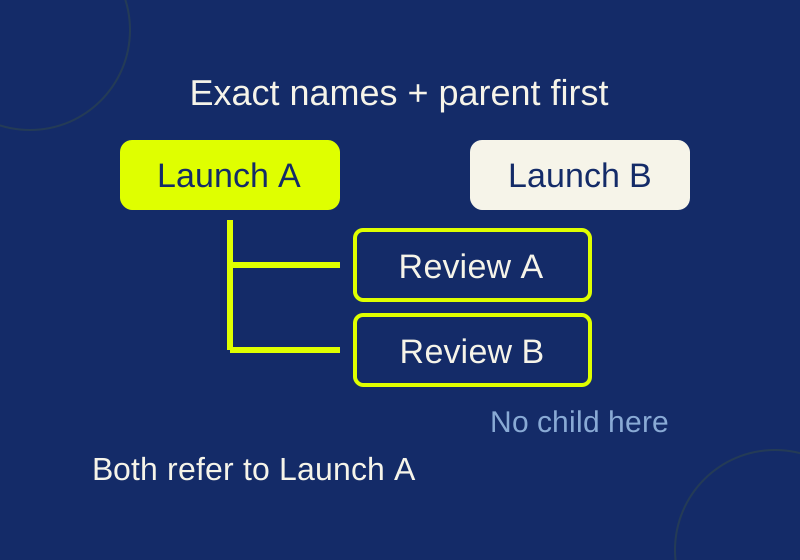
See exactly how repeated parent names and CSV row order change subtask relationships, then try the local checker.