TESTED · EVERYDAY TECH
Why one MP4 plays and another does not: read the codec with MediaInfo
Read a video’s container, codec and profile with MediaInfo. Two real MP4 samples and a renamed-file result show what a filename cannot tell you.
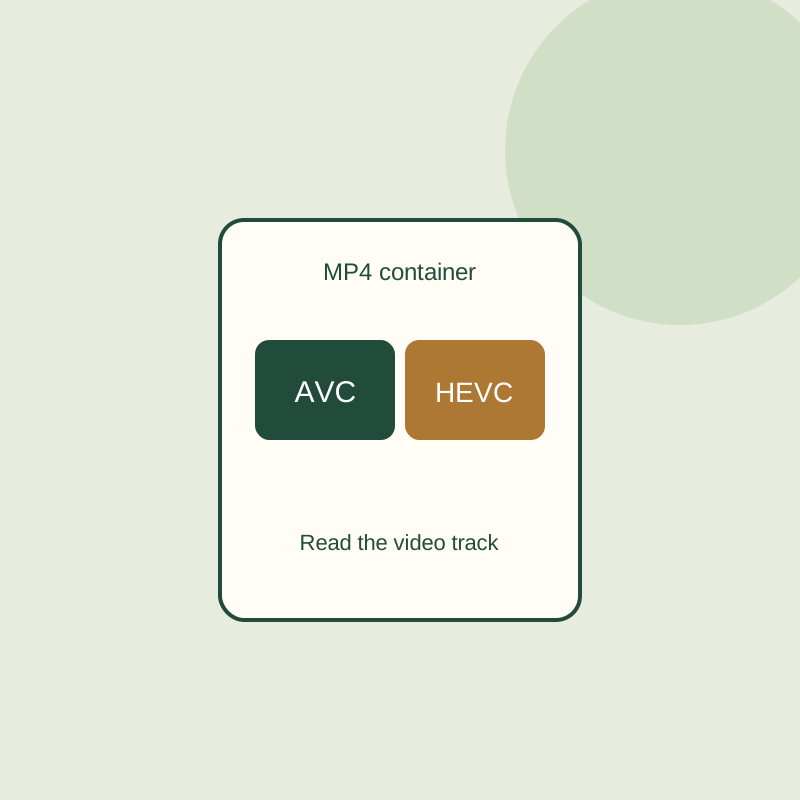
An .mp4 filename does not tell you which video codec is inside. Before converting a file that will not play, open it in MediaInfo and check the General, Video, and Audio sections.
General > Format identifies the container. Video > Format identifies the video codec; the Video section can also show its profile, bit depth, and width and height. Audio > Format identifies the audio codec when an audio stream is present. MediaInfo offers a Windows GUI installer and a version without an installer on its Windows download page. Its Text or Tree view can make the separate sections easier to read.
Two MP4s, different video codecs
These two small example files both report MPEG-4 under General, but their video formats differ:
| File | Video format | Profile and level | Picture | Duration | Size |
|---|---|---|---|---|---|
| codec-avc.mp4 | AVC (avc1, H.264) |
High, Level 3 | 640 × 360, 8-bit, 30 fps | 8 seconds | 1,950,424 bytes |
| codec-hevc.mp4 | HEVC (hev1, H.265) |
Main, Level 2 | 320 × 180, 8-bit, 24 fps | 2 seconds | 43,920 bytes |
Neither example contains an audio stream. An absent Audio section is expected for these files; it does not indicate broken sound. The sanitized MediaInfo report shows their readback.
Compare the Video format and profile with the destination player’s or device’s published requirements. If it supports AVC but not HEVC, the two files need different handling despite sharing the MP4 extension. A report identifies what to investigate; the destination still needs a playback check.
Renaming does not change the codec
A copy of the AVC source was named renamed.mkv. MediaInfo still reported MPEG-4 under General and AVC under Video. The copy’s SHA-256 hash was unchanged, and MediaInfo flagged the extension mismatch. Renaming had left the container and codec intact. If extensions are hidden in Windows, show file extensions before relying on a filename.
What to check before converting
For a video that opens with no sound, check whether the Audio section exists and which format it lists. For a picture that will not play, copy the Video format and profile, plus the bit depth and dimensions if the destination sets limits for them. MediaInfo’s field descriptions explain the labels, but a reported format is file information, not proof that a player can decode it.
If MediaInfo does not show codec information or cannot parse the file, that result alone does not prove the file is corrupt. If you need help interpreting a report, share only the relevant General, Video, and Audio fields. A full report may include Complete name, which can expose a personal folder path, as well as tags; redact those before posting it.
The sample reports were read with MediaInfo 26.10 for Windows using its command line. Desktop viewing instructions follow the linked documentation. These synthetic files have not been tested on a TV or Windows Media Player.
KEEP GOING
More to explore.
SOURCE-CHECKEDEveryday tech
Audacity recording only plays in one ear? Keep the voice channel and center it
A silent right channel does not need to be duplicated. Keep the recorded voice, remove the empty track, and export a mono copy.
SOURCE-CHECKEDEveryday tech
How to mute one website in Chrome and get its sound back
Silence one website, restore its Sound preference, and check the difference with an original eight-second practice tone.