SOURCE-CHECKED · EVERYDAY TECH
How to show file extensions in Windows 11 File Explorer
Reveal filename extensions in Windows 11, read names with multiple dots, and preserve the ending when renaming a file.
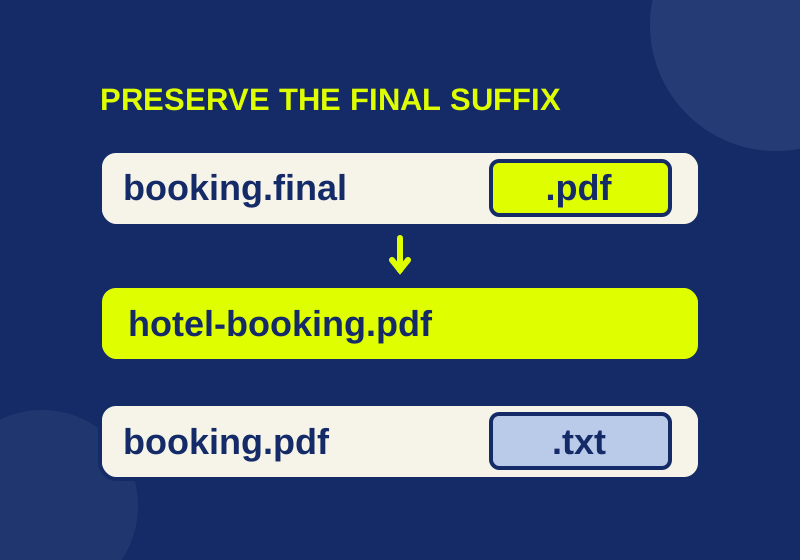
File Explorer can show the ending of each filename, such as .pdf, .docx, or .txt. That ending helps you read a file’s name before you rename it, attach it to a message, or try to open it in a particular app.
Turn on file extensions
- Open File Explorer.
- Select View > Show > File name extensions.
You should then be able to see the final extension on files that have one. For example, a document named booking.final.pdf ends in .pdf. The earlier .final is part of its name.
If you do not notice a change, look at a file whose full name you already know includes an extension. A name such as README has no final dot and suffix to reveal. Do not add an extension just to make one appear.
Read the last suffix
Dots elsewhere in a filename can be misleading. The final suffix is the one to check:
| Example filename | Final suffix | What to check next |
|---|---|---|
booking.final.pdf |
.pdf |
Keep .pdf if you only want to change the booking’s name. |
booking.pdf.txt |
.txt |
Check the file with the app that created it or ask the sender what they intended to send. |
scan.2026.10.png |
.png |
Treat the date-like dots as part of the name. |
report.csv.xlsx |
.xlsx |
Check the file’s contents or origin before assuming it was converted from CSV. |
README |
None shown | Leave the name alone unless you know the file’s intended format. |
An extension is a clue about how a file is named and handled; the name alone does not establish its actual format.
Microsoft’s extension guide identifies .pdf with Portable Document Format, .docx with Word documents, .txt with unformatted text, .png with Portable Network Graphics, .csv with comma-separated values, and .xlsx with Excel workbooks. Seeing those endings is particularly useful when two files have similar names but are meant for different apps.
Preserve the suffix when renaming
Suppose you want booking.final.pdf to have a clearer name before sending it. Rename it to hotel-booking.pdf, preserving the final .pdf. The part before that suffix is where you can make the name more descriptive.
Pay attention to the complete name while editing it. The text selected for editing may vary, so check the final result instead of assuming the extension was protected. A successful name change would leave you with hotel-booking.pdf, including its .pdf ending.
A doubled ending can happen in a proposed name too. If you see notes.txt.txt, the final extension is still .txt; the earlier .txt is part of the name. The repeated text does not by itself mean the file is damaged. If it appeared after saving, inspect the full filename and the creation app’s Save as format choice before changing anything else.
A new suffix is not a conversion
Changing letter.txt to letter.pdf does not make a PDF. A file-level trial on October 6 used Node’s file rename operation on a synthetic 43-byte UTF-8 text file. Its name changed from letter.txt to letter.pdf, but the before and after SHA-256 hashes matched, and no PDF was created. That trial checked the file’s bytes; it did not operate File Explorer or change a Windows setting.
If someone needs a PDF rather than a Word document, use the document’s creation app to export or save the requested format, then open the resulting file with the intended app to check it. Renaming .docx to .pdf is only a name change. Likewise, report.csv.xlsx ends in .xlsx, but that name does not establish whether anyone converted a CSV file or how the file was made.
This distinction also helps when an icon changes. An extension can affect which app or icon Windows associates with a file. Changing the default app for PDFs can affect how a PDF opens or appears, but it does not change the file’s format. Showing extensions in File Explorer changes what you can see in the filename; it does not rewrite the file.
Fix an accidental extension change
If you changed the final suffix by mistake and know the exact original name, restore that original suffix. For example, if your own booking.final.pdf became booking.final.txt during a rename, change it back to booking.final.pdf. Then try opening it with the app you intended to use.
If you do not know the original suffix, avoid guessing from the icon or from a word in the name. Check an original copy, return to the app that created the file, or ask the sender for the correct file. This matters with names such as booking.pdf.txt: removing .txt merely changes the name and cannot establish that the contents are a PDF.
For a file whose origin is unclear, use the intended app or confirm its source before opening it. The displayed suffix is useful for spotting a naming mismatch, but it is not a verdict on the file’s contents or safety.
Check the name before sharing
With extensions visible, you can quote an exact filename when asking for help. “booking.pdf.txt will not open as the PDF I expected” is more specific than “the booking file will not open.” Include the actual error message if one appears, without sending private file contents just to explain the issue.
Source and scope: File Explorer steps and extension descriptions follow Microsoft’s guide to common file name extensions, checked October 7, 2026. The separate October 6 trial verified only that a Node file rename left the synthetic sample’s bytes unchanged; the Explorer steps were not independently tested.
KEEP GOING
More to explore.
SOURCE-CHECKEDEveryday tech
File Explorer search: find the right file by folder, name, and type
Compare folder scope, filename matches and text-file filters using six harmless practice files.
SOURCE-CHECKEDEveryday tech
How to stop apps from opening at startup in Windows 11
Find which sign-in mechanism opens an unwanted app, then check whether your change fixed that symptom.