SOURCE-CHECKED · EVERYDAY TECH
Audacity recording only plays in one ear? Keep the voice channel and center it
Fix a one-sided voice recording in Audacity by keeping the useful channel and centering it. Compare original stereo and mono WAV practice files.
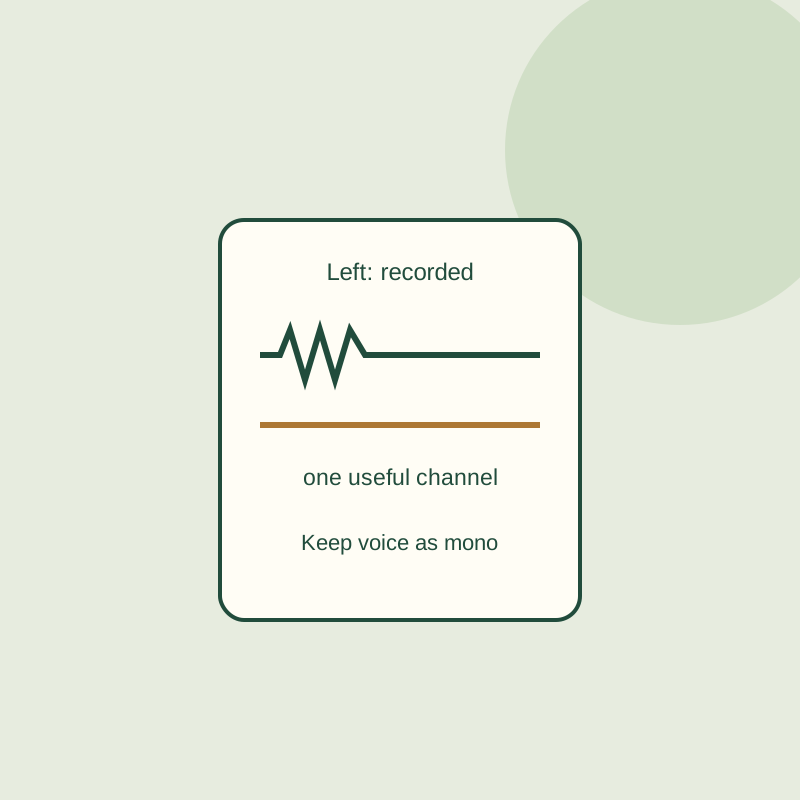
If a stereo recording has a voice in one channel and silence in the other, keep the voice channel. In Audacity 4, use Split stereo to center mono, delete the silent track, then export a new mono audio file. The resulting one-channel WAV is meant to play through both sides of a normal stereo output.
Find the useful channel
Open a copy of the recording in Audacity. The two waveforms in a stereo track represent its left and right channels. Compare their shapes before splitting. A small waveform may contain a quiet voice, so do not treat “quieter” as “empty.” If the channels hold separate microphones, keep both voices.
Before editing several recordings that all seem to play on one side, check your headphones and playback balance. If a file is already mono but you still hear it in only one ear, check the output chain: splitting that file cannot recover a missing channel.
Split, delete, and export
- Open the track menu using the button beside its name. You can also right-click the track control panel or press Shift+F10 when the track is focused.
- Choose Split stereo to center mono. Audacity 4 also offers Split stereo to L/R mono, which leaves the tracks panned hard left and right; that is not the centered result needed here. Older Audacity 3 instructions may call the centered operation Split Stereo to Mono.
- After splitting, use Solo on each resulting mono track in turn and listen at low volume. Solo applies to a track; splitting makes each channel a separate track. Turn Solo off again after comparing. From the empty track’s menu, choose Delete only after confirming that track is silent. Keep the track with the voice. You can undo a mistaken deletion.
- Use File > Export audio or Ctrl+Shift+E. Select the full project audio, mono, and WAV PCM; choose a destination and a new filename. Reopen the exported file to check it. Saving the editor project alone does not create the finished audio file.
These controls are described in Audacity’s track menu, stereo splitting guide, and export guide. Audacity’s Windows download page listed 4.0.1 when checked on October 14, 2026.
Why keep the channel instead of mixing it?
A centered mono file contains one channel. Your usual stereo playback sends that channel to both speakers. Averaging a useful channel with a silent one would lower its amplitude; keeping the useful channel avoids that reduction.
You can inspect a constructed example: left-only.wav is a four-second stereo file of 440 Hz pulses at 24 kHz, 16-bit PCM. Its 96,000 right-channel samples are zero. kept-channel-mono.wav has 96,000 samples, each bit-for-bit equal to the original left-channel sample. The stereo file is 384,044 bytes; the mono file is 192,044 bytes. Both have a 44-byte header, so the difference is exactly 192,000 bytes of audio data. Duplicating the kept channel into stereo adds PCM data without restoring stereo information.
For future recordings from a single microphone, select mono under Recording channels in Audio setup, as described in Audacity’s microphone setup guide. A USB interface with two inputs can instead give each microphone its own mono track.
The practice files and sample notes use constructed tones with verified channel counts and matching samples. They are not Audacity exports or a headphones test. The editing steps follow Audacity’s documentation.
KEEP GOING
More to explore.
SOURCE-CHECKEDEveryday tech
Trim an iPhone voice memo without deleting the part you meant to keep
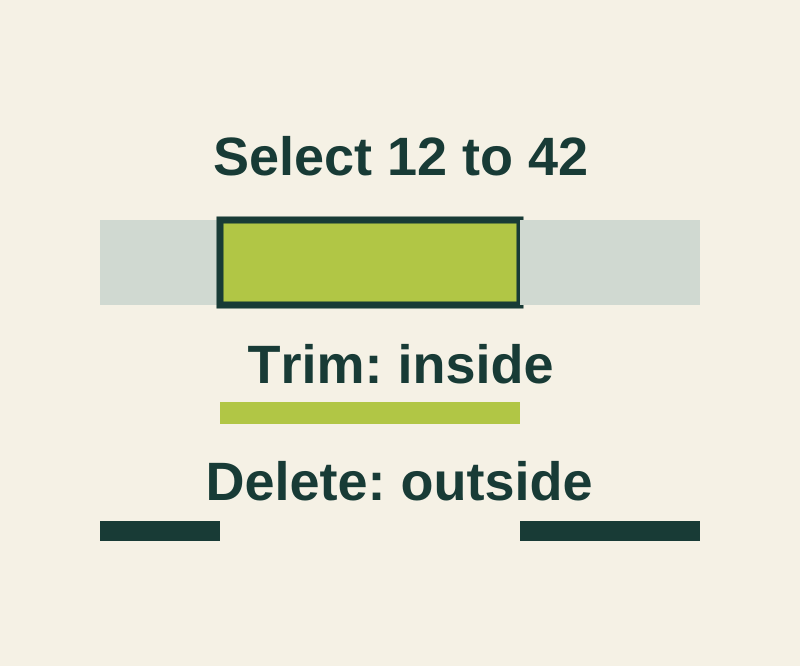
Keep the selected passage or remove it, then preserve the original with Save as New Recording.
SOURCE-CHECKEDEveryday tech
Android archived apps: restore faded icons and keep the data
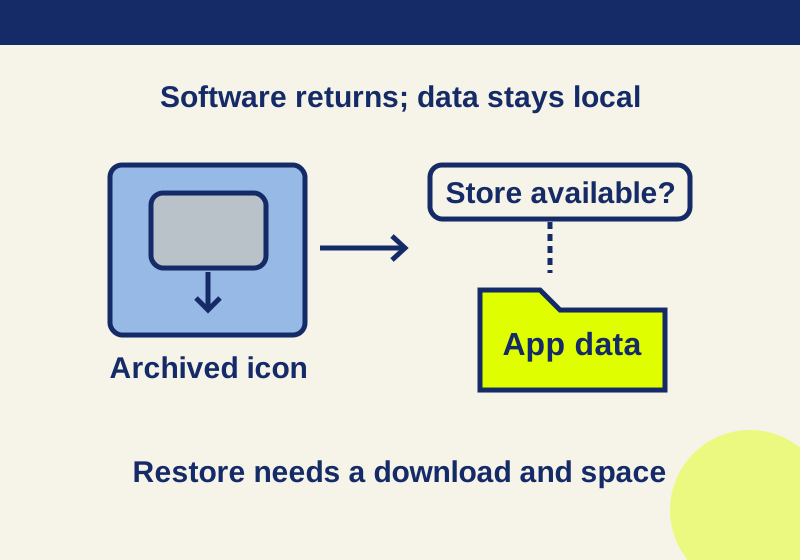
A faded icon can preserve app data while the software needs downloading again. Follow the recovery branch that matches your phone.