SOURCE-CHECKED · EVERYDAY TECH
How to mute one website in Chrome and get its sound back
Mute a noisy website in Chrome, restore wanted audio, and use a short tone to compare the right site’s Sound settings.
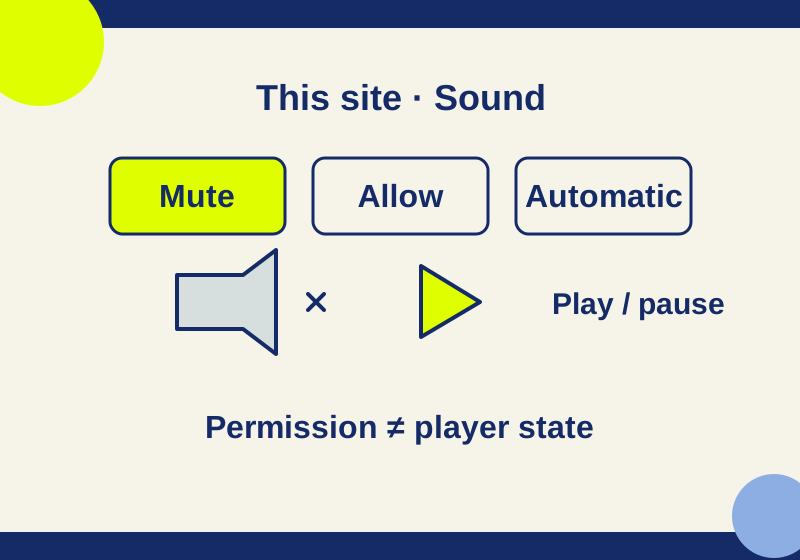
You can mute a noisy website in desktop Chrome by changing that site’s Sound permission. Open the website, select View site information beside its address, choose Site settings, then set Sound to Mute. Chrome saves the change automatically.
For wanted audio later, return to the same site’s settings and choose Allow. To remove your special preference and follow Chrome’s current sound default, choose Automatic (default). Return to the page and press Play on the clip you want to hear.
Changing Sound while you’re on a music site changes the music site’s permission. Open the page responsible for the unwanted audio before setting Mute.
Set Sound for the right website
- Go to the website you want to silence.
- Open View site information, the control to the left of its web address.
- Select Site settings and find Sound.
- Choose Mute, return to the website, and check the audio you wanted to stop.
Leave Chrome’s global default alone if your goal is to silence one website. That lets you keep your existing preference for the rest of your browsing. A site’s own permission takes precedence over the default for that site.
Allow and Automatic mean different things
The Sound dropdown offers these choices:
| Choice | What you are setting |
|---|---|
| Mute | A sound restriction for this website. |
| Allow | Explicit permission for this website to play sound. |
| Automatic (default) | This website follows Chrome’s current default Sound preference. |
Automatic is the useful restoration choice when you want to remove the exception you added. If Chrome’s current default restricts sound, returning a site to Automatic inherits that restriction. Allow gives the site an explicit preference, although the clip’s player and your device volume still affect what you hear.
Use the Sound dropdown when you are changing only sound. Reset permissions can also reset other permissions you changed for the website.
Pause the current clip when you want a short interruption
Chrome’s media control, near the top right of the browser, can pause currently playing media and take you back to its tab. Audio can continue after you switch tabs, so the tab you’re looking at may not be the source of the noise. Use the media control to find the playing page before changing its permission.
Pausing is useful when you expect to resume the same clip. A site’s Sound preference is useful when you want to change how that website can play sound. Remember which control you used: returning Sound to Allow still leaves you needing to press Play on a paused clip.
Compare the settings with the same short tone
The Chrome sound practice page provides an original eight-second tone with manual Play and pause controls. It uses no account, microphone, recording or external script. You can also download the WAV file.
Practising here changes HowCurio’s Sound permission. It will not mute the unrelated news, music or video site you eventually want to change. Restore HowCurio to Automatic (default) when you finish.
Use a comfortable device volume and keep it the same throughout the comparison:
- Open the practice page with its Sound setting on Automatic (default) or Allow. Press Play once and establish whether you hear the tone.
- If you hear it, open that page’s Site settings and set Sound to Mute. Return to the player, replay the same tone, and compare what you hear.
- Restore Sound to Automatic (default), return, and replay. If your Chrome default restricts sound, use Allow for the comparison, then restore your intended preference afterwards.
The tone stops after eight seconds. It does not start automatically or repeat itself. You can pause it sooner with the player’s controls. Its loudness depends on your device and headphones; the file does not set a safe listening volume for you.
If the first play is silent, there is no audible baseline to compare with Mute. Check the player, device sound and the site’s permission before continuing. Repeatedly changing the permission without an audible starting point will leave you unable to tell which setting caused the silence.
A moving player does not prove that sound reached the speakers
In a controlled Chrome 154 check on Windows, the practice player’s clock kept advancing with the site’s Sound setting on Mute. The player’s own mute flag stayed off and its volume stayed at its original value. The browser permission and the player’s controls were reporting different parts of playback.
Listen for the same clip before and after your setting change. If audio is missing while the player seems to work, inspect the browser’s Sound permission as well as the player’s volume control.
If audio is still missing or the noise continues
For missing audio, open the wanted site’s settings and read its current Sound choice. If it says Mute, change it. If it says Automatic (default), check the global preference at Settings > Privacy and security > Site settings > Additional content settings > Sound. Return to the clip and press Play; also check the player and device volume.
If noise continues after you changed a site, use the media control to return to the tab actually playing it. Read that page’s address. A setting changed on your test page does not change a different website’s permission.
Sources and test scope: Google’s site-permission instructions and Sound and media-control help document the controls. Sound selections and player behavior were checked in Chrome 154.0.8037.93 on Windows using two owned local origins. The practice page’s manual playback and eight-second end were verified. Output capture never received an audible baseline signal, so speaker-level muting and restoration were not independently confirmed.
KEEP GOING
More to explore.
TESTEDEveryday tech
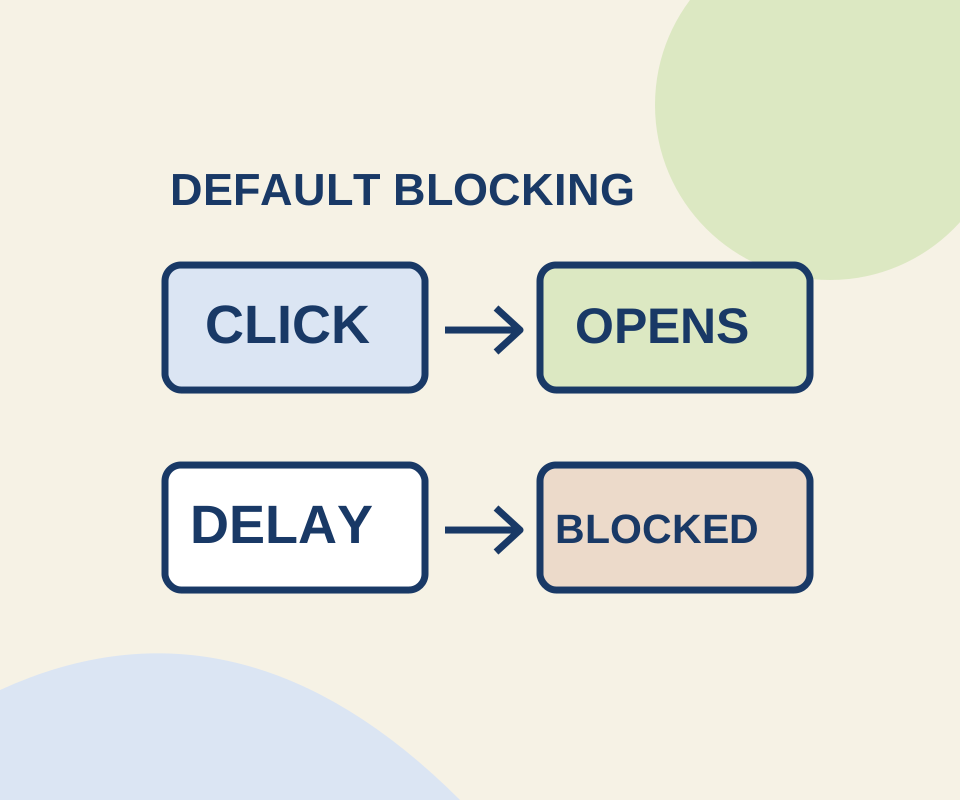
Chrome popup blocker: open the window you need without allowing every site
A direct click and a delayed request behaved differently in a controlled Chrome check. Use a site exception for the window you meant to open.
SOURCE-CHECKEDEveryday tech
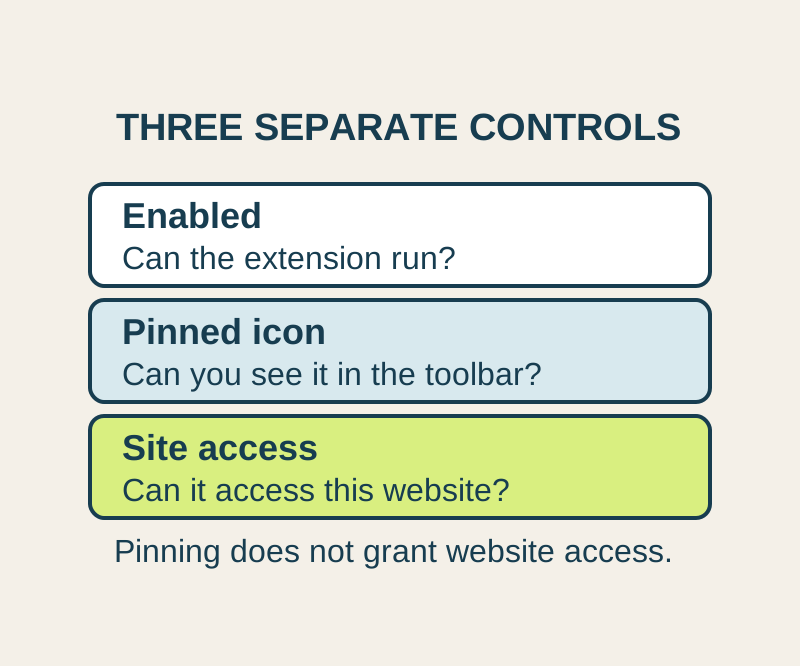
Chrome extension site access: allow one website and find a missing tool
A missing toolbar icon and missing website permission need different fixes. Allow the site you need, and understand what this setting cannot control.