SOURCE-CHECKED · EVERYDAY TECH
Chrome extension site access: allow one website and find a missing tool
Control where a Chrome extension can read site data. Distinguish an off extension, an unpinned icon and restricted site access before changing permissions.
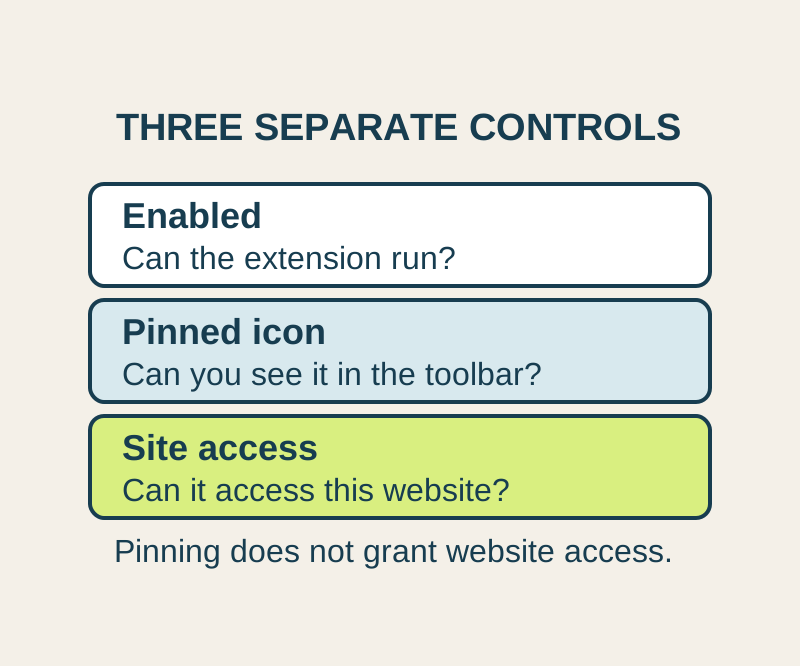
You can give a Chrome extension access to a website without automatically allowing it on every site. If the tool seems missing, first check whether it is enabled, hidden from the toolbar, or waiting for access to the page you’re using. These are separate controls in desktop Chrome.
| What you find | What to do |
|---|---|
| The extension is installed but off | Go to More > Extensions > Manage extensions and turn it on if you want to use it. |
| It is on, but its icon is missing from the toolbar | Open the Extensions menu and pin it for convenient access. An unpinned icon does not mean the extension was removed. |
| It is on with When you select the extension access | Open the website where you want to use it, then select the extension from the Extensions menu. |
| It is allowed on one site, but you are using another | Check the hostname in the address bar. Add the site you actually need only if you trust it and want the extension there. |
Allow access to one website
Open More > Extensions > Manage extensions, find the extension, and select Details. Under Permissions, Chrome offers site access choices such as When you select the extension, On specific sites, and On all sites, where applicable. Choose On specific sites for an extension you want to use on a particular website. You can add a site under Permissions > Allowed sites > Add; if that section is missing, change the site access choice to On specific sites first.
Check the address of the page where you need the tool. For example, https://notes.example.com and https://login.example.com show different hostnames. Use the address of the page you actually want to allow rather than assuming access to one covers the other. These addresses are illustrative, not sites you need to visit.
You can also open the Extensions menu, find the extension, select More, and use This can read and change site data to choose its access for the current site. When you select the extension grants access to the current site in that tab or window after you click it. If you close that tab or window, you must click again to grant access there. On [current site] allows access automatically on that site. On all sites allows access automatically across sites covered by the extension’s declared host permissions.
Match the choice to how you use the tool. For an occasional dictionary lookup, When you select the extension may be enough. For a writing aid you want on one web editor, allow the editor hostname it needs. A tool whose purpose requires broader website access may need broader host permissions, but the setting itself does not guarantee that any particular feature will work.
Find the cause of a missing tool
Work through one extension at a time. Confirm it is enabled in Manage extensions, open the website where you want to use it, and look for the tool in the Extensions menu. Select it to grant current-tab access if it uses When you select the extension. Pinning controls whether its icon stays in the toolbar. If the extension itself asks you to reload the page after a change, follow that instruction.
If a site access option is absent, check the extension’s own requirements. Chrome’s site access controls apply to sites matched by an extension’s host permissions; they are not a universal switch for every extension capability. An unsupported extension may also be disabled, in which case Chrome advises finding an alternative.
Homepage and search changes need a different control. Extensions can separately change Chrome’s homepage, new tab page, default search engine, or start page. If Chrome shows a box naming the extension that controls one of those settings, Google documents disabling or removing that extension as the way to restore the setting. To remove an extension, use More > Extensions > Manage extensions > Remove.
Source note: This article uses Google’s documented extension management and site access controls, permission explanations, and settings controlled by extensions. The examples are illustrative; no extension was installed, changed, or tested for this article.
KEEP GOING
More to explore.
SOURCE-CHECKEDEveryday tech
Chrome zoom: enlarge one website and reset a saved size
Use the current menu percentage as your starting point, inspect the page after one enlargement, and remove an unwanted saved site size.
TESTEDEveryday tech
Reset one broken website in Chrome without clearing every site
A controlled site reset cleared one local site's cookie and storage while a second site kept both.