TESTED · EVERYDAY TECH
Make a video smaller in HandBrake without guessing at the quality slider
Shrink a video with HandBrake, compare real RF 20 and RF 30 outputs, preserve readable details, and use a suitable preset when an upload has a size cap.
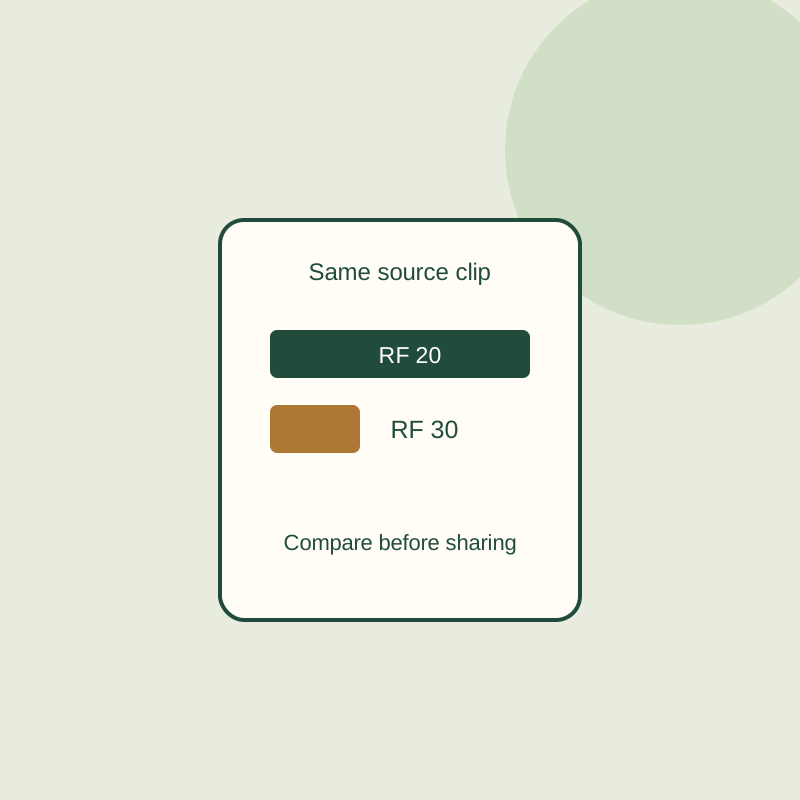
Start with a HandBrake preset, then encode a short, representative sample before processing the whole video. The quality slider helps you choose a tradeoff you can see; it does not set a file size in megabytes.
Set up a sample
Open your video in HandBrake and choose a new destination filename so the original remains available. For an ordinary MP4 source at or below 1080p and 30 fps, Fast 1080p30 is a starting preset. It caps higher resolution and frame rate; it will not turn a 480p source into 1080p.
Check the dimensions and crop in Preview before encoding. HandBrake’s automatic crop detection can need correction. In the Video tab, select H.264 (x264) and adjust its RF quality setting. Preview a short section that represents the footage you need to share. A busy scene, a dark scene, or small text can expose a problem that an easy, bright shot misses. If a form label or license plate matters, check whether your sample keeps it readable.
Keep the encoder, dimensions, crop, and frame rate the same while comparing RF settings. For x264 and x265, a higher RF means lower quality and typically a smaller file. RF is neither a compression percentage nor a target size. Make small changes, then compare the samples. The encoder’s medium or slow setting controls a separate speed, quality, and size tradeoff; it is not the same control as the overall HandBrake preset. HandBrake’s quality guide gives starting ranges of RF 20 to 24 for 1080p and RF 19 to 23 for 720p with x264/x265, but those ranges do not guarantee a particular size or appearance.
What the sample shows
The comparison below uses an eight-second, 640 × 360, 30 fps moving test pattern with frame numbers and no audio. Its source file was 1,950,424 bytes. Two x264 medium encodes kept the same dimensions, frame rate, duration, and crop: RF 20 was 1,041,185 bytes, while RF 30 was 356,129 bytes. You can download the files to compare them yourself.
Open RF 20 and RF 30 at the same playback size and compare the moving shapes and frame-number text. The smaller file is useful only if the detail you need survives. A phone clip can produce different sizes, and an already compressed source can grow after conversion. Keep comparisons within one encoder: an x264 RF number is not equivalent to the same number in AV1.
When an upload has a hard size limit
If a site specifies a maximum file size, choose a currently named Web/Social preset whose listed duration and target size fit your clip. Fast 1080p30 and an RF choice alone cannot promise that the result will fit. After the full encode, check the actual file size; audio and subtitles also use bytes. Leave room below a tight limit.
If the video contains minutes you do not need, trimming them is another way to reduce what you share. For cuts that preserve the retained video without re-encoding, see the LosslessCut trimming guide.
The downloadable results came from HandBrake 1.11.2 for Windows using its command line. The source is a synthetic pattern with no audio. Interface instructions follow the linked documentation.
KEEP GOING
More to explore.
TESTEDEveryday tech
Why ZIP barely shrinks some photos: compare compression with two real files
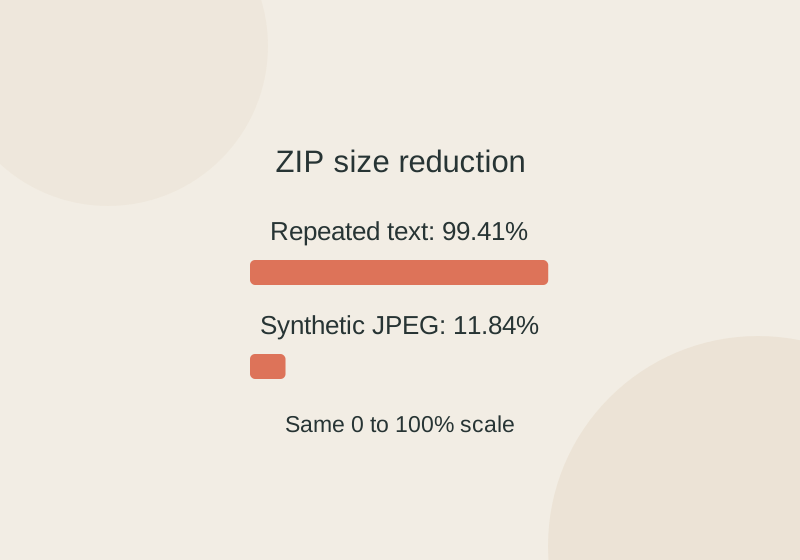
The same ZIP settings shrank a repeated shopping list by 99.41% and a synthetic JPEG by 11.84%. Try the files and see what survived extraction.
SOURCE-CHECKEDEveryday tech
Firefox Picture-in-Picture: pop out a video and find missing controls
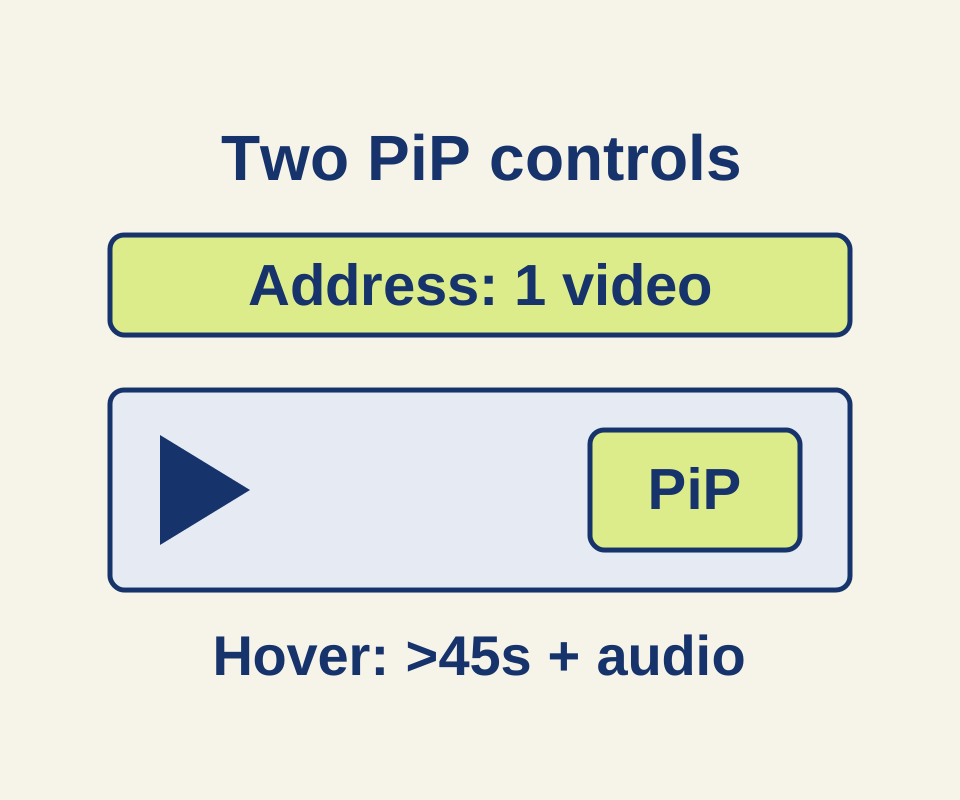
A manual helper explains why the hover toggle and address-bar icon can disappear for different reasons, with three worked video examples.