SOURCE-CHECKED · EVERYDAY TECH
Firefox Picture-in-Picture: pop out a video and find missing controls
Open Firefox Picture-in-Picture and diagnose missing video controls using duration, audio, full-screen state and the number of videos on a page.
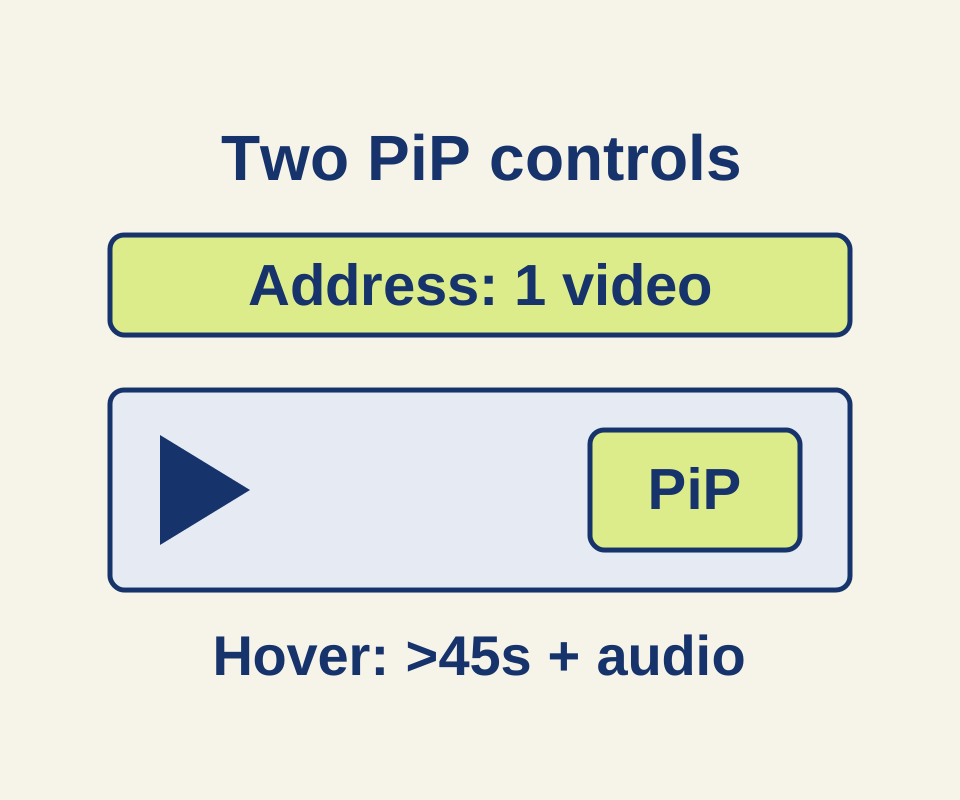
Firefox Picture-in-Picture (PiP) puts a video in a floating, always-on-top window that you can move and resize. To open it, hover over a video and click the PiP toggle. If you cannot find the toggle, check where you are looking: the control on the video and the icon in the address bar have different conditions for appearing. Mozilla’s PiP guide explains the available controls.
Check the video and the page
The hover toggle requires a video longer than 45 seconds with an audio track. It does not appear while the video is in fullscreen, so exit fullscreen before looking for it.
The address-bar icon appears on a page with a single video. A page with multiple videos, or no video, lacks that icon. On a page with two long videos, a missing address-bar icon does not mean you should stop looking: try hovering over the video you want.
The missing-control helper keeps these checks separate. You enter whether the video is fullscreen, its duration, whether it has an audio track, and how many videos are on the page. It does not inspect the page, and an “unknown” answer does not become an eligibility claim.
For example, a 35-second loop with no audio track does not meet the documented hover-toggle conditions. A two-minute lecture beside a second video may show a hover toggle, but the page will lack the single-video address-bar icon. A single two-minute lecture with audio may offer both controls. These are worked examples, not recorded Firefox playback tests.
Try another way to open PiP
You can right-click a video and choose PiP from Firefox’s native video menu. Some sites show their own menu first; on YouTube, try Shift + right-click or right-click twice to reach the native menu. Exit fullscreen before using the toggle or menu. On Windows, Ctrl + Shift + ] toggles PiP for the relevant video. Mozilla’s PiP instructions cover these methods.
If you want captions on a supported site, turn them on in the page before opening PiP. For playback controls, focus the PiP window first: Space plays or pauses, and the left and right arrow keys seek five seconds. Keep the video’s tab open; PiP does not download it for offline playback.
If the hover toggle was disabled, look for Use Picture-in-Picture under Settings > Tabs and browsing > Media. Older versions show Enable picture-in-picture video controls under General > Browsing. Mozilla’s settings guide shows both layouts.
Mozilla help was checked October 10, 2026, with its Firefox 157/Windows 11 article view selected. The helper applies those documented rules; it does not test Firefox playback.
KEEP GOING
More to explore.
SOURCE-CHECKEDWeb research
Firefox Find in page: fix missing words and too many matches
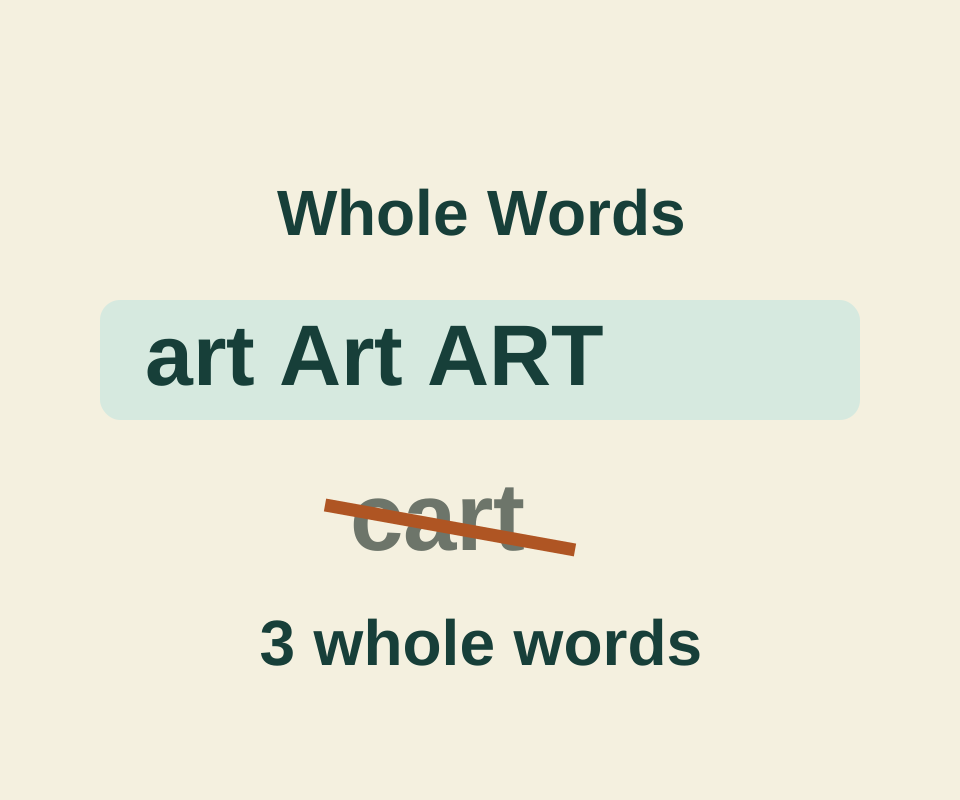
See why art can match cart, why case changes the count, and how Match Diacritics distinguishes resume from résumé.
SOURCE-CHECKEDEveryday tech
Chrome extension site access: allow one website and find a missing tool
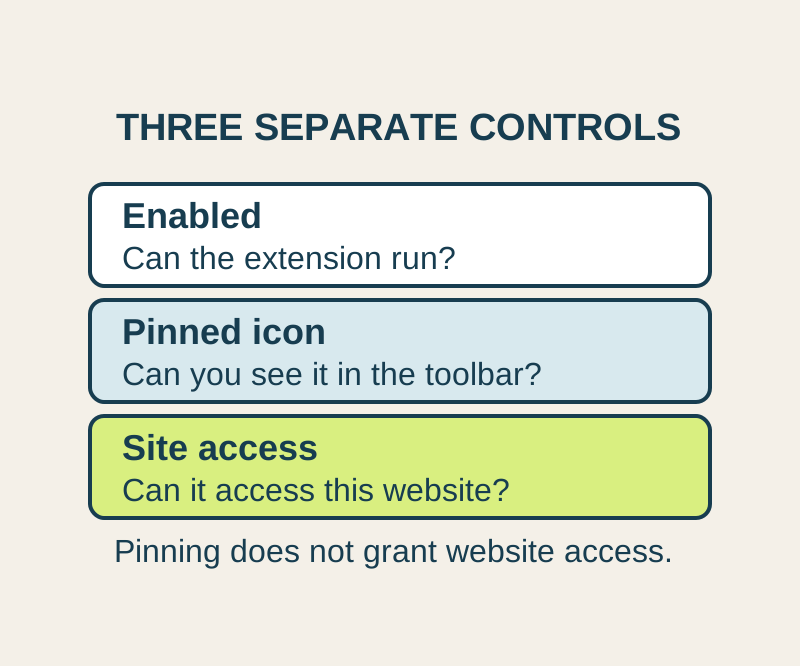
A missing toolbar icon and missing website permission need different fixes. Allow the site you need, and understand what this setting cannot control.