SOURCE-CHECKED · WEB RESEARCH
Firefox Find in page: fix missing words and too many matches
Find words in desktop Firefox, change whole-word, case and accent matching, and compare expected counts in an original six-word text specimen.
On Windows, press Ctrl+F to open Firefox’s Find bar at the bottom of the page, or choose Find in page from the menu. It searches the current page. Use Next and Previous to move between matches, Highlight All to mark them, and Esc to close the bar. Firefox also documents F3 or Ctrl+G for the next match and Shift+F3 for the previous one. See Mozilla’s Find in Page guide.
Exclude partial words, then check case
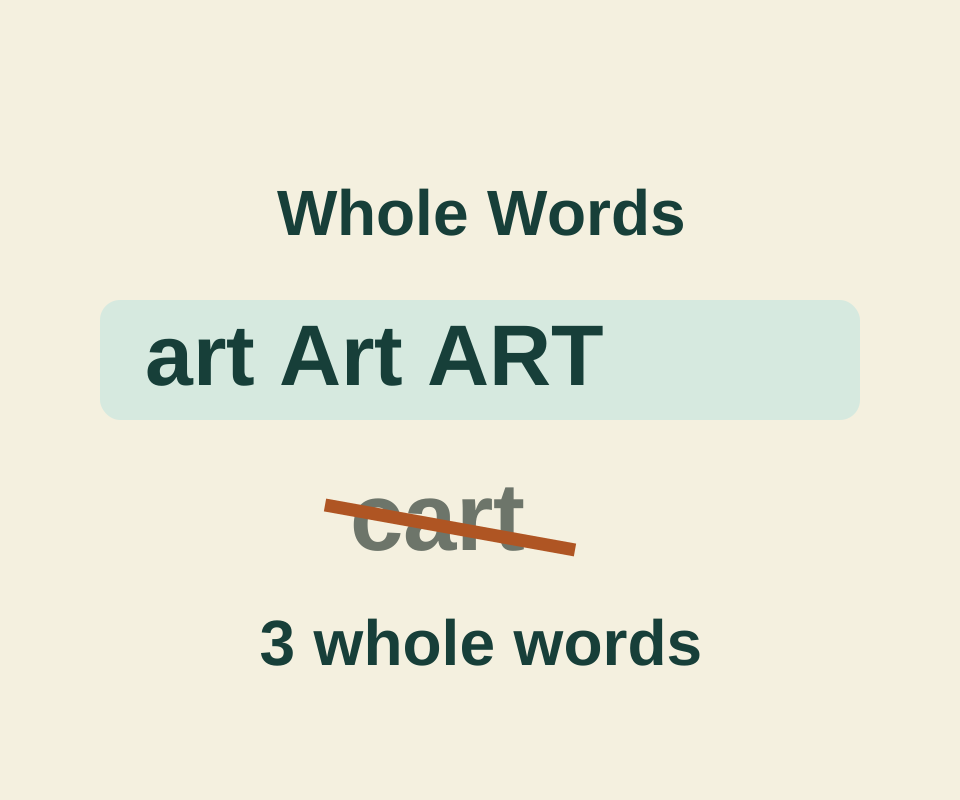
The Search sample includes art cart Art ART. With Match case and Whole Words off, searching art should find four matches, including the art inside cart.
Turn on Whole Words to exclude cart; the expected count becomes three. Turn on Match case as well to find only lowercase art; the expected count becomes one.
Check the accent filter
The sample also includes resume résumé. With the matching filters off, a search for resume should find both words. Turn on Match Diacritics to distinguish the accented spelling from the unaccented one; the expected count becomes one. If your count differs, clear the filters and check the search again.
Pressing / while focus is outside a text field opens Quick Find. It has fewer controls and follows the options set in the full Find bar. For a missing phrase on the current page, start with Ctrl+F and inspect those matching options. To send someone a passage you have found, use a link to highlighted text.
Source and scope: Mozilla’s guide was checked October 11, 2026. The sample counts are worked expectations from its documented rules and the linked text; Firefox Find controls were not independently tested.
KEEP GOING
More to explore.
SOURCE-CHECKEDEveryday tech
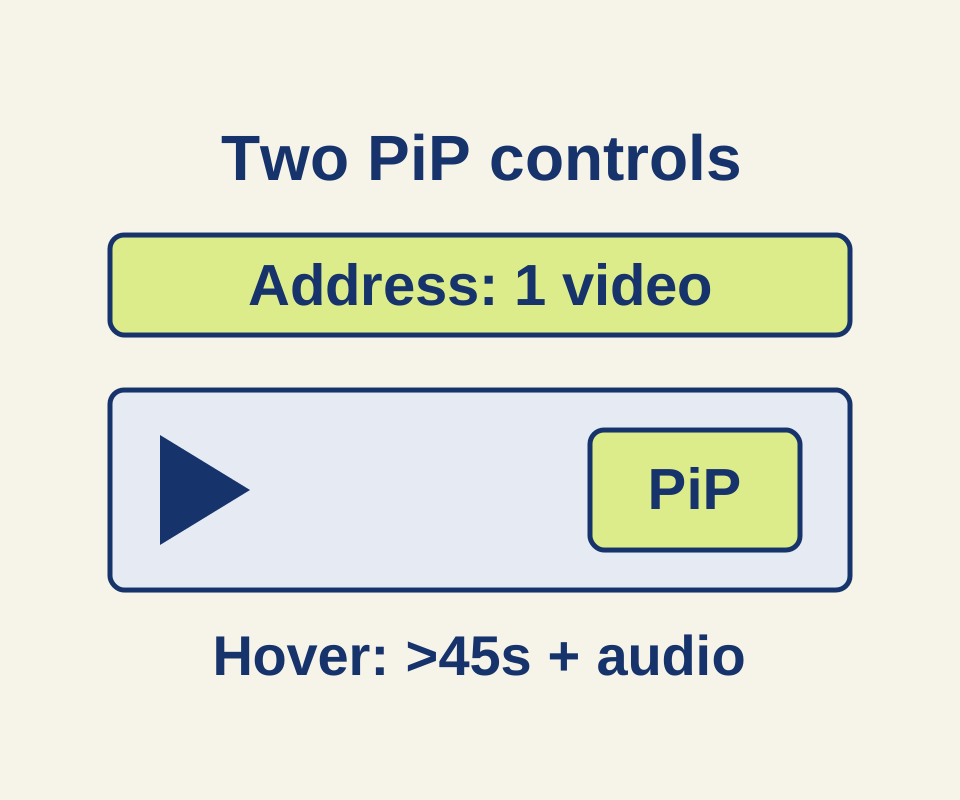
Firefox Picture-in-Picture: pop out a video and find missing controls
A manual helper explains why the hover toggle and address-bar icon can disappear for different reasons, with three worked video examples.
TESTEDWeb research
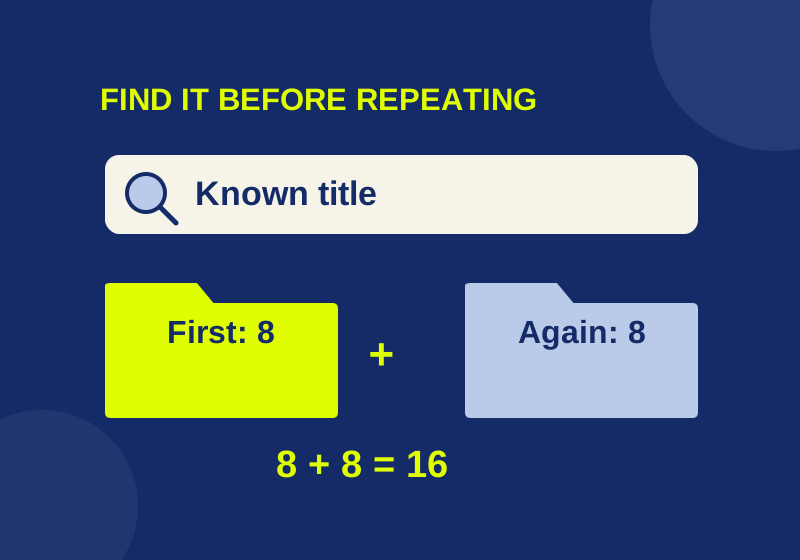
Chrome bookmarks imported but missing? Find the folder and avoid duplicates
An eight-link import became sixteen when repeated. Find the first collection before importing again.