SOURCE-CHECKED · APPS & THE WEB
Gmail templates: save reusable replies and keep the details personal
Enable Gmail templates on your computer, save useful replies, and replace names, times and order details before sending. Includes four original replies to copy.
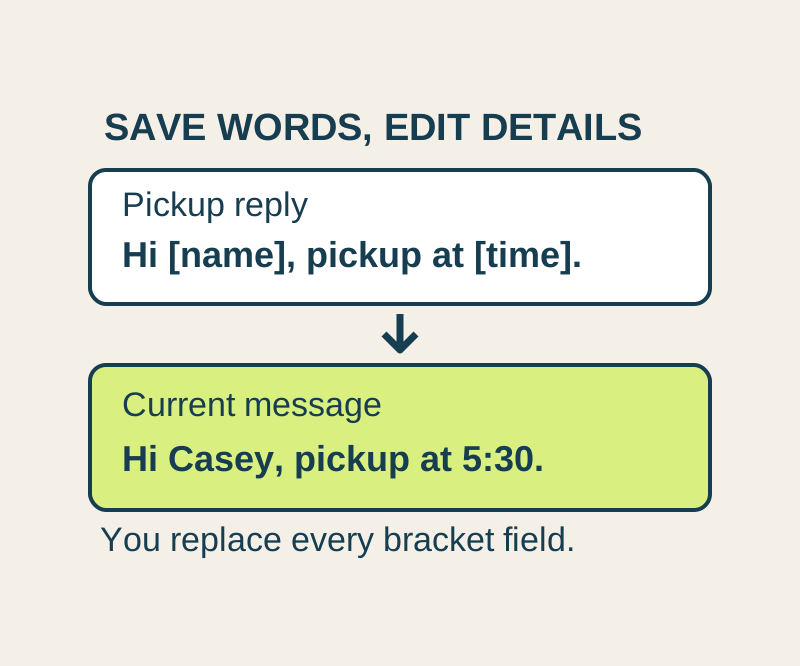
Gmail templates let you save wording you use often and insert it into a reply on your computer. Save the parts that stay the same, then check the recipient and replace details such as names, dates, and locations before sending. The bracketed words in these examples are ordinary text; replace them yourself before sending.
Turn on templates
In desktop Gmail, go to Settings > See all settings > Advanced > Templates > Enable > Save Changes.
To save a reply, compose its text, then choose More options > Templates > Save draft as template > Save as new template. Give it a name that describes its purpose, such as “Pickup details” or “Reschedule.” To use it in a message, choose More options > Templates > Insert template, then select the saved name.
Inserting a template places text in your message. It does not send an automatic reply. Google’s instructions say an automatic template reply requires a filter.
Four replies to copy
These are starting points. Replace every bracketed field before sending.
Pickup details
Hi [name],
The item is available for pickup at [meeting point] on [day] between [start time] and [end time]. Please reply with the time that works for you. I will confirm before you travel.
Thanks,
[your name]
Missing order detail
Hi [name],
I can look into this once I have the order number and the email address used for the order. Please send those details in your reply. You do not need to send your password or payment-card details.
Thanks,
[your name]
Reschedule
Hi [name],
I need to move our meeting on [original date]. Would [option one, with time zone] or [option two, with time zone] work for you? Please confirm one option before I change the invitation.
Thanks,
[your name]
Return instructions request
Hello,
I would like to return [item] from order [order number]. Please confirm the return address, any authorization number required, and the deadline for sending it. The reason for the return is [brief reason].
Thank you,
[your name]
You can also download the four replies as a text file for offline copying.
Fill in the current details
A saved “Pickup details” template can work for different people because its name describes the job, not the recipient. The meeting point and time belong in the message you send. A date left in the saved master could be wrong next week.
For a fictional pickup, the completed reply could read:
Hi Casey,
The item is available for pickup at the Civic Library entrance on Thursday, October 15, between 5:30 p.m. and 6:00 p.m. Please reply with the time that works for you. I will confirm before you travel.
Thanks,
River
Before sending an inserted reply, confirm that you are in the right thread and that the recipient is correct. Replace every bracketed field, then read the whole message for details carried over from an earlier use. If you add wording that mentions an attachment, check that the attachment is actually there.
Change a saved reply
To revise the wording you keep for future use, put the revised text in a compose window and choose More options > Templates > Save draft as template > Overwrite Template. Select the existing template and choose Save. Google says a deleted template cannot be recovered, so check the saved name before deleting one.
Source note: The steps above were checked against Google’s Gmail Templates help page. The sample replies are original examples. No mail was sent and no account settings were changed.
KEEP GOING
More to explore.
SOURCE-CHECKEDApps & the web
Gmail offline: what your sync range means for an unsent reply
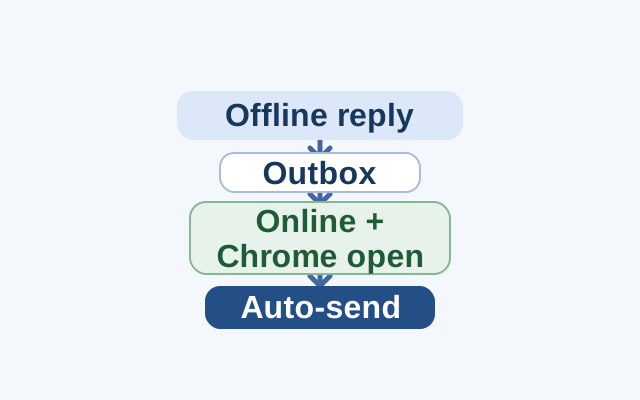
The selected day range controls which messages Gmail syncs for offline use. A reply sent without internet goes to Outbox and sends automatically after reconnection; Chrome must be open for messages to sync.
SOURCE-CHECKEDApps & the web
Organize a shared Google Keep note with labels only you see
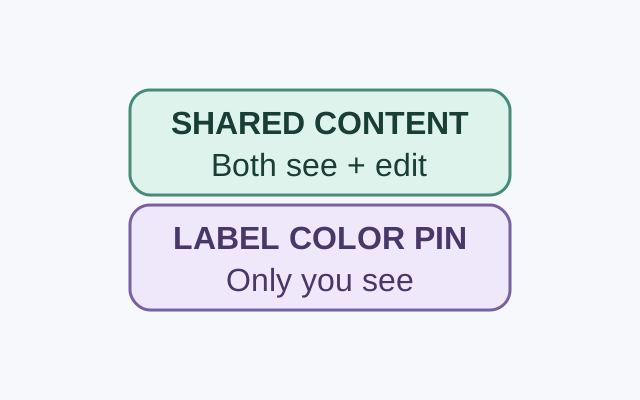
A collaborator can see and edit a shared note’s contents. Google says only you can see the labels, colors, and pins you apply to it.