SOURCE-CHECKED · APPS & THE WEB
Organize a shared Google Keep note with labels only you see
Keep a shared note useful to another person while using private labels and pins to find it yourself.
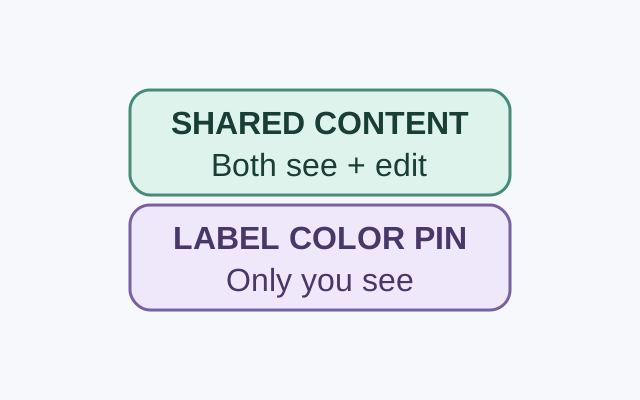
A person you share a Google Keep note with can see and edit the note. Google says only you can see the labels, colors, and pins you apply to it. Put anything the other person needs to read in the note itself.
Suppose you share a packing note with a housemate. Write “Bring the charger” in the note so they can see or edit it. You can label the note “Trips” and pin it to the top of your Keep feed to find it yourself. If your housemate needs to see “Trips,” write that in the note too.
Add a label and pin the note
On a computer, go to keep.google.com and select the note. Click “More,” then “Add label” or “Change labels.” Check the box beside an existing label, or enter a name and click “Create.” To pin the note, point to it and click “Pin note.” These are the steps in Google’s computer guide.
KEEP GOING
More to explore.
SOURCE-CHECKEDApps & the web
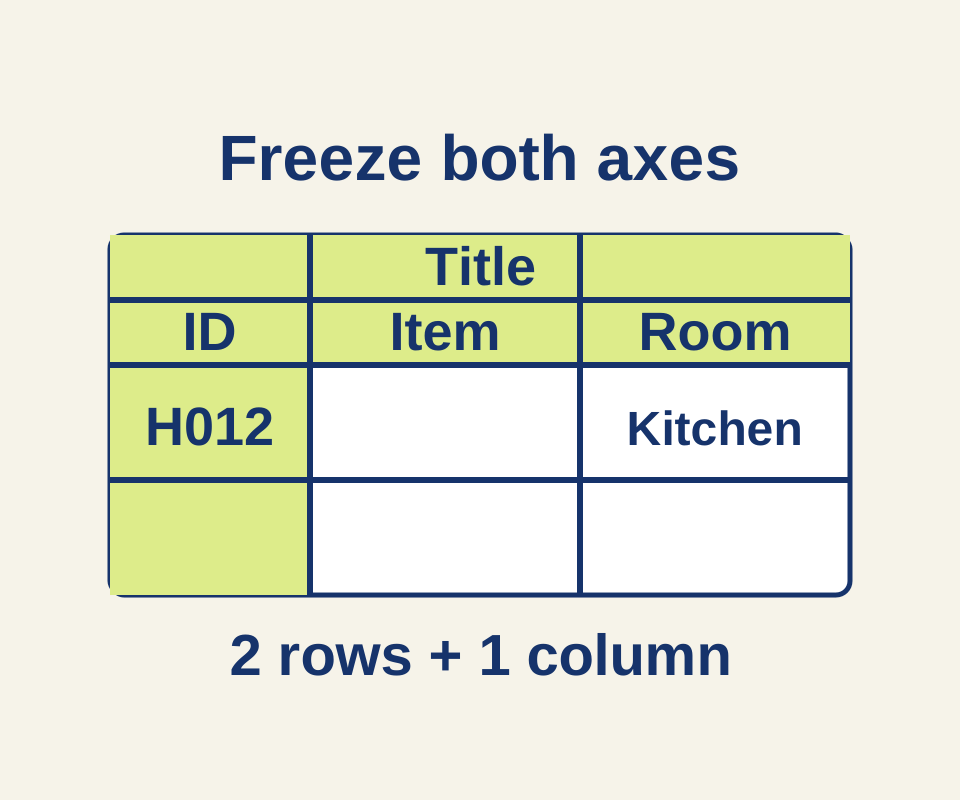
Freeze Google Sheets headers without losing the row labels
Use a 45-item inventory to choose the correct freeze and sorting boundaries, with separate settings for repeating headings in print.
SOURCE-CHECKEDApps & the web
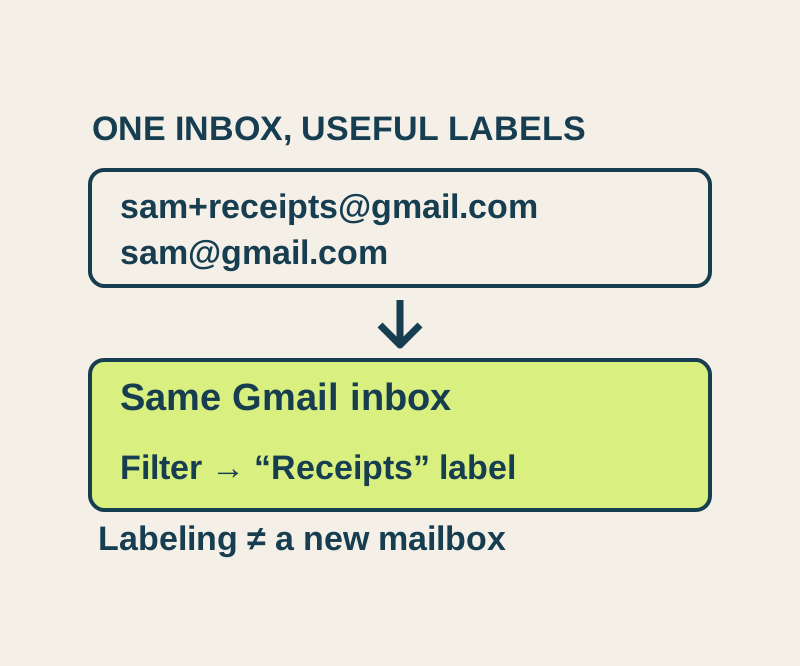
Gmail plus addresses: sort shopping mail without losing receipts
Choose category addresses that reach your existing inbox, then inspect a full recipient address before making its automatic label rule.