SOURCE-CHECKED · APPS & THE WEB
Freeze Google Sheets headers without losing the row labels
Freeze two header rows and the first column in Google Sheets, keep an inventory intact when sorting, and repeat frozen headings on printed pages.
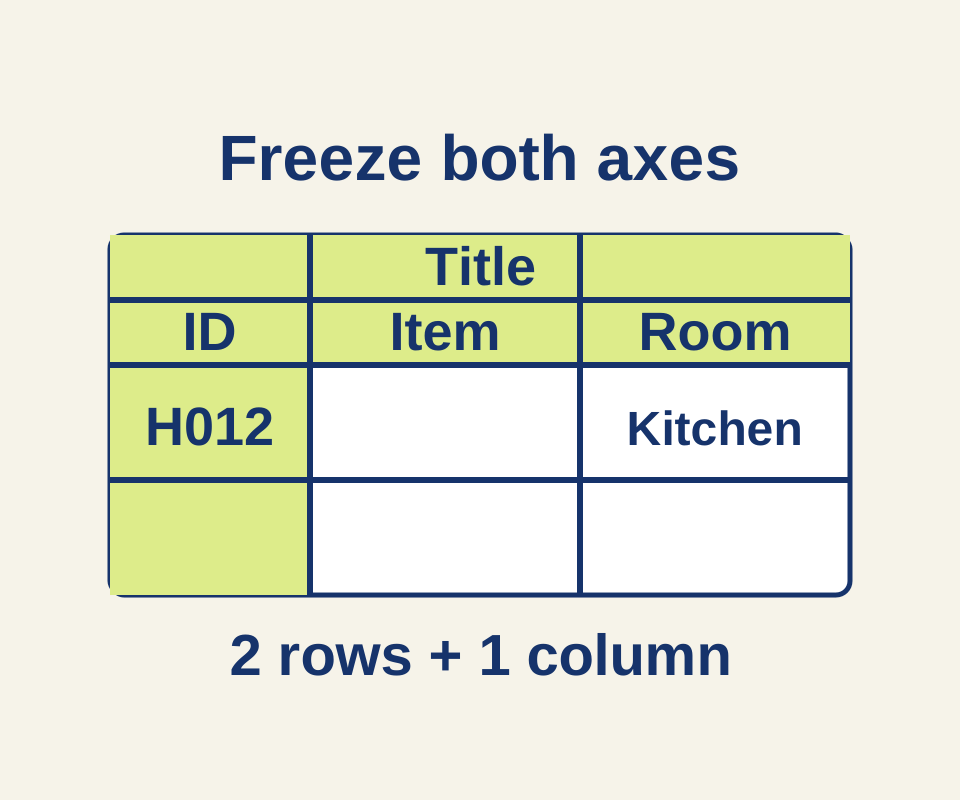
In a household inventory, you can keep the column labels at the top and each item’s ID at the left while you scroll. The sample household inventory TSV has 47 rows and five columns. Row 1 is the title, “Household inventory”; row 2 contains Item ID, Item, Room, Quantity, and Storage note.
Open a new scratch spreadsheet and use File > Import to upload the TSV, following Google’s import instructions. Choose the tab separator if prompted. The result should occupy A1:E47, with four empty cells beside the title. If the whole header lands in one column, fix the import before setting freeze boundaries.
Freeze two rows and one column
With the inventory in Google Sheets, choose View > Freeze > 2 rows, then View > Freeze > 1 column. Those boundaries keep both the title and column labels at the top and the Item ID column at the left. Freezing only one row would keep the title visible but let the labels scroll away. Google’s freeze instructions also explain how to remove either setting independently with No rows or No columns.
Sort the items together
Freezing does not set the sorting range. For this file, select A2:E47, then choose Data > Sort range > Advanced range sorting options. Check Data has header row and sort by Room A to Z. You can add Item A to Z if useful. Keep the title in row 1 outside the range, and include all five columns so each item’s values stay together. For example, H012 Measuring cups belongs in Kitchen, with quantity 1 and storage note Top drawer. See Google’s sort instructions.
Repeat headings when printing
To carry the headings onto printed pages, choose File > Print > Headers & footers > Repeat frozen rows. Select Repeat frozen columns too if you want the Item ID column repeated. Set these print options explicitly; the freeze settings alone do not establish what will repeat in print. Google documents the options in its print guidance.
The TSV’s structure and example item were checked locally. The Google Sheets steps come from Google’s documentation; the file was not imported or tested in Sheets.
KEEP GOING
More to explore.
SOURCE-CHECKEDApps & the web
Organize a shared Google Keep note with labels only you see
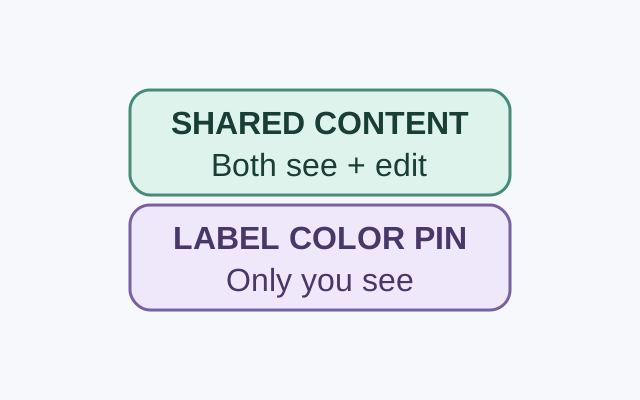
A collaborator can see and edit a shared note’s contents. Google says only you can see the labels, colors, and pins you apply to it.
SOURCE-CHECKEDBusiness documents
CSV stuck in one Google Sheets column? Fix the separator without breaking the data
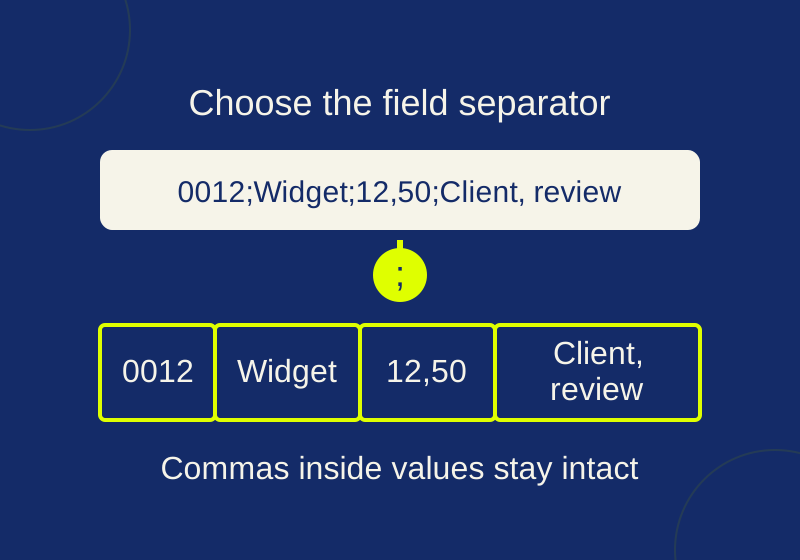
Import the original with its field separator. Four downloadable sample orders show why punctuation replacement can break amounts, notes and identifiers.