SOURCE-CHECKED · BUSINESS DOCUMENTS
CSV stuck in one Google Sheets column? Fix the separator without breaking the data
Fix a one-column CSV import in Google Sheets with downloadable comma and semicolon samples that expose quoting, decimal, empty-cell and leading-zero mistakes.
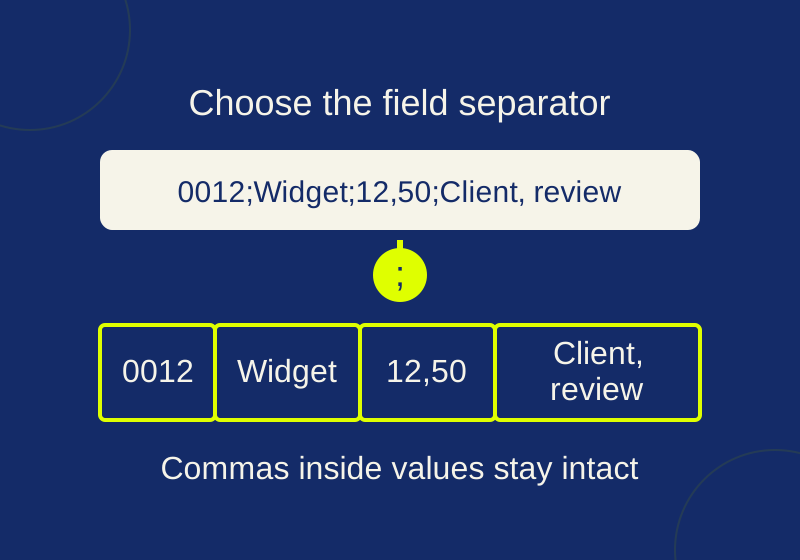
If a CSV imports into one Google Sheets column, open the original in a text editor and identify its field separator. Import that file again through File > Import, choosing the matching Separator type. A file whose header reads order_id;item;amount;note needs semicolons between columns, even when its amounts and notes contain commas.
Avoid replacing punctuation throughout the file. In the downloadable example below, changing every semicolon to a comma breaks a four-column order into six fields and changes a customer’s note. There is a correctly converted comma version alongside it so you can compare the difference.
Use the original file for the second import
Keep an untouched copy, then open a scratch spreadsheet. Use File > Import > Upload > Select a file from your device, choose the Import location, set Separator type, and select Import data. These controls are documented in Google’s import instructions.
Choose the separator identified in the source file. If the current dialog offers Custom, enter ; for the semicolon example. If it offers automatic conversion of text into numbers, dates, or formulas, turn conversion off for the first pass when you need raw identifiers or date strings preserved.
The goal for this pass is a faithful table. Calculation can wait until the fields are in the right places and their meaning is known. A successful split alone does not establish whether 0012 survived or whether 12,50 became the intended number.
Practice with four orders that expose common import mistakes
Download the semicolon CSV, the equivalent comma CSV, and the expected cells in JSON.
Both files contain the same synthetic orders. They use UTF-8 text and have four columns: order_id, item, amount, and note. The amount strings use decimal commas. The blank amount is deliberately unknown.
| Cell | Expected content | What to look for |
|---|---|---|
| A2 | 0012 |
Leading zeros remain part of the identifier |
| C2 | 12,50 |
Both digits after the decimal comma remain in the amount |
| D2 | Client, review |
The comma stays inside the note |
| D3 | Keep; label |
The semicolon stays inside one quoted note |
| C4 | Empty | The missing amount leaves a blank cell |
| D4 | He said "ship" |
The literal quotation marks survive |
| D5 | First line followed by Second line in the same cell |
The note’s line break stays inside one record |
There should be five logical rows including the header, covering A1:D5. The source contains six physical text lines because the final note has an embedded line break. Counting lines in a text editor would give an incorrect record count.
For the adapter order, C4 is empty and D4 contains the note. If that note appears in C4, a missing field was dropped somewhere in the import or earlier processing. Replacing the blank with zero would disguise the structural problem and also change the supplied value.
Read separators and quotes together
The semicolon file begins:
order_id;item;amount;note
0012;Widget;12,50;Client, review
0013;Cable;3,20;"Keep; label"
0014;Adapter;;"He said ""ship"""
The header establishes the four fields. In the first order, the semicolons separate them; the comma in 12,50 and the comma in Client, review remain inside their values.
The cable note needs quotes because it contains the separator itself. "Keep; label" is one field with a semicolon in its text. The adapter row has two adjacent semicolons for the empty amount. Its note doubles the quotation marks inside the quoted field; the intended text is He said "ship".
The final order’s note spans two lines within quotes. Keep the source open as text when examining this case. A line that appears to be a second record may be the continuation of the previous record’s note.
A different separator can make the entire header appear as one field. In a local parser check, reading the semicolon file with a tab separator produced a one-field header. That reproduces the structural symptom without establishing how Google Sheets’ automatic detection will handle your particular export.
Why replacing every semicolon damages this example
After a global semicolon-to-comma replacement, the first order becomes:
0012,Widget,12,50,Client, reviewA comma parser reads six fields from that line: 0012, Widget, 12, 50, Client, and review. The space before the last word also remains in the actual parsed value. The amount has split in two, and the note has split in two.
The replacement changes the cable note from Keep; label to Keep, label as well. Quoting keeps the new note together but cannot restore its original punctuation.
The supplied comma file preserves the cells by writing them with a CSV-aware writer. Its first order is:
0012,Widget,"12,50","Client, review"The quotation marks enclose the commas that belong to values. If a receiving system requires commas, use its supported export setting or a CSV parser and writer to perform the conversion. The two download files provide a small reference you can compare before converting a larger export.
Check number conversion separately
In a spare cell, enter =ISNUMBER(C2). Google’s ISNUMBER documentation says TRUE means the referenced value is numeric; text returns FALSE. This distinguishes a number from a raw amount string, although a TRUE result alone cannot prove that the number is correct.
For these synthetic orders, interpreting the comma as a decimal separator gives 12.50, 3.20, and 19.00. The nonblank total is 34.70, in unspecified units. There is no assumed currency, and the missing adapter amount is excluded. Treating that blank as a known zero would invent information.
For another export, establish the convention before converting. An illustrative date such as 03/04/2026 can mean March 4 or April 3. Neither the punctuation nor a successful import resolves that ambiguity.
Google Sheets’ File > Settings > General > Locale setting changes default number, date, and currency formatting for the entire spreadsheet. Google’s settings guide explains that collaborators also see the change. Try a relevant locale in the scratch file before changing a shared spreadsheet.
An identifier needs different treatment from an amount. If 0012 has already become 12, formatting can add displayed zeros when you know a required width, but it cannot establish how many zeros the original field contained. Reimport the original as text when exact IDs matter.
When Split text to columns is enough
For simple text already pasted into column A, select the cells and use Data > Split text to columns. Choose a separator from its dropdown or use Detect automatically. Google’s split-text help documents those controls.
Use file import for the original CSV when quoted separators or embedded line breaks are involved. The split-text help does not establish equivalent handling of those CSV cases. Splitting an already converted 12 also cannot recover the original identifier 0012.
Once the scratch result matches the source’s columns and values, copy the needed data into its destination. Keep the original available until the resulting table has been checked against it.
Source and verification note: Google help was checked October 7, 2026. Both downloads were written and read locally with Python’s CSV module, producing identical four-column records. The wrong-separator and punctuation-replacement results above were reproduced locally. No Google Sheets account import or automatic type-conversion result was tested.
KEEP GOING
More to explore.
SOURCE-CHECKEDBusiness documents
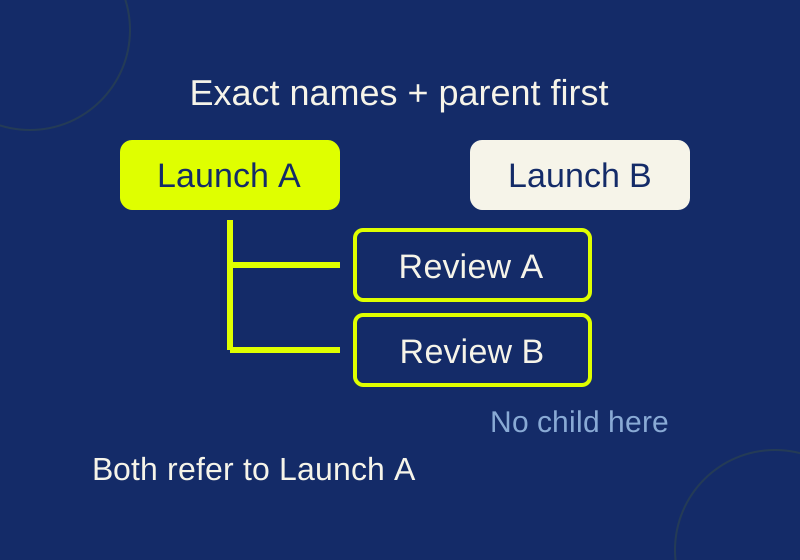
Asana CSV subtasks: fix duplicate parent names before import
See exactly how repeated parent names and CSV row order change subtask relationships, then try the local checker.
SOURCE-CHECKEDApps & the web
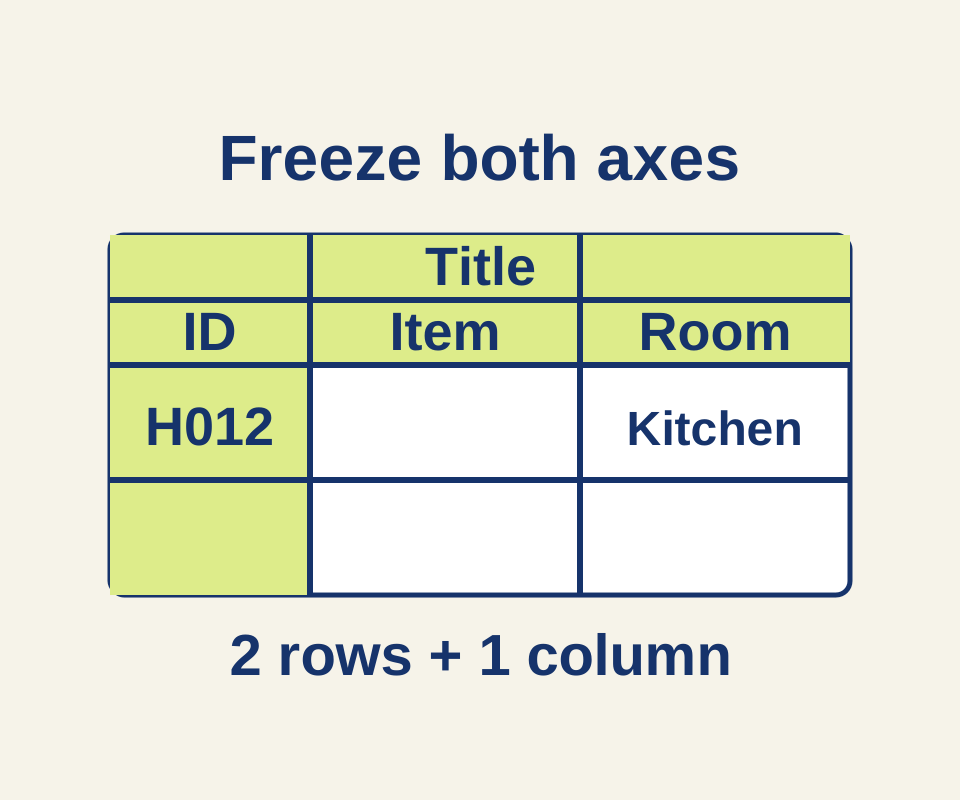
Freeze Google Sheets headers without losing the row labels
Use a 45-item inventory to choose the correct freeze and sorting boundaries, with separate settings for repeating headings in print.