SOURCE-CHECKED · APPS & THE WEB
Gmail plus addresses: sort shopping mail without losing receipts
Use Gmail plus addresses for future signups, create a label-only filter, and keep order updates and password-reset mail visible while sorting newsletters.
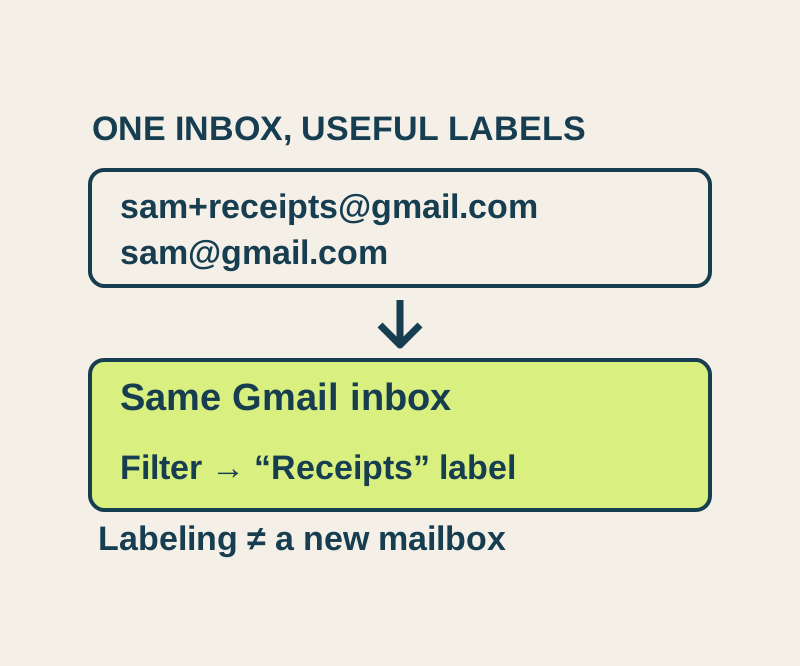
You can give a future signup an address such as yourname+orders@gmail.com and receive its mail in your existing personal Gmail account. The part after + gives you a way to sort messages by the address you supplied. It does not create another login or a separate mailbox, and it does not apply a label on its own. For automatic labeling, you need a Gmail filter.
Replace yourname with your existing Gmail username. Choose categories based on the mail you expect to receive:
| Address to give a service | What it groups | Initial filter action |
|---|---|---|
yourname+orders@gmail.com |
Purchase and account mail | Apply Receipts; keep it in the inbox |
yourname+reading@gmail.com |
Newsletters | Apply Reading; keep it in the inbox at first |
yourname+events@gmail.com |
Event updates | Apply Events; keep it in the inbox |
Keeping these messages in the inbox initially makes shipping updates, password resets, and changed event dates easier to notice. A retailer may send receipts, shipping updates, and password resets to the same address, so a filter that deletes everything sent to +orders could discard a message you need. If you later decide that a particular newsletter category can bypass the inbox, you can edit that filter to add Skip the Inbox.
Make a label-only filter
Start with one category, such as +orders. If a message has already arrived at your actual plus address, use it to check the filter criterion before saving anything. You can also choose to send a trial message from an account you control; this article does not report a Gmail test.
- In Gmail on a desktop, select Show search options in the search bar.
- Enter your full plus address, such as
yourname+orders@gmail.com, in To. Use the address you supplied, rather than searching for the wordordersanywhere in a message. - Select Search and inspect any results. Check that the recipient address belongs to the category you meant to capture.
- Return to the search options, select Create filter, choose Apply the label, and select or create Receipts. Then select Create filter.
This filter’s first job is to label matching mail. Leave deletion, forwarding, and inbox skipping out of this initial example. Gmail labels are not folders: a message can have more than one label. Mail you archive remains under All Mail, and a reply to an archived message can bring the conversation back to the inbox.
After creating the filter, check mail addressed to your +orders address for the Receipts label. Check a message addressed only to your base address, and one addressed to a different plus category, against the rule you intended. Replies need particular attention: Gmail says a reply is filtered only if it meets the same criteria. A label can also apply to an individual message rather than every message in its conversation.
If the visible To address differs because mail was routed or forwarded, Gmail also supports a deliveredto: search operator. Search using your full address, for example deliveredto:yourname+orders@gmail.com, to investigate what Gmail shows for those messages. Inspect the results before changing the filter; the operator alone is not a promise that every routed message will match your rule.
Use new categories for future mail
Giving a service a plus address affects mail it sends to that address in the future. An older signup made with your base address will not gain a category just because you create a +orders filter. If you update an important account’s address, make sure you can receive and confirm mail at the new address before you log out. If a signup form does not accept a plus address, use your base address and consider filtering that service’s actual sender instead.
Anyone who sees yourname+orders@gmail.com can read the base address by removing +orders. If unexpected mail arrives at a category address, that fact alone does not establish who reused or shared it.
To change an existing rule, open Settings > See all settings > Filters and Blocked Addresses and edit or remove the filter.
Google documents the alias behavior, filter controls, recipient search operators, and labels and archiving. The category setup is an illustrative plan; no Gmail delivery or filter action was tested for this article. For older mail already in your inbox, use the Gmail search examples.
KEEP GOING
More to explore.
SOURCE-CHECKEDApps & the web
Organize a shared Google Keep note with labels only you see
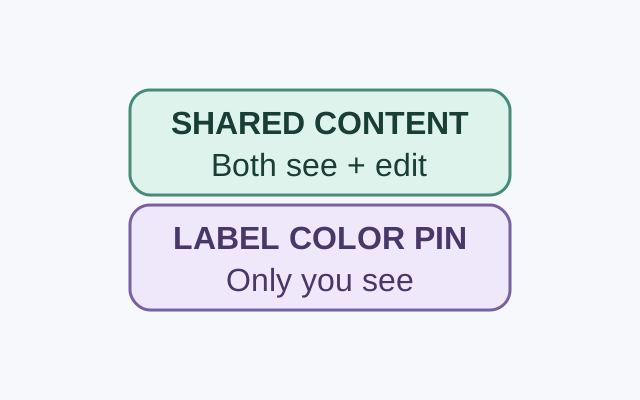
A collaborator can see and edit a shared note’s contents. Google says only you can see the labels, colors, and pins you apply to it.
SOURCE-CHECKEDApps & the web
Freeze Google Sheets headers without losing the row labels
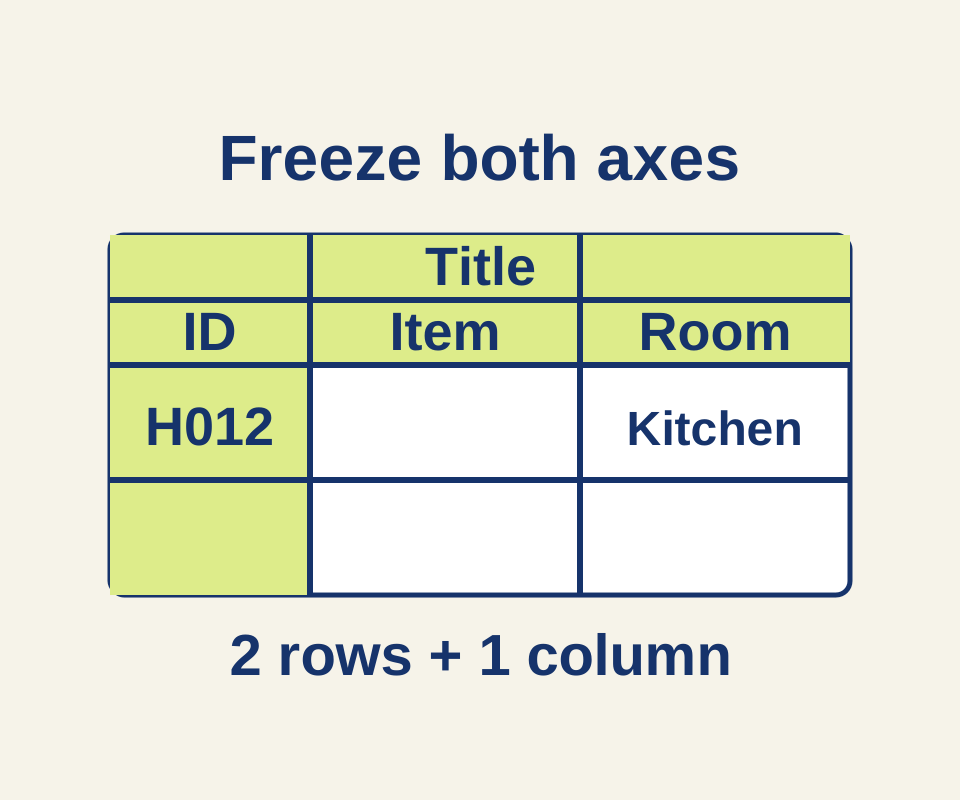
Use a 45-item inventory to choose the correct freeze and sorting boundaries, with separate settings for repeating headings in print.