SOURCE-CHECKED · APPS & THE WEB
How to find old emails and attachments in Gmail
Find old Gmail messages with 13 copyable searches, worked sender, PDF, receipt and date examples, and fixes for searches that return nothing.
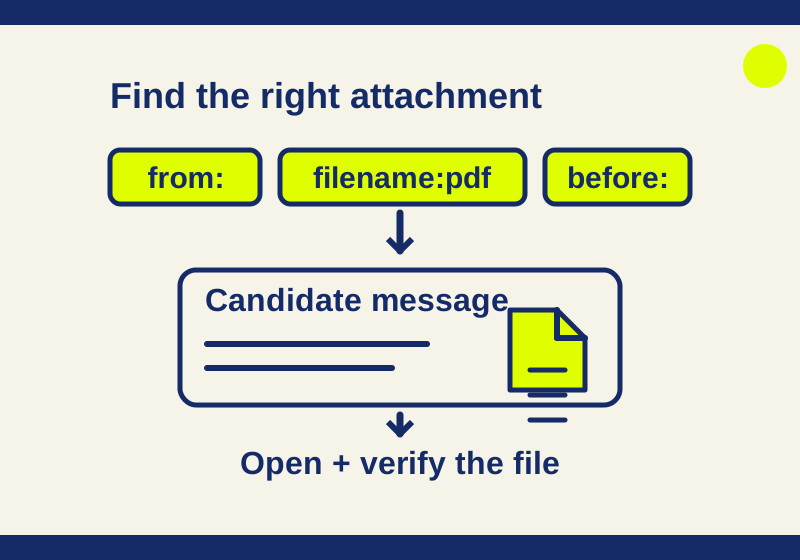
If you remember who sent a PDF, start with from:alex@example.com filename:pdf in Gmail’s search bar and press Enter. Replace the address with the one you remember. The query narrows the search to messages from that sender with a PDF filename; it does not establish that the PDF is the invoice you need. Open a likely message and check its attachment.
Gmail lets you combine sender, recipient, subject, filename, date, size, label, and other search terms. The useful approach is to start with the detail you trust most, then remove a condition if the search is too narrow. Google’s Gmail search guide documents the operators used below.
Start with the sender or file
Suppose you remember that Alex sent an invoice as a PDF. Search for from:alex@example.com filename:pdf. If that finds nothing, you may remember Alex because you discussed the invoice with them, even though a supplier sent it from a different address. Try filename:pdf receipt if “receipt” is a word you remember from the email.
If that still misses it, search for receipt without the filename condition. The record you want might be an ordinary email or have an attachment in another format. Conversely, a PDF result may be a proposal or another document. Search terms help you find candidates; you still need to open the message and identify the right file.
When you remember more of a filename, use it. For a document called tenancy-agreement.pdf, try filename:tenancy-agreement.pdf before searching every PDF. If you also remember “Riverside” from the message, you can try that word in the search. Do not assume the search checked words inside the PDF. Open the candidate attachment and confirm the name and version you need.
To look for PDFs while excluding messages with “proposal” in the subject, try filename:pdf -subject:proposal. Gmail’s exclusion applies to matching messages. A conversation can still appear if another message in that conversation matches, so inspect the individual message before ruling a thread in or out.
Search two possible subjects
If you cannot remember whether the subject said invoice or receipt, use {subject:invoice subject:receipt}. The braces ask Gmail to match one or more of those alternatives. You can combine them with a sender you know: from:alex@example.com {subject:invoice subject:receipt}.
That is different from entering subject:invoice subject:receipt, which asks for both subject conditions. It is also different from searching for the exact phrase "invoice receipt". Choose the form that matches what you actually remember. If the sender condition produces no useful result, remove it and keep the two subject alternatives.
Use dates and size carefully
For an email you associate with 2025, try after:2025/01/01 before:2026/01/01 filename:pdf. Those dates narrow the period searched; if the message may be close to a boundary, broaden the dates. A rolling query such as older_than:1y answers a different question because the cutoff moves as time passes.
To find large, older messages, use has:attachment larger:10M older_than:1y. The size condition concerns the message, not an individual PDF: it does not mean “PDF attachments larger than 10 MB.” A large email with photos could qualify, while a small invoice PDF would not. Searching does not delete anything, and this query is not a complete view of storage used by Google Drive or Photos.
For a recent item you have not read, is:unread newer_than:7d combines read status with a rolling date limit. If you opened the message already, remove is:unread. If you instead need unread mail older than a week, change the date condition to older_than:7d. A search such as label:travel is:unread is useful only if your mailbox has a label named travel.
Look beyond the inbox
Archiving removes a message from the Inbox while retaining it in All Mail. If you remember archiving a receipt, try in:archive subject:receipt. If it finds nothing, remove in:archive: the receipt may still be in your Inbox. When you find an archived message you want there again, use Move to Inbox. Google’s archive instructions also note that an incoming reply can return an archived conversation to the Inbox.
For a missing booking email, try in:anywhere "booking confirmation". If that exact phrase is not in the message, broaden the search to in:anywhere booking. Add a known sender only if the broader search gives you too many candidates. Check the reservation details in any result rather than treating a familiar phrase as proof that it is the booking you need.
By default, Gmail search excludes Spam and Trash. The Mail & Spam & Trash option in advanced search can include them. Messages in Spam or Trash are permanently deleted after 30 days, or sooner if you empty either folder manually; search cannot bring back a permanently deleted message. Google’s search instructions describe the search scope, and its missing mail guidance covers deletion and other reasons a message may be absent.
Check recipients and shared files
If you sent Alex an attachment, try to:alex@example.com has:attachment. This finds messages addressed to Alex that meet the attachment condition; it is not a guarantee that every result is the sent message you have in mind. Open the individual message to check its direction and contents.
Use has:drive when the email may contain a shared Google Drive file rather than an attachment. It helps find the message about the shared file; it does not make that file an attached PDF or grant access to it.
Use Gmail’s search controls
You can type operators directly or use Show search options to enter criteria in fields. Gmail also offers search chips such as From, Any time, Has attachment, To, and Is unread. If you know the approximate date and want to scan chronologically, switch the result order from Most relevant to Most recent. Google’s search help describes these controls.
When an exact query seems to have no matches, inspect the results before assuming each displayed message satisfies every term. Gmail may show related results when there is no exact match. Check the actual sender, subject, and message content, then simplify the query if needed. If you are offline, search covers only messages synced to your device.
Keep future receipts easy to find
If you repeatedly search for the same kind of receipt, you can create a filter that applies a label you already use, such as Receipts. Open Show search options, enter your criteria, and choose Search to review what they match. Then choose Create filter, select the label action, and create the filter. Avoid broad criteria that would label unrelated mail. A reply is filtered only if it meets the same criteria. To edit or delete a filter later, open Settings, choose See all settings, and open Filters and Blocked Addresses. Google’s filter instructions explain the available actions.
For more starting points, download the Gmail search recipes. Its 13 queries are examples using documented operators; replace the sample addresses, filenames, and labels with your own details.
Source note: The search guidance and filter steps come from the linked Google help pages. The example queries were composed for this article; no private mailbox search or result was tested.
KEEP GOING
More to explore.
SOURCE-CHECKEDApps & the web
Gmail Undo Send: give yourself 30 seconds to fix an email
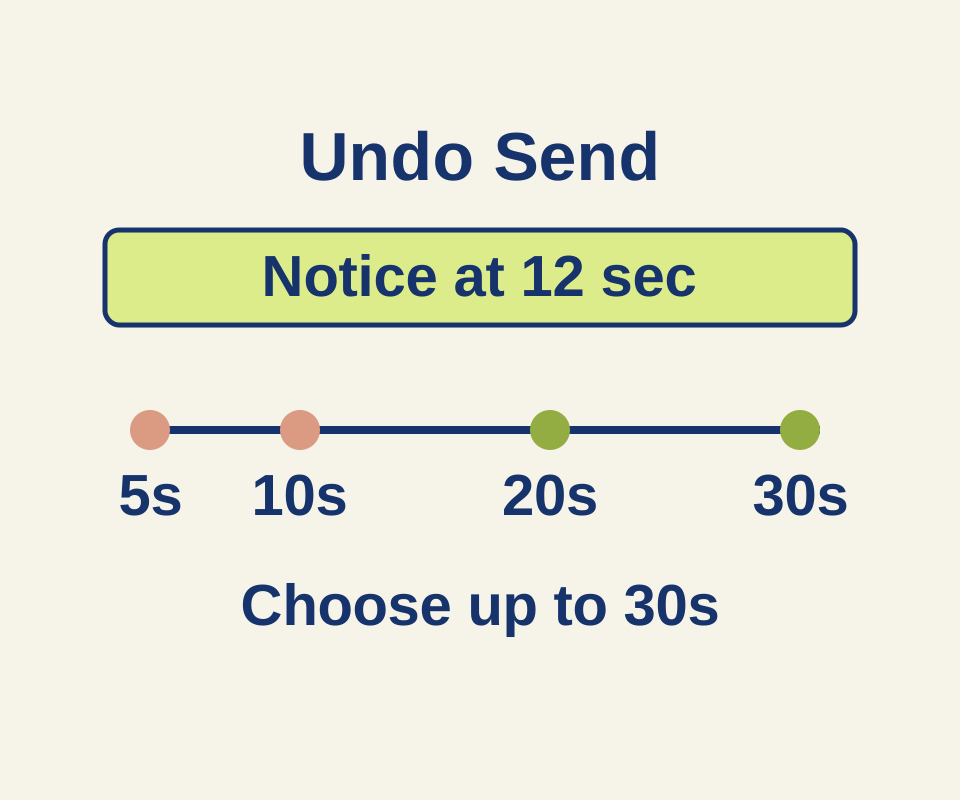
See what a 12-second delay means for each Undo Send setting, then use two correction examples for a wrong time or missing attachment.
TESTEDApps & the web
How to search by image with Google Lens, and read the matches
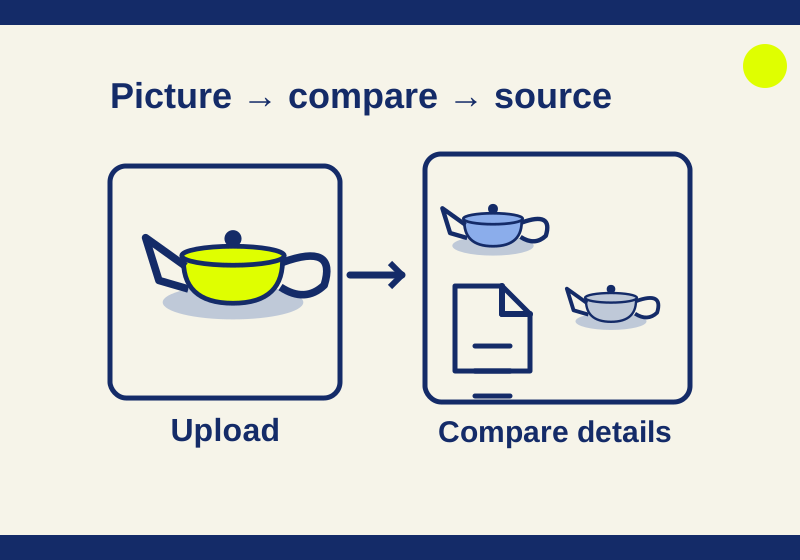
A newly drawn teapot found other teapot graphics. The example shows how visual matches help a search, and why a matching shape cannot identify the creator.