SOURCE-CHECKED · APPS & THE WEB
Gmail Undo Send: give yourself 30 seconds to fix an email
Increase Gmail Undo Send to 30 seconds, correct an email during the cancellation window, and use a clear follow-up when the window has already closed.
Gmail gives you a short window to cancel a message right after you send it. When Message sent appears at the bottom left, click Undo. Google says Undo returns the message to an editable draft, so you can correct the recipient, meeting time, or attachment, check it, and send it again. (Google Help; Google’s Gmail blog)
Set the window to 30 seconds
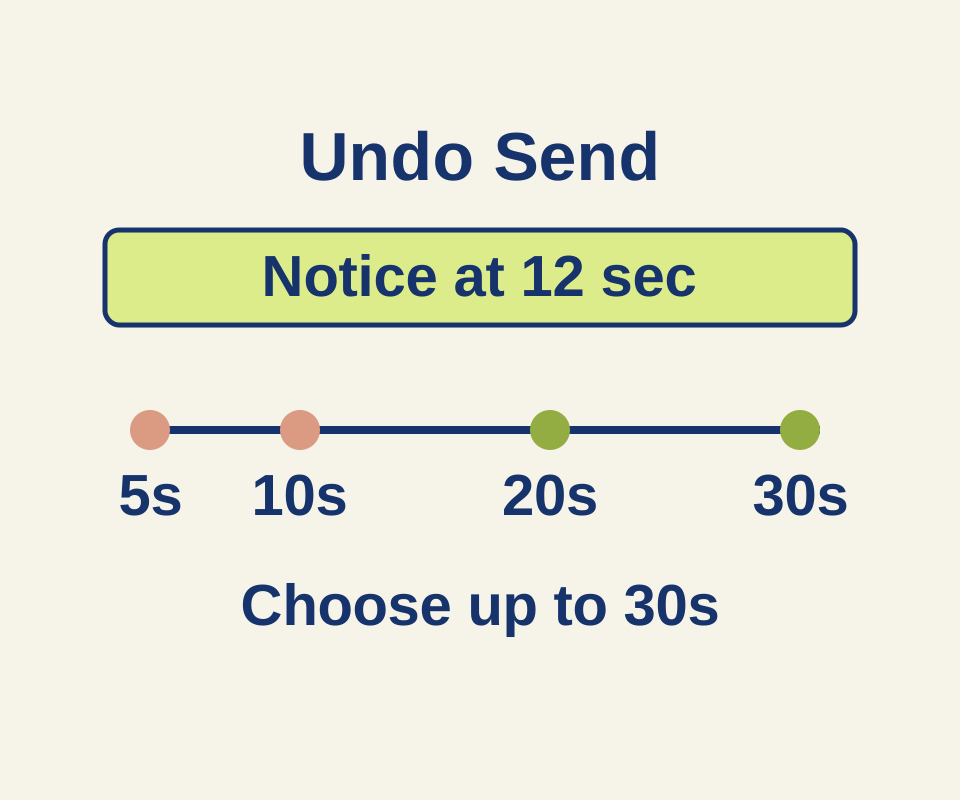
On desktop, go to Settings > See all settings > Undo Send. Choose a cancellation period of 5, 10, 20, or 30 seconds, then click Save changes. Google says the default is 5 seconds. (Google Help; Google’s Gmail blog)
For example, suppose you notice a wrong meeting time 12 seconds after clicking Send. A 5- or 10-second window has already expired. A 20- or 30-second window leaves a nominal 8 or 18 seconds to click Undo; that timing does not guarantee you can react in time. If Undo works, change the time in the draft and send it again after checking the details.
If the window has closed
Undo Send’s instructions do not provide a way to recall a message after its configured window. Send a clear correction instead. Use these example messages after replacing their details. Attach the actual file before sending the second one.
Wrong meeting time
Subject: Correction: meeting time
Please use 3:30 p.m. on Tuesday, October 13, instead of 3:00 p.m. in my previous email. The location is unchanged.
Missing attachment
Subject: Attachment: repair-cafe supply list
My previous email was missing the supply list. It is attached to this message.
This article uses Google’s published instructions as checked October 10, 2026. No message was sent or setting changed to test the feature.
KEEP GOING
More to explore.
SOURCE-CHECKEDApps & the web
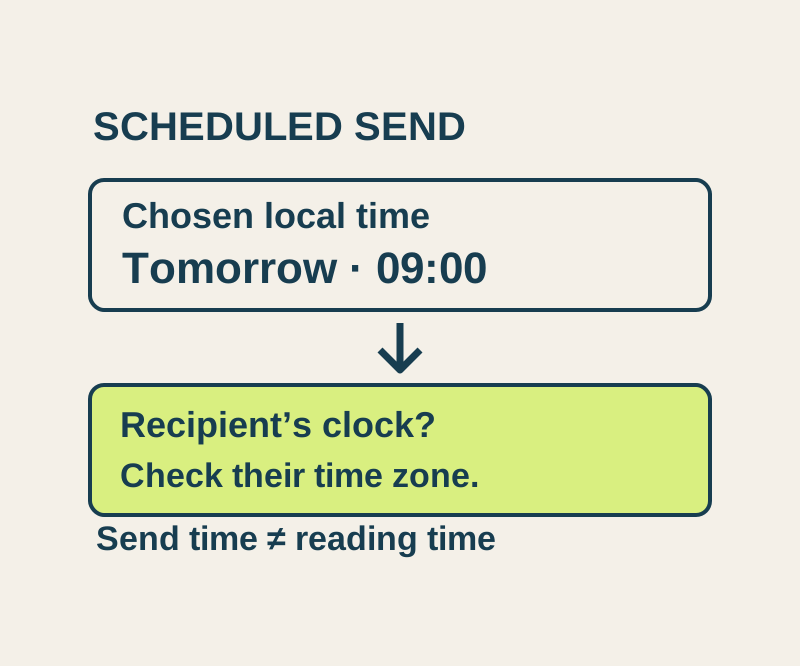
Gmail schedule send: choose Monday morning in the right time zone
Use the actual recipient date and time, understand Scheduled versus Drafts, and check a worked New York, London and Seoul example.
SOURCE-CHECKEDApps & the web
Gmail offline: what your sync range means for an unsent reply
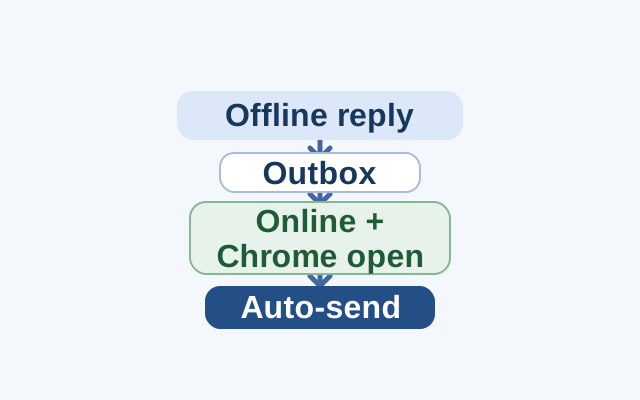
The selected day range controls which messages Gmail syncs for offline use. A reply sent without internet goes to Outbox and sends automatically after reconnection; Chrome must be open for messages to sync.