TESTED · APPS & THE WEB
How to search by image with Google Lens, and read the matches
Upload a picture or use its image address in Google Lens. Try a teapot practice image and learn how to separate similar pictures from source evidence.
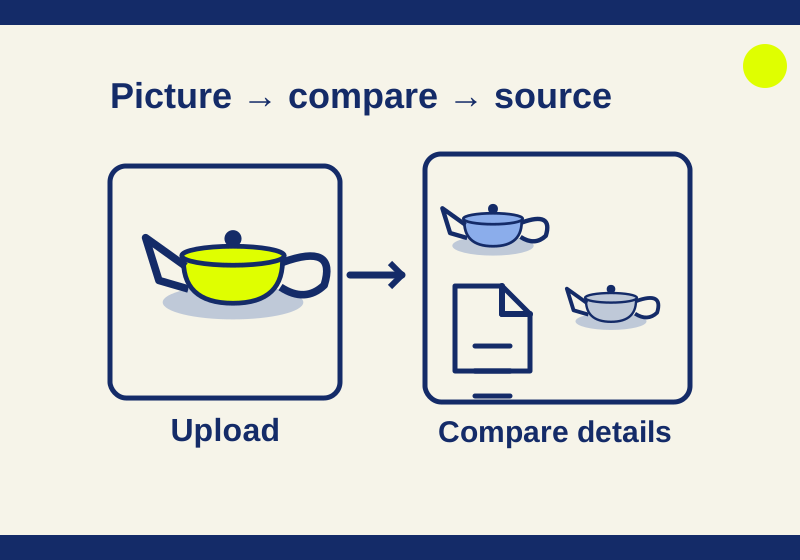
Google Lens lets you search with a picture when you do not know what to call it. On a computer, open Google, choose Search by image, and upload the file or paste its image address. Then open a promising result to find out whether it contains the same picture, a similar object, or useful information about the subject.
A newly drawn red teapot makes the difference easy to see. An October 6 upload returned other teapot graphics, including icons and vector pages. Those were useful visual leads, but they did not identify the creator of the uploaded drawing.
Upload a picture from your computer
Choose Search by image, then Upload a file. Select the image and click Open or Choose. Google also documents dragging a file into its image search area. Its desktop instructions cover most Chrome, Firefox, Safari, and Edge browsers.
You can try the 400 × 320 red teapot practice PNG. HowCurio permits using this original illustration for visual search practice. It contains a teapot on a white background, with no people or private material. Download the PNG and choose it in the upload dialog.
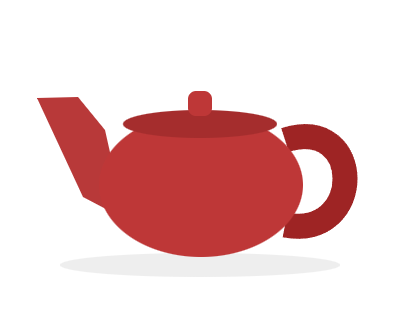
In the October 6 search, the uploaded illustration appeared beside Visual matches containing teapot icons and vector pages. Your results may differ. The file gives you a known starting image, so you can compare what you submitted with whatever the search actually returns.
Paste the image address, not the page address
For a picture already online, copy the image’s address from the website. At Google, choose Search by image, paste it into Paste image link, and search. Chrome also has a right-click Search with Google Lens option that opens results in a sidebar.
An article URL identifies the page containing a picture. The image address identifies the picture itself. A page can contain a logo, a cover photograph and several illustrations; its address alone does not specify which of those you mean.
A .png or .jpg ending is a familiar clue when examining an image address, though an image URL does not need either extension. If you copied the page address, return to the picture and look for the browser’s Copy Image Address command. Downloading an image you are allowed to use and uploading the file is another way to avoid that ambiguity.
These alternatives are documented methods. The teapot check used an uploaded file, so it provides no separate result for the URL or sidebar paths.
Compare the details before calling it the same image
The practice teapot has a broad red body, a spout rising on the left, a darker curved handle on the right, and a small lid knob above an oval lid. A pale gray shadow sits below it. Those details give you more to compare than the word “teapot.”
Suppose a result shows a red teapot with its spout on the right. It may help you find related drawings, but it differs from the practice image in a detail you can point to. Another drawing might have the same orientation but a different handle or background. These are examples of comparisons you can make, not descriptions of particular result cards from the check.
Open a promising page and compare its picture with the uploaded file. A thumbnail may be too small to show the lid shape or shadow clearly. Look for the details that made you consider it a match, then decide whether the page contains the same drawing or another drawing of the same subject.
This matters when you are tracing a source. The teapot was newly drawn for the check, yet related graphics appeared in the results. Similarity alone therefore did not establish who created that file. The first result’s position in the list does not resolve that question either.
An Exact matches control was visible during the check, but it was not opened. This article does not report a result from that control.
Add words for the thing you want to find
After uploading, Google’s documented Add to your search box lets you include a description. The words should express your task, because the same picture can lead to several kinds of search.
For the practice illustration, “teapot icon” asks about a kind of graphic. “Ceramic teapot” asks about a physical object with a particular material. “Replacement lid” asks about a part. These are suggested queries, not tested results; none establishes that the drawing depicts a specific real product.
If you are looking for the publishing page of a graphic, keep comparing image details and follow the page links. If you want a name for an unfamiliar object, related pictures can suggest terms to investigate. When looking for a replacement part for a real object, use any visual lead to find model and size information before treating it as compatible. A lid with a similar outline can still be the wrong size.
Follow the image back to a useful source
A publishing page can tell you more than a matching thumbnail. Does it contain the picture you searched for? Is it attached to an article about the subject, a collection of stock illustrations, or a product listing? Does the text name the subject or credit a creator? Read the part relevant to your question before treating the result as an answer.
If the page displays a date, check what it describes. An article’s updated date does not automatically date the creation of its photograph. Likewise, a page using an image may be a later copy. Record the page and any credit you find; keep looking if your question is who originally made the image and the page does not establish that.
Google can display image credit, copyright and license details when that information is supplied with the content. A missing credit does not mean that the picture has no owner. A visible credit also does not by itself give you permission to reuse it.
For reuse, check the license at the source for the particular image. The practice PNG’s permission applies to that file; it does not extend to the teapot pictures returned by the search.
Source note: The October 6, 2026 check covered the original teapot file upload and displayed visual matches. Desktop methods, text refinement, and image metadata guidance were checked against Google’s official pages on October 7, 2026. URL search, sidebar search, query refinements, and Exact matches were not independently tested.
KEEP GOING
More to explore.
TESTEDApps & the web
How to translate a Word document or PDF with Google Translate
Upload the whole file, download its translation, then check the details that matter. Two real Word examples show what a small French-to-English translation returned.
SOURCE-CHECKEDWeb research
Build Zotero saved searches that find the research you need
A populated query worksheet shows how collection and tag searches combine, which records qualify, and why results change.