TESTED · APPS & THE WEB
How to translate a Word document or PDF with Google Translate
Translate a Word document or PDF on desktop, compare real downloadable examples, and handle scanned pages that come back untranslated.
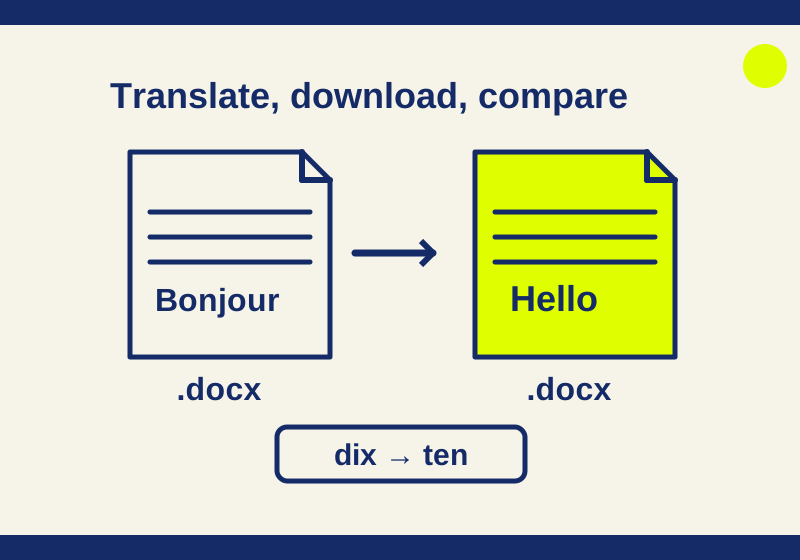
Google Translate can take a whole Word document or PDF in a desktop browser and return a downloadable translation. You can keep the original beside the translated file, without copying each paragraph into the text box. Scanned PDFs need particular attention: words inside page images can remain in their original language in the returned document.
The useful check happens after the download. Open both files and compare the information you need, such as an opening time, a ticket amount, or a reference number. Below are two real Word files from a small French-to-English translation, followed by a way to handle a scan and review a longer document.
Upload the document and download its translation
Open Google Translate on a computer and choose Documents at the top. Select the language of the document and the language you want. Detect language is available if you do not know the source language.
Choose Browse your computer, select the file, and click Translate. Once processing finishes, choose Download translation. Keep the downloaded file separately from the original so you can refer back to its wording.
Google’s document translation instructions list four supported formats: .docx, .pdf, .pptx, and .xlsx. Uploads can be up to 10 MB; PDFs also have a limit of 300 pages. Document translation is unavailable on mobile devices and smaller screens.
An older .doc file needs conversion to .docx before upload. Changing the extension in its filename does not convert the document. If you are looking at a phone and cannot find Documents, switch to a computer before trying to rearrange the file.
Compare a real Word input and download
An October 5 check uploaded a synthetic French Word document with two paragraphs and downloaded an English Word file. Both files are available here:
| French input | English download |
|---|---|
| Bonjour ! Le musée ouvre à dix heures. | Hello! The museum opens at ten o’clock. |
| Le billet coûte cinq euros. Bonne visite ! | The ticket costs five euros. Enjoy your visit! |
This is a made-up museum note, not information about an actual museum or ticket. The example is deliberately simple enough to inspect completely. The opening time is ten o’clock in both versions. The ticket amount is five euros, and the second paragraph retains its closing invitation.
Open the documents side by side and work down the rows. The French word dix becomes the English word ten; an important number can survive as a word, so checking only numerical digits would miss it. Check the surrounding sentence too: the time refers to the museum opening, rather than some unrelated event.
Both downloadable files opened read-only in Word 16.0 during an October 7 check. Each contained two paragraphs with no comments or tracked revisions. This confirms that the small examples can be opened in Word; it does not establish what happens to a document with tables, images, or complicated page design.
When a PDF comes back partly untranslated
Try selecting a sentence in the original PDF. If you cannot select its words, that page may be an image of text. This is a useful clue, although one selectable sentence does not tell you what is on the other pages. A file may need different attention in different sections.
Google says image text and scanned PDF text can appear in the output without being translated. If a translated file still contains a photographed page in the original language, start by checking how that text is stored. Uploading the same scan again does not address that documented limitation.
Google Drive has a separate text conversion workflow. On a computer, upload the PDF or image to Drive, right-click it, and choose Open with Google Docs. Review the extracted text against the original before preparing an editable Word document for translation. These are source-based instructions; the museum-note trial did not use this extraction workflow.
Drive’s preparation guidance recommends files of 2 MB or less, upright images with sharp contrast and even lighting, and text at least 10 pixels high. That 2 MB recommendation concerns text extraction. Google Translate’s document-upload ceiling is 10 MB. Passing the translation size limit does not mean a scan is ready for extraction.
Expect to inspect tables and columns yourself. Google says lists, tables, columns, footnotes, and endnotes are unlikely to be detected during conversion. If a two-column page turns into a single sequence of lines, read the sequence against the page before translating it. Otherwise, a heading can end up next to the wrong paragraph even when every individual word looks familiar.
Review the details that could change your reading
Start with the part of the document you need to use. For a notice, that might be its date and opening hours. For a set of instructions, find the action and any exception. Compare those passages with the original before spending time making the translated file look tidy.
Consider a hypothetical invoice containing reference INV-204, amount 125.00, and payment due in 14 days. Those details give you specific things to locate in the returned document. Check the reference against its original spelling, the amount against its currency, and the deadline against the sentence that explains when payment is due. This invoice is a review example, not an additional translation test.
Read negation in context. A sentence saying a fee is “not included” carries a different meaning from one saying it is “included.” Looking only for the word “fee” would not catch that difference. Names and brands also deserve comparison with the source when you need to search for the same organization or cite a document accurately.
For extracted text, correct obvious character errors before translation. An OCR result of IO where the page says 10 gives the translator different input. Keep a note of any passage you cannot resolve from the scan, instead of treating a fluent English sentence as evidence that the unclear original was understood.
Sources checked October 7, 2026. The actual translation trial was the two-paragraph Word document on October 5; its input and download were parsed and opened in Word on October 7. PDFs, scans, complex layouts, and a comprehensive translation-accuracy test were outside that trial.
KEEP GOING
More to explore.
TESTEDApps & the web
How to search by image with Google Lens, and read the matches
A newly drawn teapot found other teapot graphics. The example shows how visual matches help a search, and why a matching shape cannot identify the creator.
SOURCE-CHECKEDApps & the web
Organize a shared Google Keep note with labels only you see
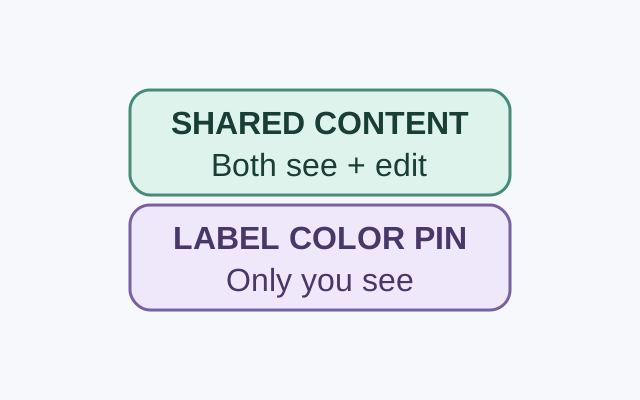
A collaborator can see and edit a shared note’s contents. Google says only you can see the labels, colors, and pins you apply to it.