SOURCE-CHECKED · SHARING WORKFLOWS
Save a Teams recording before it expires, including its transcript
Find a Teams recording and its expiry, create calendar reminders with a local script, and save an authorized video and transcript as separate files.
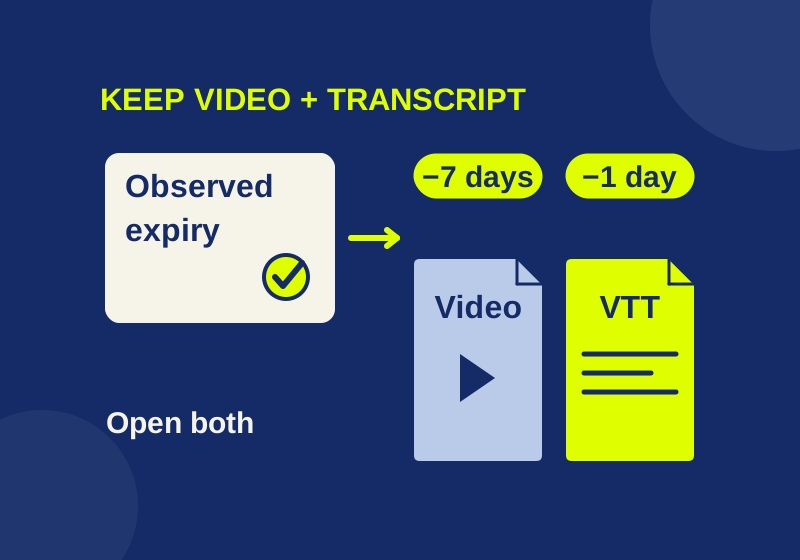
Use the expiration date shown on the recording to arrange a permitted local copy before the hosted file expires. Save the transcript separately if you need the words or captions. For people watching online, the organizer must also check their access to the specific file.
A meeting link in an old chat can look permanent. Keeping the video useful takes a little more work: a known deadline, a copy you can open, and the text that explains what happened in it.
Find the recording’s actual deadline
For a scheduled, non-channel meeting, look in the meeting chat’s Shared tab or the past meeting’s Calendar recap. The recording normally belongs to the organizer’s OneDrive. Ask the organizer to check the expiration on that file. Microsoft’s recording guide explains where to find it and how expiration works.
Record the date displayed there instead of estimating a deadline from the meeting date. IT sets recording expiration, and an organizer can change it. A calendar calculation based on an assumed retention period can therefore point to the wrong day.
This article covers the ordinary meeting case with an organizer’s OneDrive available. A channel meeting uses SharePoint, and calls or meetings without that storage can follow different routes. Microsoft’s storage guidance describes those differences. Use the location of the actual file if your meeting does not fit the case here.
Save the video or give the recipient access
If downloading is permitted, the organizer can select the recording in Shared, open More options, and choose Download. If the option is absent, ask the organizer or IT what the policy allows. Teams recording policies govern parts of this workflow; the instructions here do not change them.
After downloading, open the local video. Check a section where someone speaks, a section with shared-screen material, and the end of the meeting. Compare its title and duration with the recording you intended to keep. A file on disk still needs that check before someone relies on it for training or a missed discussion.
For online viewing, co-organizers can share the non-channel recording, while an external invitee needs explicit file access. Have the intended recipient open the recording from their own authorized account while it is available. Seeing it in the organizer’s account does not establish what the recipient can see.
Keep any copy in an approved location and share it only with authorized people. Downloading produces a separate file whose handling needs to follow your organization’s rules. If the hosted recording already expired, ask the organizer about the recycle bin promptly; permanently deleted recordings cannot be recovered through that route.
Keep the transcript as a separate file
Captions shown during online playback are not included in the video download. If a transcript exists, the organizer or co-organizer can normally download it as DOCX or VTT, subject to policy. The path is Chat > past meeting > Recap > Transcript > Download. Microsoft’s transcript instructions describe the available formats and permissions.
Choose DOCX when someone needs a document to read. VTT is useful when the text needs to stay associated with positions in the video. You can open it as plain text and look for a phrase, then use the corresponding timestamp to find that part of the recording.
The synthetic practice transcript contains four short cues. One is:
00:00:06.000 --> 00:00:09.000
<v Reviewer>The hosted recording expires on November sixth.</v>
The cue starts six seconds into the video and ends at nine seconds. Those positions are unrelated to the time of day or the expiration date mentioned in the sentence. The speaker label identifies a voice in the text. The WebVTT specification explains this timestamped format.
For a real transcript, find a distinctive sentence and compare it with the same point in your local video. Check names, dates, and numbers against the audio before quoting them elsewhere. A transcript’s existence does not establish its accuracy, and an error in a deadline can matter more than several misspelled ordinary words.
The practice dialogue is fictional and was not exported from Teams. A downloaded VTT also does not automatically become captions in every local video player. Keep it beside the video as a separate resource and check the reader’s playback setup if visible captions are required.
Put two useful dates on your calendar
Use seven calendar days before the observed expiry for the first reminder and one day before it for a final check. These are planning choices you can adjust to your workload. They do not calculate Microsoft’s retention policy or the exact moment the server will remove a file.
For the example expiry of November 6, 2026, the dates are:
| Reminder | Date | Work to finish |
|---|---|---|
| Seven days before | October 30 | Arrange permitted retention and recipient access |
| One day before | November 5 | Open the saved video and transcript, or confirm hosted access |
Set those events manually if you prefer. Where the file shows only a date, avoid treating the final reminder as a guarantee that the recording will remain available until your local midnight. Finish the copy on the earlier date when possible. If that date has already passed, start the work now.
For Python 3 users, the local reminder generator makes an ICS calendar file using the date you supply:
python recording-reminders.py 2026-11-06 --title "Practice recording"Replace the date with the expiry you observed. The default output is recording-reminders.ics. For another meeting, choose another filename:
python recording-reminders.py 2026-11-06 --title "Practice recording" --output training-reminders.icsThe script uses Python’s standard library and makes no Teams or other network request. It refuses an invalid calendar date and refuses to overwrite an existing output file. If you see an existing-file error, keep the old file and select a new output name; rerunning the command does not silently replace it.
The two events are all-day, transparent calendar entries. They do not block time as meetings, contain an automatic alarm, sync themselves to an account, or alter the recording. Review them in your calendar and add notification settings there if you need alerts. Importing a file is a separate action from generating it.
Check the imported events before relying on them
The example ICS file contains October 30 and November 5 for the synthetic November 6 expiry. It is ready to inspect as text, but its dates are examples to replace, not your recording’s deadline.
The first event has October 30 as its start and October 31 as its end. The iCalendar specification uses an exclusive end date, so that is a one-day event. The second event likewise starts November 5 and ends November 6. Reading the end date as another reminder day would shift your plan.
After importing your own file, check that you have two entries on the intended dates and that any notifications you need are enabled. The local generator was checked with a calendar parser, including calculations across a month boundary, a year boundary, and leap day. Import behavior in a particular calendar application was not tested.
If the organizer changes the hosted expiry, review your calendar again. These entries are a snapshot of the date supplied to the script; they do not follow later changes to Teams. Confirm the new deadline with the organizer before changing the plan.
Source and practice scope: Microsoft’s guidance was checked October 7, 2026. The calendar examples were read by a local calendar parser, and Chrome’s text-track parser read the four synthetic VTT cues. No Teams account, recording download, recipient access, expired-file recovery, or calendar-app import was tested.
KEEP GOING
More to explore.
SOURCE-CHECKEDBusiness documents
Check a Google Docs export in Word before sending it for review
Find missing review material with Word controls and a read-only DOCX inventory before reconciling returned edits.
SOURCE-CHECKEDBusiness documents
Download Dropbox Sign documents and find the audit trail
Find the completed agreement and audit record without archiving an old draft.