SOURCE-CHECKED · EVERYDAY TECH
Change a Windows touchpad gesture that keeps switching apps
Identify the sideways touchpad swipe causing an unwanted switch and find the matching gesture setting.
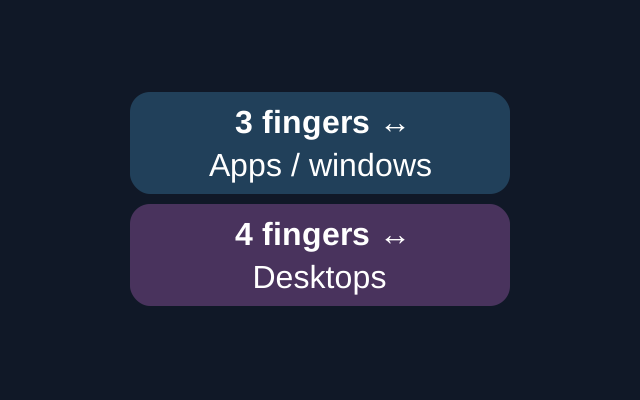
Count the fingers you use when the sideways swipe takes you somewhere unexpected. Microsoft lists three fingers for switching between open apps or windows and four for switching desktops. If another window comes forward, check Three-finger gestures. If the desktop changes, check Four-finger gestures. A gesture you have already customized may behave differently, so the finger count is the better guide to its setting.
On Windows 11, right-click Start and open Settings > Bluetooth & devices > Touchpad. Expand the gesture section that matches your finger count, then use its drop-down for the sideways swipe to choose a different action.
On Windows 10, open Settings > Devices > Touchpad and find the matching gesture section. Use the drop-down for the sideways swipe. Check which control you are changing, since a tap is a separate gesture.
Microsoft Support’s “Touch gestures for Windows” documents these steps and notes that some touchpad gestures require a precision touchpad. The steps have not been tested on a laptop for this article.
KEEP GOING
More to explore.
SOURCE-CHECKEDEveryday tech
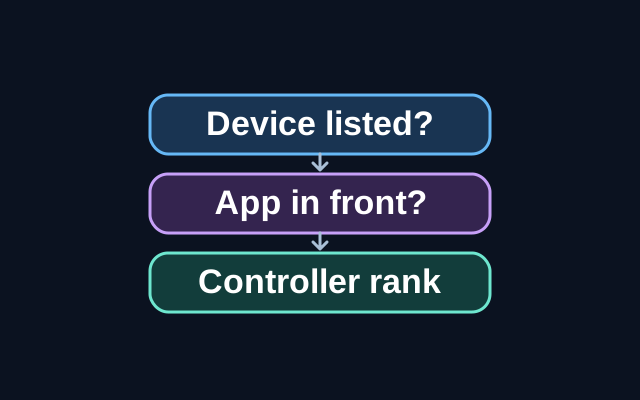
Windows Dynamic Lighting settings not changing your keyboard?
A troubleshooting guide to the different controls that can override a Windows Dynamic Lighting effect.
SOURCE-CHECKEDEveryday tech
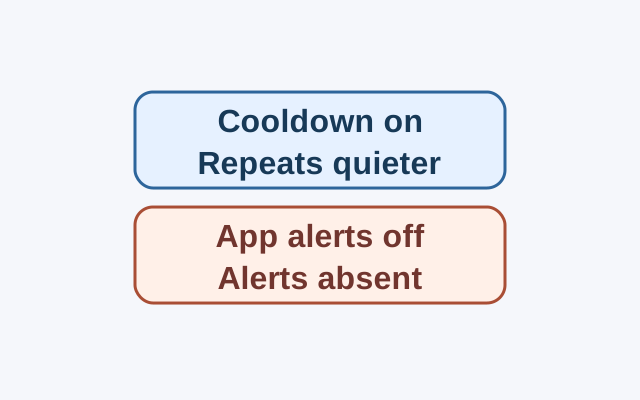
Pixel alerts suddenly get quieter? Check Notification cooldown
On Pixel phones running Android 14 or later, Notification cooldown can lower the volume of repeated notifications from the same app. Whether alerts still appear helps determine which setting to check first.