SOURCE-CHECKED · EVERYDAY TECH
Windows Dynamic Lighting settings not changing your keyboard?
Find what controls a compatible keyboard or mouse’s lighting in Windows 11, from device settings to foreground apps and background controller priority.
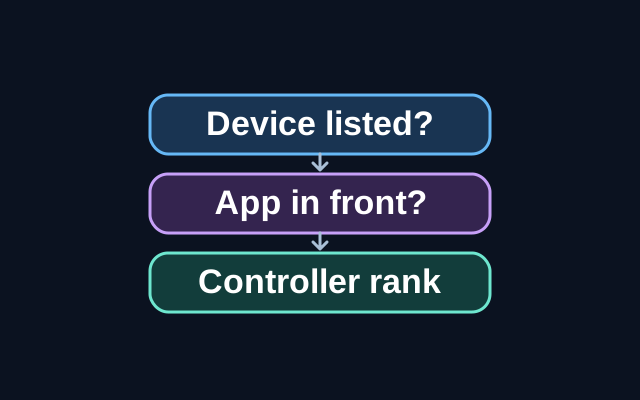
Open Settings → Personalization → Dynamic Lighting. A connected, compatible keyboard or mouse should appear as a card at the top of the page. Select its card to set brightness or effects for that device. The controls below the cards apply to connected devices globally, but a device’s own settings take precedence. If no card appears, check the connection and compatibility; the missing card alone does not tell you what went wrong.
If the device appears but your change has no effect, check that Use Dynamic Lighting on my devices is on. With it off, the device uses its default behavior instead of Dynamic Lighting.
Next, check Compatible apps in the foreground always control lighting. When it is on, an active app can take control. Minimize or close the app and check the lighting again.
If brightness or effects still do not change, expand Background light control. It ranks apps registered as background lighting controllers. If another controller sits above Dynamic Lighting Background Controller, drag the Windows controller to the top, then check the device again.
These background settings are tied to the device and its port. If you move it to another USB port, Windows may treat it as a different device, so check its settings there too.
Source: Microsoft Support, “Control Dynamic Lighting Devices in Windows”.
KEEP GOING
More to explore.
SOURCE-CHECKEDEveryday tech
Windows microphone works in Settings but fails in an app
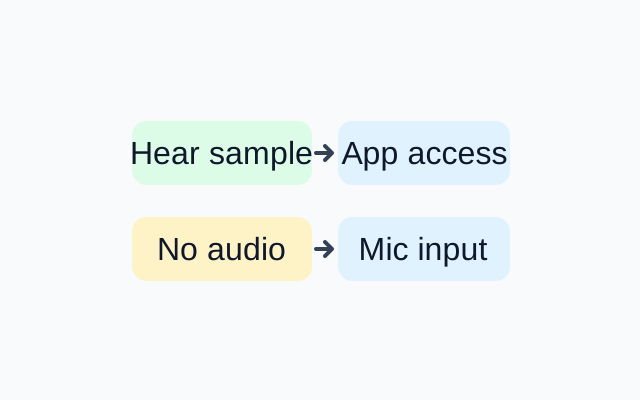
An audible sample shows that Windows recorded sound from the selected microphone during the test. If an app still fails, check its microphone permissions. If the sample is silent, revisit the selected input and its volume.
SOURCE-CHECKEDEveryday tech
Pixel alerts suddenly get quieter? Check Notification cooldown
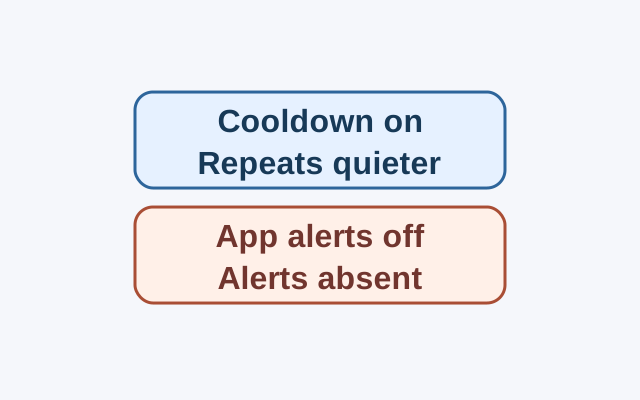
On Pixel phones running Android 14 or later, Notification cooldown can lower the volume of repeated notifications from the same app. Whether alerts still appear helps determine which setting to check first.