SOURCE-CHECKED · EVERYDAY TECH
Open Android phone files in Windows File Explorer
Connect a supported Android phone to Windows 11, copy a file to your PC, and understand what moving or deleting does instead.
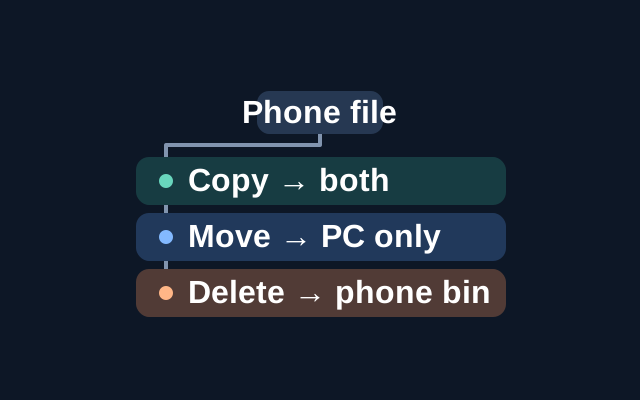
Windows 11 can show a paired Android phone in File Explorer. From there, you can browse the phone’s files and copy one into a PC folder.
Check the requirements and connect
For File Explorer access, Microsoft requires Android 11 or later and Link to Windows version 1.24072.258.0 or later. Its general device-linking guide lists lower minimums, but those do not establish eligibility for File Explorer access. Keep the phone and PC nearby, turned on, and connected to Wi-Fi while linking them.
- On the PC, open Settings > Bluetooth & devices > Mobile devices.
- Turn on “Allow this PC to access content and capabilities from your mobile devices” if it is off, then select Add device.
- Scan the QR code displayed on the PC with your phone. Grant the requested permissions and finish the prompts.
- Select Manage devices and turn on “Show mobile device in File Explorer.”
Open the phone in File Explorer, choose a file, then copy and paste it into the PC folder you want. If you have several paired phones, the File Explorer guide says only one can appear there at a time. Use the same switch in Manage devices to choose which phone appears.
Copy, move, and delete
Copying a file to the PC leaves the original on the phone. Moving it to the PC removes it from its former phone location.
If you delete a phone file through File Explorer, Microsoft says you can find it in the “Recycle bin – Connected device” folder on the Android phone. Files remain there for 30 days and can be restored or moved.
KEEP GOING
More to explore.
SOURCE-CHECKEDEveryday tech
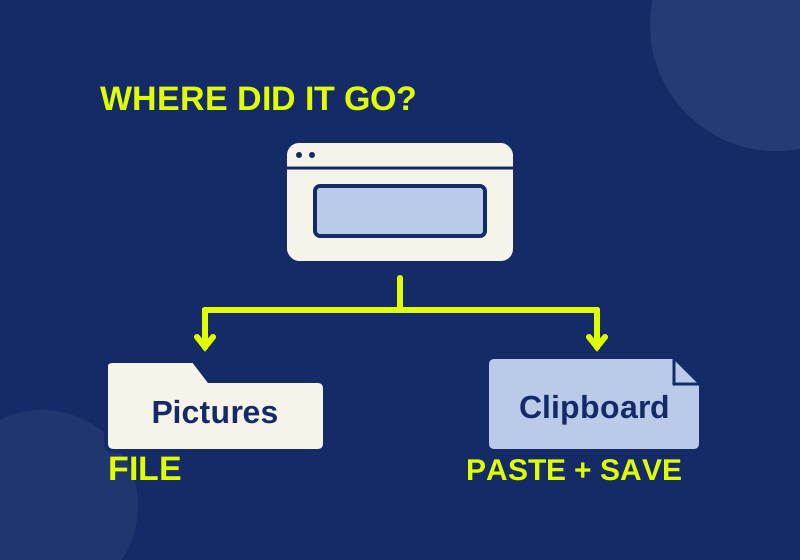
Where Windows 11 screenshots go: saved files and clipboard copies
Locate a saved screenshot or turn a clipboard capture into a file you can attach.
SOURCE-CHECKEDEveryday tech
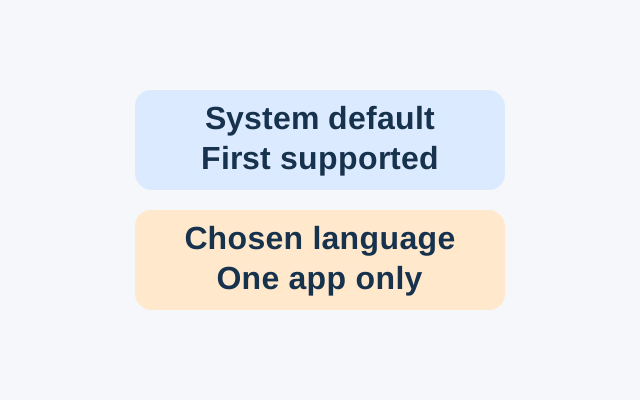
Change one Android app’s language without changing the phone
Android’s App Languages setting lets you choose a language for an individual app. An app following the system default instead uses the first language in the system list that it supports.