SOURCE-CHECKED · WEB RESEARCH
How to check a Zotero snapshot really works offline
Check the contents of a Zotero snapshot offline and compare two completed HTML practice copies to see what a saved page preserves.
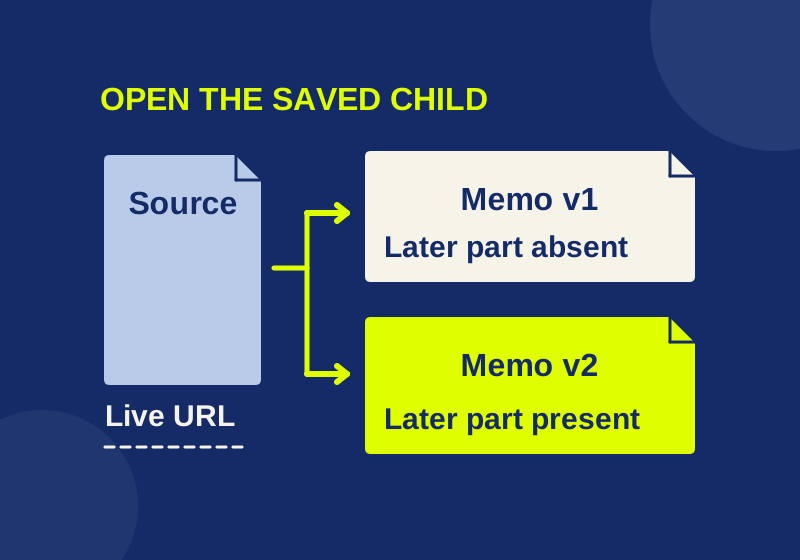
A Zotero attachment icon tells you that an item has an attachment. To find out whether a snapshot preserves the material you need, open the saved child attachment with your connection off and check the passage, table, or diagram itself. Open the item’s URL separately when you want the live page; that URL does not establish what was saved.
Decide what must survive
Before saving a page, identify the evidence you will need later: for example, a table value together with its heading, source title, date, and the diagram that explains it. Record when you captured the page using the time of your actual save. If the live page changes, that record helps you distinguish the stored copy from later content.
Zotero distinguishes stored attachment copies from linked files and links to URLs. Its documentation says a web page snapshot can hold an offline copy, and that a saved Web Page with Snapshot item opens its copy while the item’s URL opens the live page. A link to a page, even one that returned a successful response when you saved the item, is not a check of the saved file. See Zotero’s attachment guide and item-saving guide.
Save, then open the saved child
Let the source page finish loading. Right-click the Zotero Connector button and choose Save to Zotero (Web Page with Snapshot). Zotero documents this explicit command even when the automatic snapshot preference is disabled. The separate Automatically take snapshots when creating items from web pages setting is under File Handling; the associated PDF option is a different setting. See Zotero’s saving instructions and General preferences.
Then inspect the new item:
- Find the snapshot child attachment and open it instead of using the item’s URL label.
- Disconnect for the check, reopen the saved child, and inspect the material you selected before capture. Check the target text and any essential image, not only the page title.
- Record any missing part in a note attached to the item. Keep the actual source URL and capture time with your record.
A browser tab that was loaded online may still display cached material after disconnection. Starting the check from the saved child makes it clearer which copy you are reading.
Try the difference with two local files
These two downloadable HTML files are original source-reading memos, not copies of a paper or exports from Zotero:
Use your browser’s Save Link As command, or its equivalent, to save each .html file locally. Open each local file, disconnect, and reload it. Downloading a file this way does not add it to an existing Zotero library automatically.
Both memos identify Attention Is All You Need, arXiv 1706.03762v7, with an initial date of June 12, 2017, and a consulted paper revision dated August 2, 2023. They contain a brief note about later positions in the decoder and an original inline SVG. The paper link is external; the full paper is not embedded in either memo.
What to look for in the practice copies
Start with memo revision 1. Its source identity names a particular paper revision, while the memo itself is marked revision 1. Find the decoder observation under “Reading finding,” then check that the three drawing labels are visible: “Source + version,” “Local memo” and “Read offline.” The drawing belongs to the local memo. The paper link below it points to another document.
Now open memo revision 2 and repeat the same checks. Its extra paragraph is under “Later addition.” Searching revision 1 for that heading should find nothing. Searching revision 2 should reach the new paragraph. Neither result tells you that the paper was revised again; the files describe two versions of an authored reading memo about the same cited source.
| Offline check | Memo revision 1 | Memo revision 2 |
|---|---|---|
| Source identity and consulted paper revision | Present | Present |
| Decoder observation and inline drawing | Present | Present |
| “Later addition” section | Absent | Present |
| Full paper included in the file | No | No |
Use the same distinction when you consult a real page later. If a stored copy supports a statement in your notes, keep that copy’s identity with the statement. A fresh live page can help you update the claim, but it does not replace the evidence for what you previously read. Name a second capture separately if it contains a change you need to preserve.
Interpret a failed check
- You see the current web page instead of your saved text. Check whether you opened the item’s URL or a link rather than the snapshot child.
- The text is present but a necessary diagram is missing. Treat that diagram as absent from the verified offline copy. A page may refer to a remote asset, so check the actual saved material before relying on it.
- A link opens a new tab that fails offline. The linked destination is a separate page; saving one page does not establish that the destination was copied.
- An older stored copy does not show a later change. That is the version distinction you are checking. Save and verify another copy if the new content is evidence you need.
A browser’s Save As operation on another page may produce an HTML file plus a resource folder; keep both together when that happens. The two memo files above contain their SVG inline and need no companion folder. Likewise, a printed PDF may preserve visible text without preserving an interactive page flow. Test the particular material you intend to cite or use.
Test note, October 7, 2026: The two authored memo files were opened by file URI in one isolated Chrome context with the network disabled. Both displayed their source identity, decoder note, and inline SVG without horizontal overflow; only revision 2 displayed “Later addition.” This verifies those local files, not a Zotero Connector capture, Zotero attachment, sync operation, or live website snapshot. The Zotero steps above come from its linked documentation.
KEEP GOING
More to explore.
SOURCE-CHECKEDWeb research
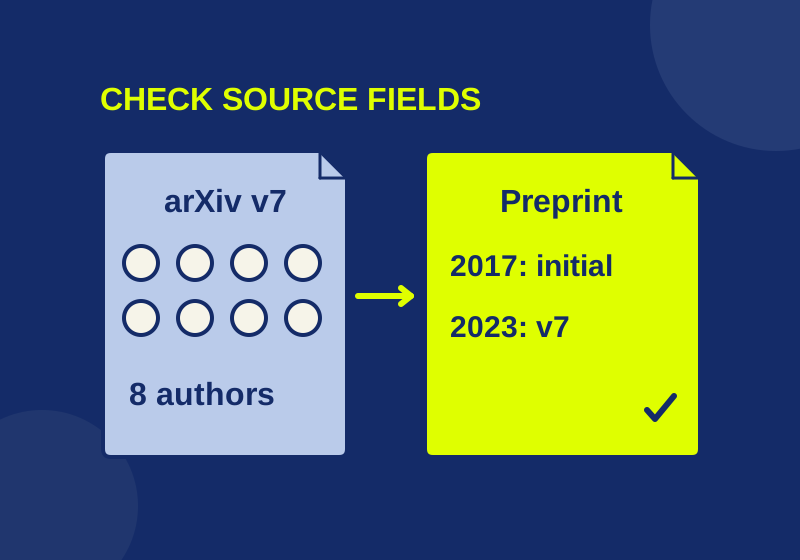
Fix Zotero Connector metadata with a real eight-author example
A real eight-author source shows how site names, revision dates and homepage links can distort a reference.
SOURCE-CHECKEDWeb research
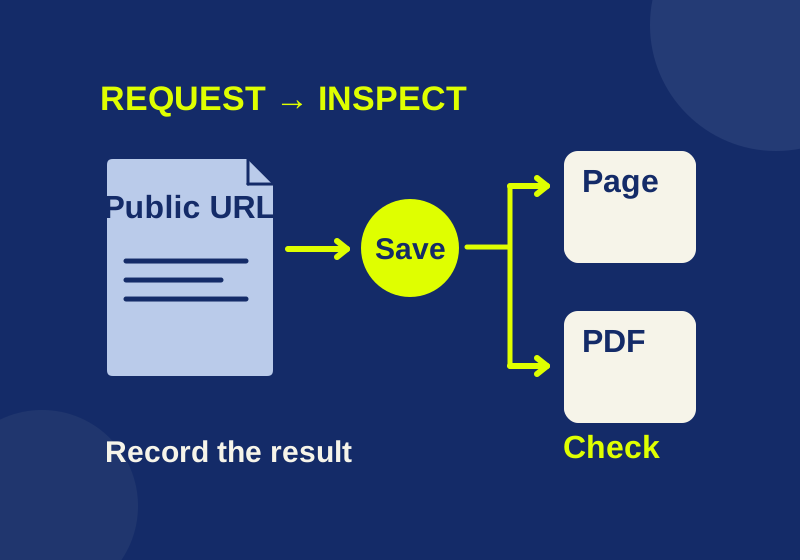
How to save a web page with the Wayback Machine
Save Page Now requests a capture; use its timestamped address to check the exact text and files you need.