TESTED · WEB RESEARCH
How to save all your Firefox tabs and resume a project later
Save one Firefox window as a bookmark folder, keep multiple projects separate, and use a tested five-link bookmark file and resume note to pick up later.
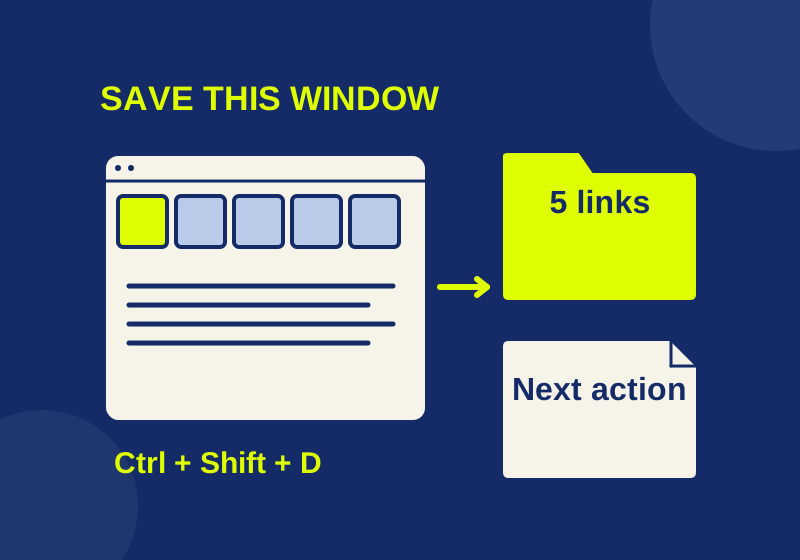
Save a project’s open tabs in a named bookmark folder if you want to find them next week. Firefox’s Restore Previous Session returns to your most recent session, which changes as you use the browser. A folder keeps a separate set of links after you have moved on to other work. If the project spans several windows, save each window separately.
Save the tabs in one window
- Switch to the Firefox window containing the tabs you want to keep.
- Press Ctrl+Shift+D on Windows or Linux, or Command+Shift+D on macOS.
- Name the folder, choose its location, and select Add Bookmarks.
For the mouse route, right-click a tab and choose Select All Tabs. Right-click again and choose Bookmark Tabs. Both routes apply to the current window. The bookmarks are page links; they do not make offline copies. These controls are in Mozilla’s bookmark instructions.
Give the folder a name that tells you what belongs inside. “Camera research: reviews” is easier to distinguish from “Camera research: specifications” than two folders called “Saved tabs.” Keep the original window open while you decide which links belong to the project. For an unfinished form or draft, use the service’s own save function before closing the page. A bookmark stores its address.
Keep separate windows separate
A window of product reviews and a window of manufacturer specifications can become two folders under one project. Saving the reviews window does not collect the specifications window’s tabs. This is easy to miss when the second window is behind the first.
Open Bookmarks > Manage Bookmarks to organize the saved links. The Library shortcut is Ctrl+Shift+O on Windows or Linux and Command+Shift+O on macOS. In Library you can create a parent folder and drag the saved folders into it, following Mozilla’s folder instructions.
Keep “Reading now” separate from “Reference” when those labels describe how you will use the pages. A review you still need to read goes in the first; a specification you will consult while comparing models goes in the second. Moving a bookmark into a folder gives the link that context without requiring you to remember which browser window it came from.
Leave a note that tells you where to start
A saved folder can preserve the sources while losing the question you were trying to answer. The editable Firefox resume note has space for the next action, the first URL to open, a decision already made, and the folder holding a second window. It also has a field for where you saved an unfinished form or draft separately.
The file includes this filled example:
Next action: Read the private-window exception before changing startup settings.
Page to start with: https://support.mozilla.org/en-US/kb/restore-previous-session
Decision: Keep a named folder even if automatic session restore is enabled.
That gives the next visit a specific purpose. Open the folder, double-click the starting bookmark in Library, and continue with the action in the note. The other links remain available when you need them. Keep passwords and private access links out of a note you intend to share.
Use session restore for the latest workspace
Firefox provides Menu > History > Restore Previous Session. For automatic reopening, find Open previous windows and tabs in the startup settings. The settings panel’s name can change between interfaces; look for that option.
Mozilla’s session restore guide says regular and pinned tabs can return, while private windows cannot. Use Firefox’s Exit or Quit command to close the browser with several windows still open. Closing individual windows can leave only the last closed window’s tabs available for restoration. Restored sessions may also retain logins, which matters on a shared computer.
For an accidentally closed tab or window, use History > Recently Closed Tabs or Recently Closed Windows. Ctrl+Shift+T on Windows or Linux, or Command+Shift+T on macOS, reopens a just-closed tab. These recovery routes are useful for recent work; a named project folder remains available when you deliberately return to an older task.
Try a real five-link bookmark folder
Download the Firefox tab recovery bookmark HTML. You can open it as a local page to read the links, or import it into Firefox. The folder is called Firefox tab recovery desk and contains these five pages in this order:
- Save every tab in one window: the all-tabs commands and bookmark controls.
- Reopen the previous Firefox session: startup restoration and its private-window exception.
- Organize a bookmark folder: make folders and move links.
- Export bookmarks as HTML: take bookmarks to another browser or computer.
- Import bookmark HTML: add the downloaded folder to Firefox.
In Library, choose Import and Backup > Import Bookmarks from HTML and select the downloaded file. The folder should appear within Bookmarks Menu. HTML import adds bookmarks to the library; importing the file again can create duplicates. It is a different operation from restoring a JSON bookmark backup, as Mozilla’s import guide explains.
The sample contains public Mozilla links, not your own tabs. To use it with the resume note, start with the session restore page and read its private-window section before deciding whether to enable automatic reopening. The matching five-URL text file is useful when you want the addresses separately; it is not a bookmark import file.
If you export your own bookmarks using Firefox’s HTML export, inspect the file before sharing it. The documented command exports the library, so the file can contain links outside the project you intended to send. Our downloadable example contains only the five listed links.
Testing note: The supplied HTML rendered in isolated Firefox 141 and its five URLs matched the text file. Firefox’s native importer added the named folder to Bookmarks Menu with all five entries in order. The keyboard instructions and session behavior come from Mozilla’s guides; the all-tabs dialog, session restart, personal profiles, Sync, and macOS interface were not tested.
KEEP GOING
More to explore.
SOURCE-CHECKEDEveryday tech
Chrome Tab Groups on Android: close, find, or delete a group
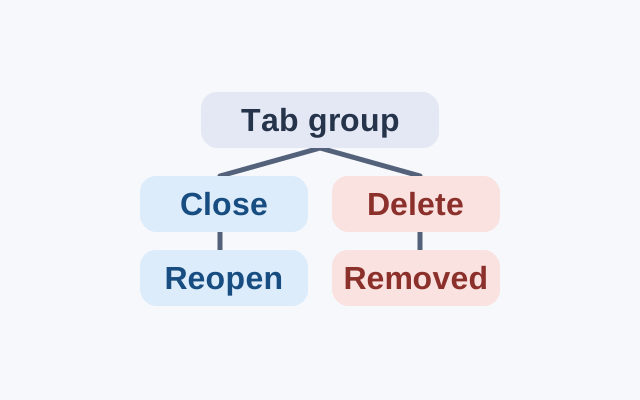
Chrome saves tab group changes automatically. A closed group can be reopened; deleting a group removes it from devices using the same Google Account.
TESTEDWeb research
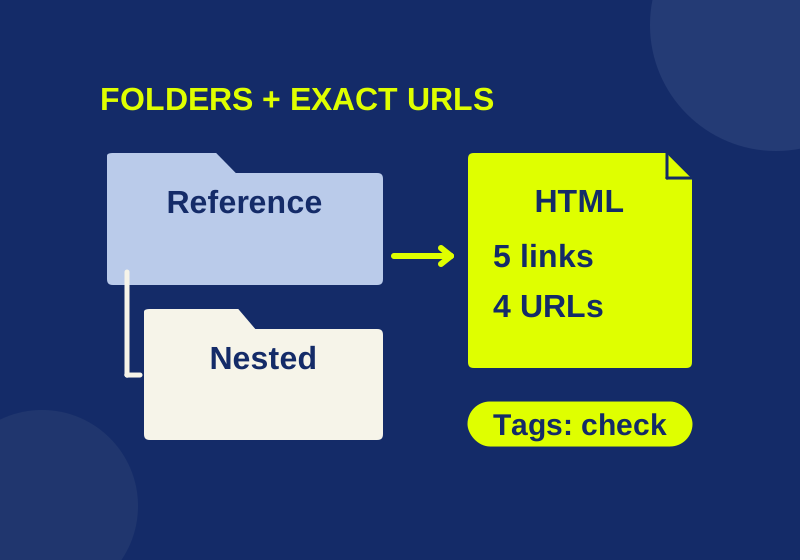
Export Firefox bookmarks to HTML: folders, tags, and transfers
Move bookmark links with HTML, inspect their folder structure, and understand which Firefox details need a separate check.