TESTED · WEB RESEARCH
Export Firefox bookmarks to HTML: folders, tags, and transfers
Export Firefox bookmarks to HTML for Chrome or another browser, with a downloadable folder example and a Firefox-tested look at tags and duplicate links.
In desktop Firefox, open Bookmarks > Manage bookmarks, then use Import and Backup > Export Bookmarks to HTML in the Library window. The resulting HTML file can move bookmark links into another browser or open as a readable link index. Firefox’s JSON and JSONLZ4 backups are for restoring a Firefox collection.
The difference becomes clearer when you open a small export: folder names and links are readable, while Firefox-specific details such as tags need their own compatibility check. The two files below let you inspect that structure before moving your own collection.
Export the HTML file from Firefox
Choose Export Bookmarks to HTML and save the file. Firefox suggests bookmarks.html. These menu steps follow Mozilla’s export instructions.
If the collection is on your phone, Mozilla directs you to use Firefox Sync to bring the bookmarks into desktop Firefox for HTML export. The desktop file then becomes the transfer copy. Sync continuously follows bookmark changes; Mozilla says it is not a true backup service.
Open a bookmark file you can inspect
Download the practice collection (HTML)
Download the same collection exported by Firefox (HTML)
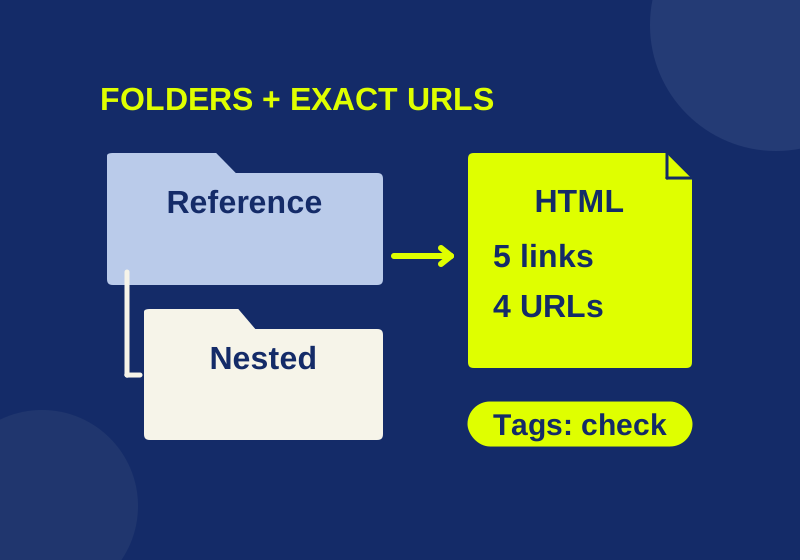
The first file is a crafted collection of five links to Mozilla, Google, and MDN documentation. The second is Firefox’s actual HTML export after importing that collection into a separate profile. Neither contains a personal browsing history or account data. Opening either file displays links; importing it adds those bookmarks to a browser.
The collection has this layout:
Firefox transfer practice
  Firefox HTML export instructions
  Chrome bookmark import instructions
  Format details & examples
    HTML links — café & 북마크
    HTML links: download section
Second reference folder
  Same Mozilla page, different label
There are two top-level folders and one nested folder. That gives you something more precise to compare than an overall item count. If the nested MDN links appear beside the top-level Mozilla link, the URLs may have arrived while the grouping changed. If the whole second folder is absent, compare its one link before concluding that only a folder label was lost.
Read the folders and URLs inside the HTML
You can open the saved file in a text editor to inspect it without importing anything. In the practice file, <H3> names a folder, and the following nested <DL> section contains its entries. This is the beginning of the nested folder:
<DT><H3>Format details & examples</H3>
<DL><p>
<DT><A HREF="https://developer.mozilla.org/en-US/docs/Web/HTML/Element/a">HTML links — café & 북마크</A>
<DT><A HREF="https://developer.mozilla.org/en-US/docs/Web/HTML/Element/a#download">HTML links: download section</A>
</DL><p>The text between <A> and </A> is the bookmark label. HREF is its destination. The HTML entity & displays as an ampersand; it is not five extra characters in the bookmark’s name. The second MDN URL includes #download, which identifies a location within the page. MDN’s anchor reference explains link destinations and fragments.
Compare complete URLs when checking an import. A title can survive even if a fragment is missing. In this collection, the two MDN links have different destinations because only one includes #download. The saved links also contain addresses rather than copies of those documentation pages, so you still need access to the websites to read them.
What the Firefox roundtrip preserved
Importing the practice file through Firefox 141.0’s native bookmark engine and exporting it again returned all five links. The nested folder remained inside Firefox transfer practice, and Second reference folder remained separate. The title HTML links — café & 북마크 kept its accented and Korean characters. The MDN fragment also remained in the exported URL.
The collection has five bookmarks but four distinct exact URLs. Firefox HTML export instructions and Same Mozilla page, different label deliberately point to the same Mozilla page from different folders. Both entries survived. Deleting one solely because its URL repeats would remove a deliberate shortcut from one folder.
The Firefox-generated file adds ADD_DATE and LAST_MODIFIED attributes to these entries. Those are metadata from the exercise. Compare names, destinations, and nesting when reading the two files; byte-for-byte equality would be the wrong expectation for this roundtrip.
Tags can be present without being portable everywhere
The first Mozilla link in the practice file includes TAGS="reference,read later". Firefox imported two tags, including the multiword read later. After export and a second import into the same isolated test profile, both tags were still present.
In Firefox’s exported file, both bookmarks for that Mozilla URL carry those tags, even though only the first entry had a TAGS attribute in the input. In this exercise, tagging followed the shared URL across the two labels. Folder membership and label text still differed.
That result covers Firefox. Chrome’s importer was not tested for tags, so the presence of TAGS in a file is not evidence that another browser will retain them. If tags are how you find a large collection, keep a Firefox backup alongside the HTML transfer and check a tagged entry in the destination before relying on it.
Import the file into Chrome or back into Firefox
For desktop Chrome, follow Google’s HTML import steps: open More > Bookmarks and lists > Import bookmarks and settings, select Choose file, select the HTML file, then use Open > Done.
Google says a collection with no existing bookmarks receives imported bookmarks on the bookmarks bar; a collection that already has bookmarks receives them in Other bookmarks. Its Chromebook instructions separately describe an Imported location. Use the instructions for your device rather than expecting one folder label everywhere.
To add HTML bookmarks back to Firefox, Mozilla documents Import and Backup > Import Bookmarks from HTML in the Library. HTML import adds to the current collection and can create duplicates. Restoring a Firefox backup instead replaces the current set, so those operations need different precautions.
Resolve a mismatch before importing again
If a folder seems missing, look in the destination’s documented import location and compare the five-entry tree above. A renamed outer folder and a missing nested group are different changes. Repeating the import before locating the first result can add more copies.
If a link opens the wrong part of a page, compare its full HREF, including the fragment. If a label looks garbled, inspect the saved text and its UTF-8 declaration. The practice file and Firefox’s exported copy both preserve café and 북마크, so you have a known example to compare against your own file.
For passwords or saved offline pages, this exercise provides no transfer evidence: the files contain bookmark labels, URLs, and bookmark metadata. Treat those other data types as separate migration tasks.
Menu guidance was checked against Mozilla and Google documentation on October 7, 2026. The five-link exercise used Firefox 141.0’s native bookmark engine in an isolated profile, not the Library dialogs or Chrome’s importer; it does not cover a large personal collection.
KEEP GOING
More to explore.
TESTEDWeb research
Export Chrome bookmarks: check the HTML before moving browsers
A real eight-link export shows what the HTML preserves, how to inspect it, and what a browser move still needs.
SOURCE-CHECKEDWeb research
Firefox bookmark tags: find saved pages across folders
Find saved Firefox pages across folders with shared tags and a tested six-link practice file.