SOURCE-CHECKED · EVERYDAY TECH
Chrome Tab Groups on Android: close, find, or delete a group
Choose the right action for an Android Chrome tab group when you pause a project, return to it, or finish it.
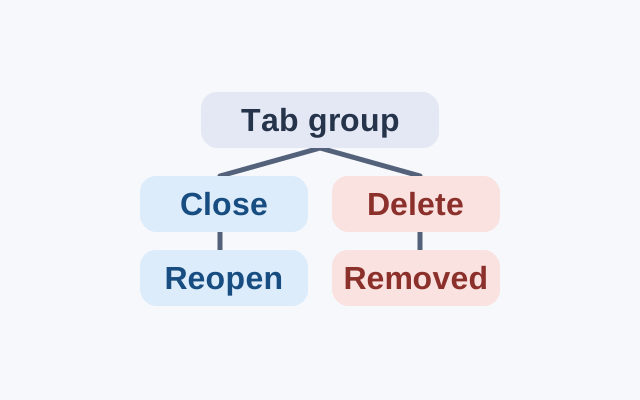
Close a tab group when you plan to return to it. If you left a group open and it seems to have disappeared, check Inactive tabs. Delete group when you want it removed from devices using the same Google Account.
Create a group and put it away
In Chrome on Android, tap Switch tabs. Touch and hold one tab and drag it over another, then name the group, choose a color, and tap Done. Chrome saves group changes automatically and syncs them across devices signed in with the same Google Account.
To put the group away, touch and hold it or open its More menu, then tap Close group. When you return, open Tab groups and select the group by name. Closing does not delete it.
Find a group you left open
In the tab switcher, open Inactive tabs and tap the group if it appears. Google says tabs and groups unused for 14 days or more move there. You can change that period, or choose Never, under More > Settings > Tabs and tab groups > Move to inactive section.
Items in Inactive tabs automatically close after six months unless you turn off Automatically close inactive items. Google says synced groups closed this way are not deleted.
Delete a group or keep its tabs
In the tab switcher, touch and hold the group or open its More menu. Tap Delete group and confirm. This removes the group from your device and other devices using the same Google Account.
To keep selected tabs open on your Android device, open the group, touch and hold a tab or tap More then Select tabs, and choose the tabs. Tap More then Ungroup tabs. The selected tabs stay open locally, but the group is deleted across those devices.
Source: Google’s Chrome Help guide for Android, checked October 20, 2026. These are documented instructions, not device-tested results. The guide does not describe a Collapse group action or how it compares with closing.
KEEP GOING
More to explore.
SOURCE-CHECKEDWeb research
Chrome Reading list: save pages for later without losing your place
A four-link starter queue shows how to save a destination, keep your reason for reading, and avoid confusing a list entry with an offline copy.
SOURCE-CHECKEDEveryday tech
Android app updates and system updates: find the right screen when one says up to date
Update, Open and a stuck download lead to different next checks; an Android up-to-date message cannot settle all three.