SOURCE-CHECKED · WEB RESEARCH
Chrome Reading list: save pages for later without losing your place
Find and pin Chrome Reading list, build a short queue with real NASA and book links, and keep a separate note when a saved link cannot preserve your place.
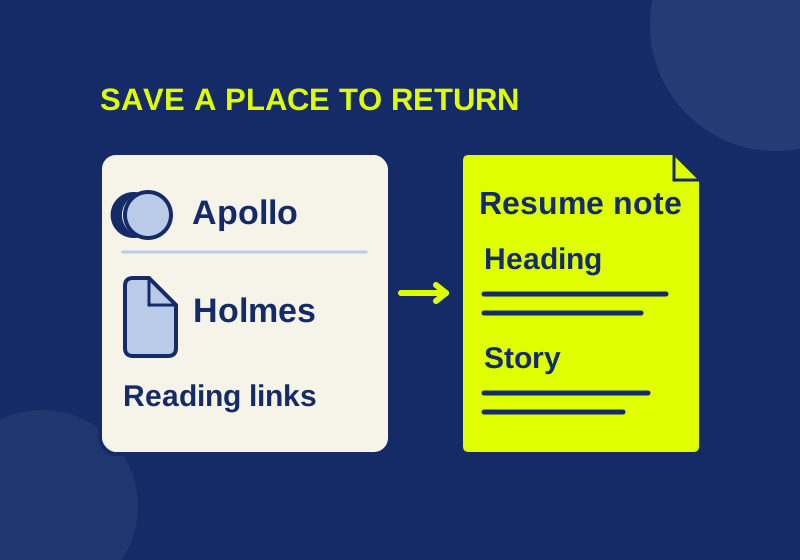
Chrome’s Reading list gives you a place to put pages you intend to read, so an interesting article does not have to stay open in a tab. The link gets you back to the page. If you also need to remember why you saved it or where you stopped, keep that context in a separate note.
Add a page and find it again
On desktop, open the page, then choose More > Bookmarks and lists > Reading list > Add tab to reading list. You can also right-click its tab to add it. To return, use More > Bookmarks and lists > Reading list > Show reading list. Google documents these routes and says you can reorder, edit, and delete entries in the side panel. Chrome Reading list help
If you use the list often, open it and select Pin to toolbar next to its name. Drag the panel’s edge to resize it, or choose which side it opens on under Settings > Appearance. Chrome side panel help
Save the specific page you mean to revisit. NASA’s Apollo 11 mission overview is a useful return link for that subject; NASA’s home page would leave you searching for the article again. If you stop at its “Mission Highlights” heading, a note saying “resume at Mission Highlights” gives you a place to find within the overview.
Try a reading queue with real links
The starter CSV contains four example destinations from NASA and Project Gutenberg. It is a separate editable note file. Chrome does not import this file into Reading list. Open it in a text or spreadsheet editor and replace rows that do not interest you. The examples start with unread in the disposition field and a blank resume location.
The two NASA links let you choose a small comparison: read the Apollo 11 overview, then NASA’s Apollo 13 page. Put the question you want to answer in reason_to_read, such as “compare the mission accounts,” and record the last heading you reached in where_to_resume.
Project Gutenberg’s Alice’s Adventures in Wonderland record has a “Read online” link and downloads. Save the record while you are choosing a format. Once you are reading in the browser, save the actual reading page if that is where you want to return. A catalog record and a book’s text have different jobs, even when both tabs display the same book title.
For a shorter selection, the Sherlock Holmes record leads to an online text with a contents list. You could start with “A Scandal in Bohemia” and record that story’s name instead of leaving yourself an unexplained link to the entire collection.
You do not need to add every example. Pick the pages you want to return to soon. A queue containing one particular story and one particular article gives you a clearer next choice than a collection of every destination you might someday enjoy.
Keep your place outside the link
A useful resume note names something you can find again. A heading works for the NASA overview. A story title and section work for the Holmes collection. If a page has no headings, record a few distinctive words from the paragraph where you stopped so you can use the browser’s Find command when you return. A percentage or a scrollbar position is less descriptive when the page’s layout changes.
In the CSV, keep the full destination in url, the reason in reason_to_read, and the stopping point in where_to_resume. You can change disposition to your own label, such as finished or keep as reference. Editing these cells changes only your note file. It does not mark an entry read, remove it, or reorganize anything inside Chrome.
Give permanent references a different home
For sites you visit repeatedly, Chrome’s Bookmark Manager supports folders and the address-bar shortcut @bookmarks for searching saved bookmarks. A NASA article you plan to read once can stay in your current queue; a site you use every week can go in a permanent folder. Chrome bookmark help
Keep the CSV if the reasons and resume notes matter to you. Google’s documented HTML export covers bookmarks. That documentation does not establish an export for Reading list or say it includes Reading list entries. Chrome bookmark export help
Reading mode changes the view of a page
Chrome also has a feature called Reading mode. It changes how you read an open page, with options for text size and appearance; Reading list stores pages you want to return to. If you meant to make an article easier to read, Google’s desktop instructions say to right-click the page and choose Open in reading mode. Google notes that Reading mode does not work on every website. Chrome Reading mode help
Save a copy when you need one offline
Google’s desktop instructions treat downloading a page for offline reading as a separate step. Do that while you still have a connection. A return link is insufficient if the server cannot be reached.
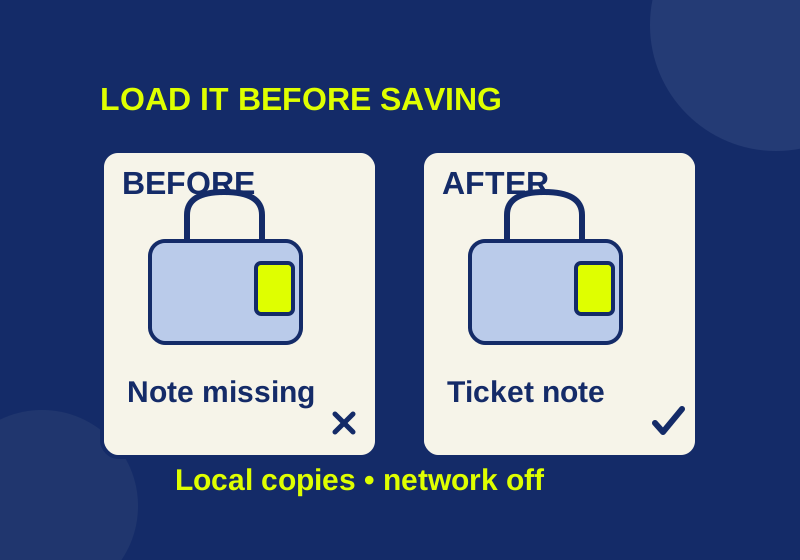
An isolated Chrome 154.0.8037.93 experiment saved a synthetic packing-note page as MHTML before and after loading an extra section. Both local files opened in a fresh browser context with networking disabled, preserving the static paragraph and embedded bag diagram. Only the after-loading copy contained the requested station note. A fresh visit to the live URL failed with ERR_INTERNET_DISCONNECTED. These files were captured through Chrome’s snapshot protocol; the Reading list interface was not tested.
If your list seems empty, open it through the documented menu and check the browser profile you used when saving. Chrome profiles keep browser information separate. If an entry is missing or its destination has changed, your separate URL and heading notes can help reconstruct what you intended to read. They cannot restore deleted website content.
Source check: Google’s cited desktop guidance and the example destinations were reviewed October 7, 2026. Native Reading list, Reading mode, account sync, and mobile behavior were not tested. The offline observation concerns the two synthetic MHTML files only.
KEEP GOING
More to explore.
TESTEDWeb research
Save a webpage in Chrome for offline reading: what survives the download
Download real before-and-after page copies: both preserve the image offline, but only the copy saved after loading the station note contains its text.
SOURCE-CHECKEDEveryday tech
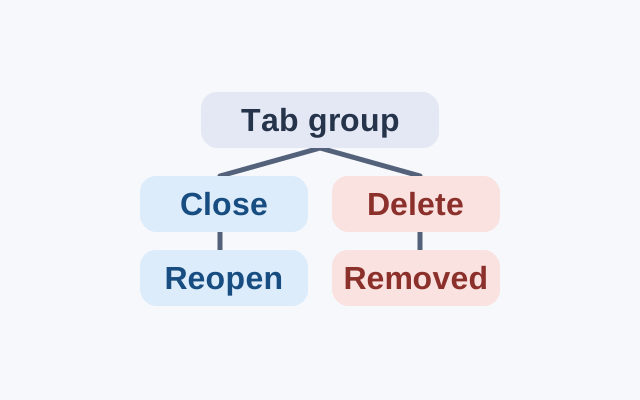
Chrome Tab Groups on Android: close, find, or delete a group
Chrome saves tab group changes automatically. A closed group can be reopened; deleting a group removes it from devices using the same Google Account.