SOURCE-CHECKED GUIDE · WEB RESEARCH
Save a Chrome webpage file for offline reading
Download a Chrome webpage for offline reading and test the saved file with the network disconnected before relying on it.
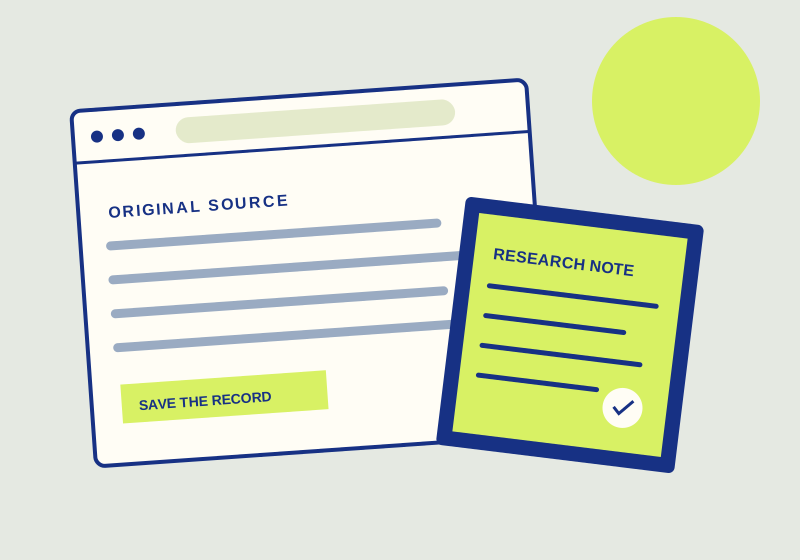
Chrome’s desktop Save page as command lets you keep a copy of a webpage for later reading. Save it while connected, then check the copy after disconnecting. The useful question is whether the text and images you need are present offline. Chrome documents the command under More > Cast, save, and share > Save page as. Chrome Help
Save the page
-
Open the webpage in Chrome while your computer has a network connection. Go directly to the page you want to read later. Make sure the content you need has appeared on screen before saving.
-
Open More, choose Cast, save, and share, then select Save page as. Choose a location you can find again and select Save. This is Chrome’s documented desktop path for saving a page. Chrome Help
-
Find the saved file in the location you chose and open it. Chrome Help says a saved page opens in your default browser. If a different browser opens, check that you selected the saved file from the location you chose. Chrome Help
-
Disconnect the network and open the saved file again. Read the section you came for and inspect the images that matter to it. If you need several parts of the page, check each one. Keep the network disconnected throughout this check so you can judge what the saved copy provides.
Decide whether the copy is enough
Use this checklist while disconnected:
- Does the saved file open?
- Is the exact text you need readable, including any steps, dates, or details you intend to consult later?
- Are the images needed to understand that text visible?
- If the page has content you normally reveal by interacting with it, is the part you need present in the saved copy?
If the file will not open, return to the location you selected and make sure you are opening the saved file. If it opens but the needed text or images are absent, the copy does not meet your offline reading need. While still connected, return to the original page, make the needed content visible, and save it again. Then repeat the disconnected check. Dynamic content may still be missing after a retry. If required material remains absent, do not rely on that copy for offline use.
If you also need a citation record with the page copy, Zotero can attach a snapshot to a source item. A Chrome saved file suits a local reading copy; a Zotero item can keep its metadata, link, notes, and snapshot together. Whichever route you choose, open the stored copy and check the material that matters.
Documentation check: Chrome Help, Zotero Documentation, reviewed September 29, 2026. The menu paths and feature limits come from these pages; the result checks are steps for the reader. This workflow was not run in a live product profile. Check the current interface and your saved result before relying on either.
This guide explains a workflow using the linked primary sources. We did not independently run every step or verify the result for your files; check the current service screen and your own output.
Primary sources:
KEEP GOING
Related checks.
TESTED GUIDEPDF workflows
Extract one PDF page and verify the download
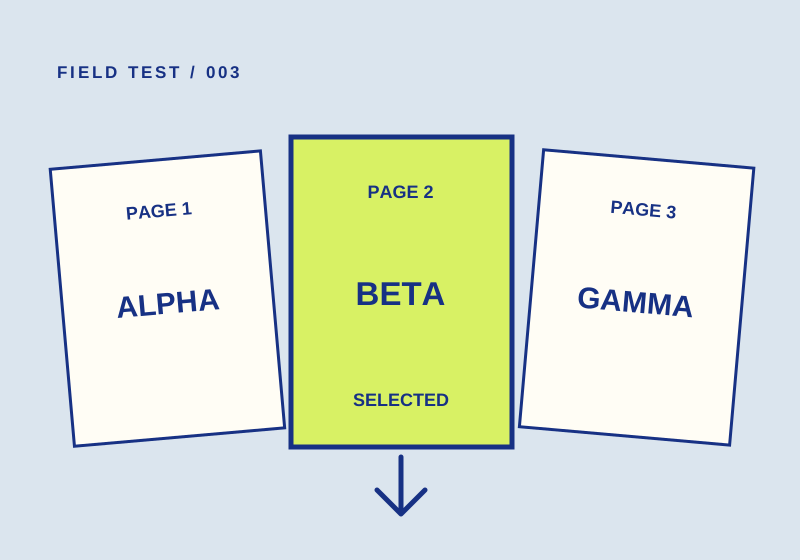
A 2-to-2 range produced one page marked BETA. Check both the page count and content before sharing yours.
SOURCE-CHECKED GUIDEWeb research
Import an HTML bookmark file into Chrome without losing track of it
Find an imported collection by its titles and spot-check representative links.