TESTED · EVERYDAY TECH
Windows PC won’t sleep? Check what is keeping it awake
Use read-only powercfg checks to distinguish a current sleep blocker from a wake event, read the output categories, and keep a simple before-and-after log.
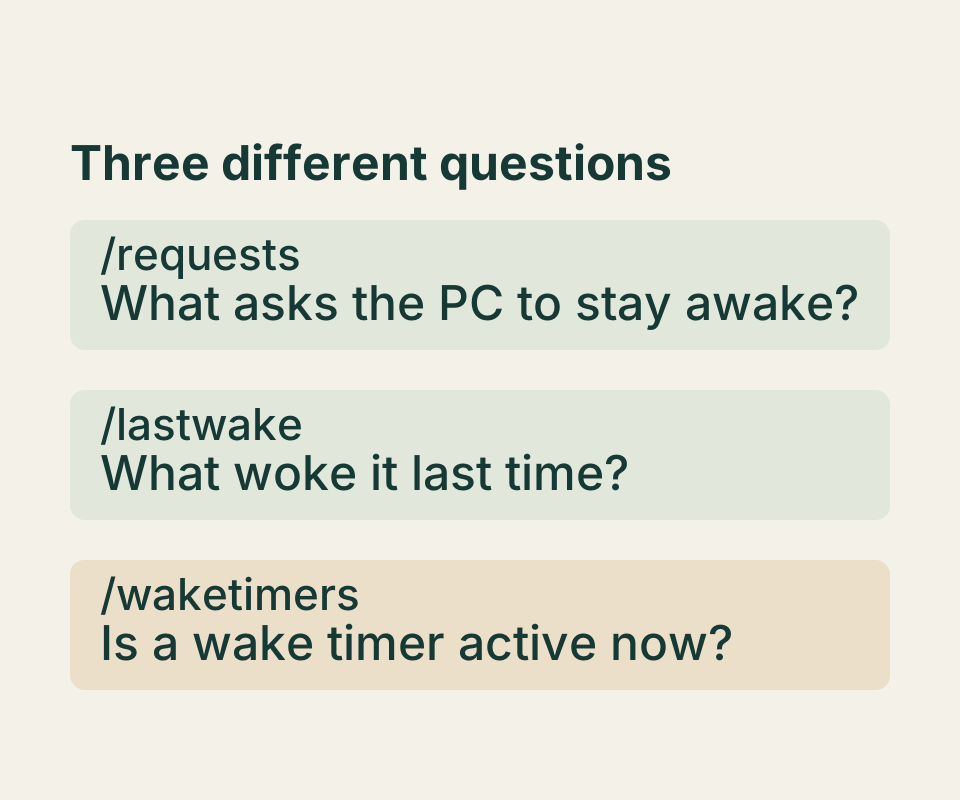
If your Windows PC stays on when you expect it to sleep, check its sleep timeout for the power source you’re using, then run powercfg /requests. That command shows current application and driver requests that can prevent automatic display shutoff or low power sleep. It answers a different question from what woke the PC after it slept.
Check the current requests
In Windows Settings, check the sleep timeout for the relevant AC or battery setting. Then open Command Prompt as administrator and run:
powercfg /requestsRead the DISPLAY and SYSTEM sections first. A request listed there describes what is active at the time you run the command. It does not establish what was active earlier, and a driver entry may not identify the app behind it.
One recorded Windows readout had no DISPLAY requests and two DRIVER requests under SYSTEM: one reported an active audio stream, while a legacy kernel caller reported Sleep Idle State Disabled. The other request categories were empty. That result showed current requests, but it did not establish which app owned either driver request or prove why the PC had failed to sleep.
The English worked example shows how an empty DISPLAY category can appear beside an audio request under SYSTEM. It is an invented reading aid. If a caller name is vague, record the category and its text. When convenient, make one ordinary change, such as closing an app you were using, and run /requests again. Compare the two readouts before attributing a request to that change. A blank sleep observation log provides fields for the time, symptom, power source, results, single change, and recheck.
Check wake history separately
These three read-only commands answer related but distinct questions:
powercfg /lastwake
powercfg /waketimers
powercfg /a
/lastwake reports the cause of the last sleep transition’s wake. /waketimers lists active timers that, if enabled, can wake the PC from sleep or hibernation. /a reports available sleep states and reasons other states are unavailable.
In the recorded readout, /lastwake returned a count of 0, and /waketimers found no active timers, even though /requests showed the two current SYSTEM requests. Those results can coexist: a request affecting automatic sleep is not itself a record of a wake event. A count of 0 identifies no wake cause in that readout; it does not prove the PC has never slept. Likewise, no active wake timers does not rule out every possible future wake cause.
The same PC’s /a result listed S3 standby and hibernation as available, while S0 low power idle was unavailable because of firmware. S3 being listed does not prove a sleep attempt succeeded, and unavailable S0 does not mean sleep is broken.
These commands are most useful when you keep the symptom precise. A PC that doesn’t enter sleep automatically calls for the timeout setting and current /requests readout. A PC that sleeps and then wakes calls for wake history and timers. Manually selecting Sleep is a separate behavior from waiting for the idle timeout.
Source and test scope: Microsoft’s powercfg command reference; four read-only commands were run on one Windows PC on October 8, 2026. No setting was changed, and no sleep attempt or fix was tested.
KEEP GOING
More to explore.
SOURCE-CHECKEDEveryday tech
Set a Windows hotspot connection as metered—and understand what pauses
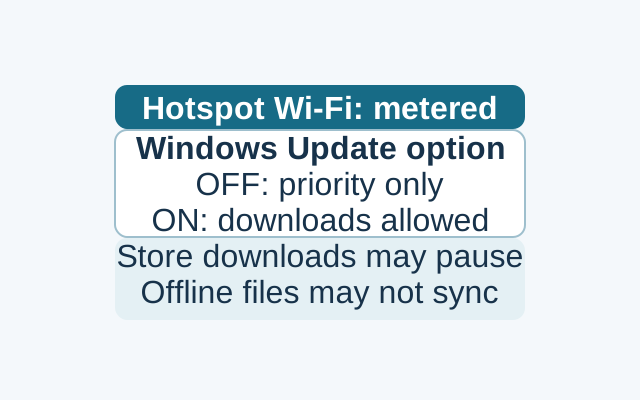
A metered Wi-Fi setting reduces background data use, but priority updates may still download and some syncing may pause. Windows Update has a separate option to allow downloads over metered connections.
SOURCE-CHECKEDEveryday tech
Windows Backup on a new PC: what comes back?
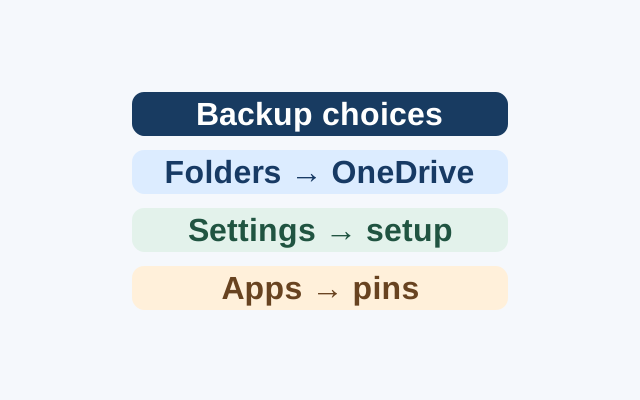
Selected folders become available through OneDrive. Supported preferences can return during Windows setup, while apps return as pins that may lead to restoration or an installer.