SOURCE-CHECKED · EVERYDAY TECH
Windows 11 clipboard history: find earlier copies and save useful snippets
Recover earlier copies with Windows + V, reuse 18 editable text templates, and diagnose missing entries without clearing the clipboard.
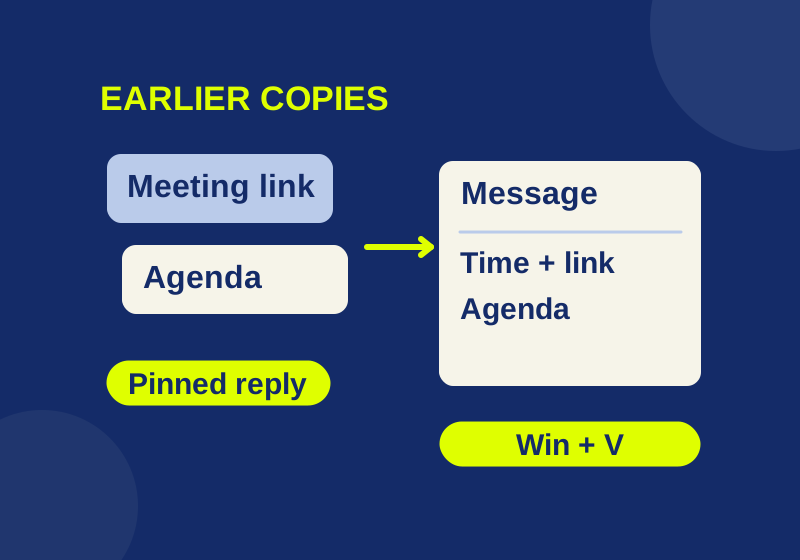
Press Windows + V to choose something you copied before your latest copy. If history is off, select Turn on. Once it is enabled, copy the items you need, put the cursor in the destination, and choose an entry from Windows + V. Ctrl + V pastes the current clipboard item; Windows + V gives you the earlier choices.
That helps when you copy a meeting link, copy an agenda afterward, and then need the link again. It also gives short replies and reusable notes a place near your work. The editable practice sheet includes 18 templates and separate numbered inputs for learning the shortcut without copying personal information.
Recover a link after copying something else
- Copy the link with Ctrl + C.
- Copy the other text, such as an agenda.
- Click the destination field where the link belongs.
- Press Windows + V and select the link.
- Check the pasted address before sending it, especially if several entries look similar.
If you turned history on after copying the link, copy it again. Enabling history cannot recreate copies that were never saved. Microsoft’s Windows 11 guide explains the shortcuts and pinning controls.
For a message with several parts, assemble it deliberately: meeting time in one place, link in another, agenda beneath it. History saves the return trip to each source, but you still decide where each item belongs. Copying an entire source document gives you one large item, not a separate entry for each paragraph.
Save a reply that leaves room for the answer
A reusable reply often needs a date or a decision. Keep those fields visible so the same sentence doesn’t promise something you haven’t checked.
Thanks for the update. I will review this and reply by [day and time].Replace the bracketed text before sending. A saved “I’ll reply tomorrow” can become wrong without changing a word; the placeholder makes the missing decision visible. Keep the master version in a document and copy a prepared version into history when you need it.
The practice sheet has four reply templates. Edit their fields directly, choose Select this template, then press Ctrl + C yourself. The button selects text; it does not copy it. Opening the sheet leaves your clipboard alone. Your own copy action adds an item to Windows history when the feature accepts it.
Build a meeting message from two useful pieces
An invitation often needs details that live in different places. Keep the scheduling details separate from the agenda while composing:
Time: [date, time, time zone]
Location or link: [destination]
Duration: [minutes]
Agenda: [topic]
Decision needed: [question]
Preparation: [material]Fill the placeholders, copy each piece, and insert them with Windows + V. Write the time zone even if the recipient usually works beside you; someone else may receive the forwarded invitation.
For a worked example, these are the original fields after filling them with nonprivate practice values:
Time: October 12, 2026, 14:00 UTC
Location or link: https://example.com/meeting
Duration: 30 minutes
Agenda: Review the draft agenda
Decision needed: Which topics belong in the first session?
Preparation: Read the one-page agenda draftThis is practice text, not a real invitation or working meeting link. Notice that the time, URL, and duration remain in the first piece. The agenda answers a different question, so it can be pasted beneath the scheduling block without burying the joining details. Check the final message for remaining brackets, and check that you chose the correct URL rather than another item with a similar preview.
After the meeting, use a separate outcome template:
Decision: [agreed action]
Owner: [person]
Due: [date]
An agenda asks what to decide; this note records what was agreed. Keeping recognizable opening words makes the two entries easier to distinguish.
Keep a source note attached to its location
A passage without its source can become difficult to use later. Copy a compact reference along with your observation:
Source: [URL or file]
Page or section: [location]
Note: [observation]
For an error report, use the request templates to preserve the exact message, app version, and steps. A saved “It doesn’t work” leaves the recipient asking for those details afterward. Copying the error wording separately is useful while composing, but put the wording and its context together before sending the report.
The plain-text file contains all 18 templates: replies, meeting notes, document references, requests, and planning entries. Save it with your reusable text. The HTML sheet adds a filter and editable fields. It has no network calls, clipboard API, or persistent storage; changes to its fields disappear on reload.
Pin a small set, keep the originals elsewhere
Pin a nonsensitive phrase through its history control if you want it available after restarting. Keep permanent originals in a document, where you can organize and revise them.
Microsoft documents 25 entries, supported text/HTML/bitmap content, and a 4 MB limit per item. New entries displace older unpinned ones. Restarting removes unpinned entries. Clear all and Settings > System > Clipboard > Clear retain pins; remove a specific item through its (…) menu and Delete.
You can check whether history works with a few new entries without clearing the list. Save anything you need elsewhere before an exercise that adds many new copies.
Diagnose an item that has disappeared
First check Windows + V. Repeatedly pressing Ctrl + V keeps pasting the current item instead of searching older copies.
If an entry is missing, consider when it was copied. History may have been off, or a restart or newer copies may have removed it. For content that never appears, try a short plain-text copy from the same source. If that appears, check the original format and size. Clipboard history cannot recover unsaved document edits; those require the document app’s recovery tools.
For a small practice run, copy entries 01, 02, and 03 from the sheet separately. Paste the newest with Ctrl + V, then choose entry 01 with Windows + V. Record your own result in the notes area. We have not performed this Windows exercise on your behalf.
The optional 26-entry exercise examines the documented limit. It can displace your existing unpinned history, so save needed items first. Copy all 26 practice entries separately and leave them unpinned. If every entry is accepted, entry 01 is expected to be the first practice entry displaced when entry 26 arrives. That is a prediction from Microsoft’s limit; the sheet doesn’t simulate or verify Windows history.
Decide whether copies should reach another device
Local history and cross-device sync are separate settings. Sync requires the same Microsoft or work account and offers automatic text sync or manual item sync. Review Clipboard history across your devices under Settings > System > Clipboard only if you want that behavior. On a managed PC with unavailable controls, ask the administrator instead of changing policies.
Windows instructions follow the linked Microsoft documentation, checked October 7, 2026. The templates and practice sheet are original reusable materials; this article reports no Windows clipboard UI trial.
KEEP GOING
More to explore.
SOURCE-CHECKEDEveryday tech
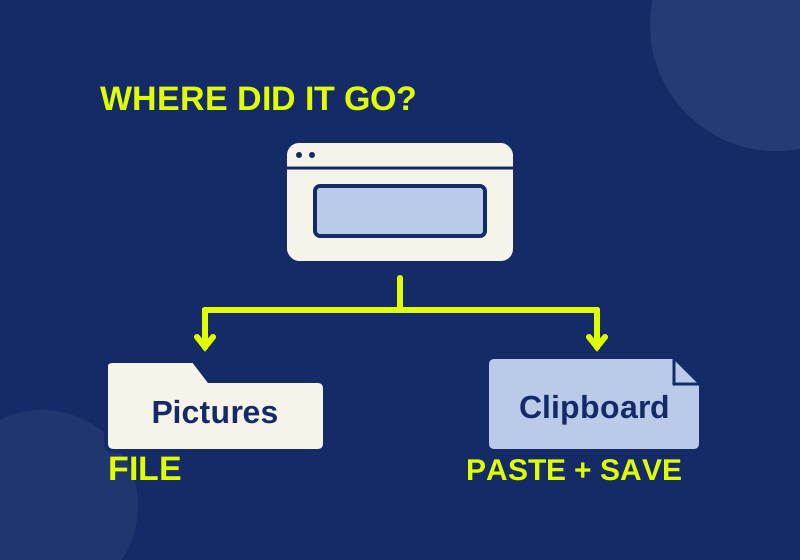
Where Windows 11 screenshots go: saved files and clipboard copies
Locate a saved screenshot or turn a clipboard capture into a file you can attach.
SOURCE-CHECKEDEveryday tech
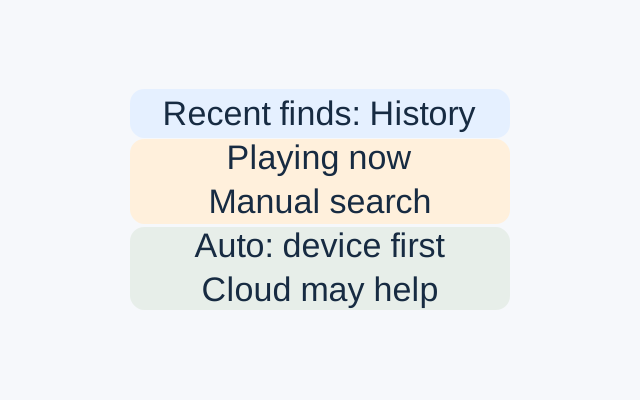
Find a song your Pixel recognized earlier
History lists songs Now Playing recently identified. Use its search or date and time filters for an earlier song; use manual search while a song is playing now.