SOURCE-CHECKED · EVERYDAY TECH
Windows battery report: read capacity without confusing it with charge
Generate a Windows battery report, compare design and full charge capacity, and use a local calculator without turning a percentage into a replacement verdict.
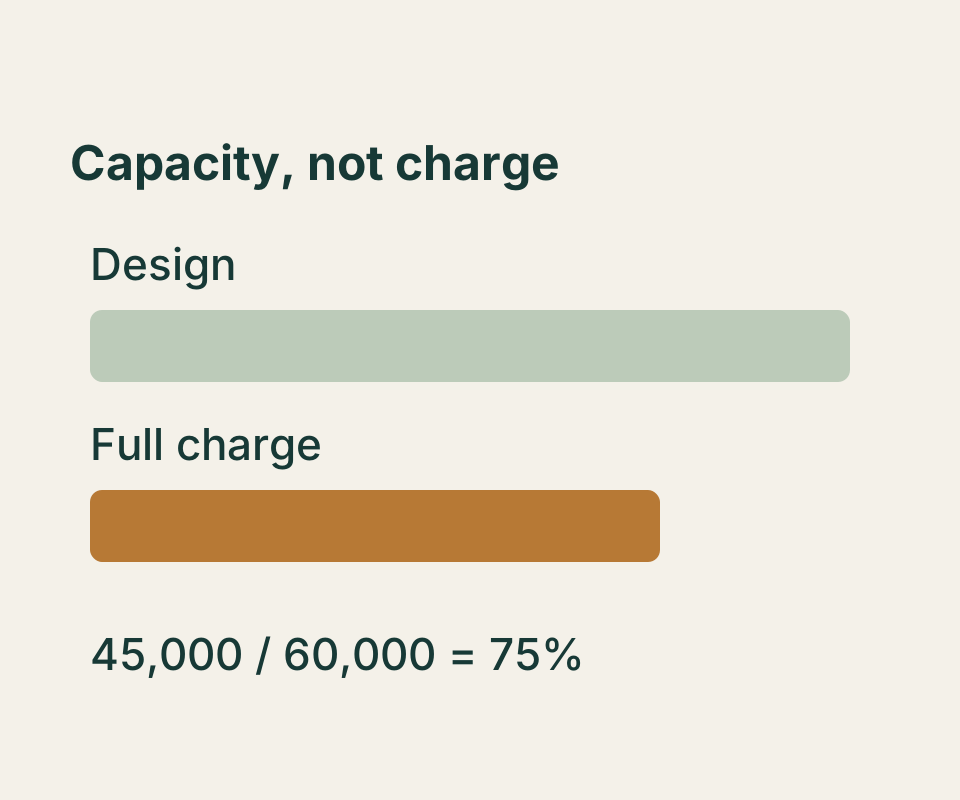
You can generate a Windows battery report, then compare its Full Charge Capacity with its Design Capacity. That comparison estimates how much capacity the battery currently reports relative to its design value. It is different from the charge percentage shown while you use the PC.
Generate the report
Open Start, search for Command Prompt, and select Run as administrator. Enter this command:
powercfg /batteryreport /output "%USERPROFILE%\battery-report.html"
This is Command Prompt syntax. When the command finishes, open File Explorer, enter %USERPROFILE% in the address bar, and open battery-report.html. The command names the output file and places it in your user profile folder.
Read the capacity numbers
Find Design Capacity and Full Charge Capacity in the report’s battery information. Use the reported values in the same unit, such as mWh:
Full Charge Capacity ÷ Design Capacity × 100 = reported capacity as a percentage of design
For example, a design capacity of 60,000 mWh and a full charge capacity of 45,000 mWh give 75%. The difference is 15,000 mWh. You can reproduce the calculation by entering those two numbers in the battery capacity calculator. It takes the numbers only; you do not need to upload the report.
The 75% figure in this example describes a capacity ratio. It does not mean the battery is currently 75% charged. Nor does the ratio alone predict how many hours the PC will run or establish that the battery needs replacement. Microsoft notes that decreasing capacity may reduce runtime.
If a number is missing
If the report says “No batteries are currently installed,” stop there: it provides no battery capacity to calculate. Treat an unavailable Design Capacity or Full Charge Capacity as unknown, rather than as zero. A design capacity of zero also cannot be used as the divisor.
The calculator asks for both numbers when an input is empty and rejects a zero design capacity. It also displays results above 100% without forcing them down to 100%; a result above design capacity does not, by itself, explain why the reported numbers differ.
For more context in the HTML report, Microsoft also names Recent usage and Battery usage as sections to review. Keep those usage records separate from the two capacity values used in the calculation.
Source note: The command and report sections follow Microsoft’s powercfg documentation and Microsoft’s Windows battery guidance. A desktop trial generated HTML but reported no installed batteries, so no laptop capacity or aging result was observed. The linked calculator was checked with valid, missing, zero-design, and above-design values.
KEEP GOING
More to explore.
SOURCE-CHECKEDEveryday tech
How to schedule Windows 11 Night light and check an orange screen
Schedule warmer display colors and use one fixed reference image to investigate an unexpected tint.
SOURCE-CHECKEDEveryday tech
Dictate text with Windows Voice Access without triggering commands
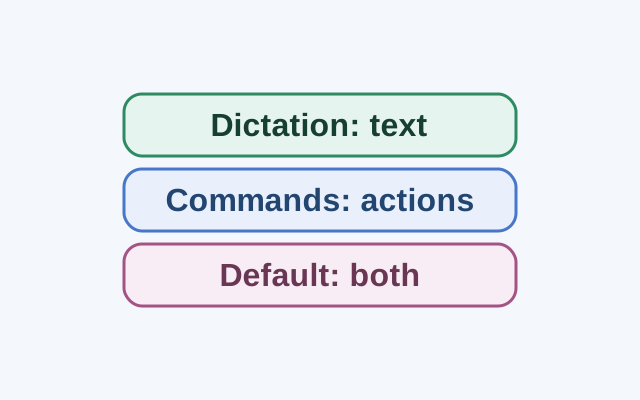
Dictation mode treats spoken input as text in an editable field. Commands mode is for actions; Default mode handles both commands and dictation.