SOURCE-CHECKED · EVERYDAY TECH
Copy text from an image on Windows with PowerToys Text Extractor
Capture image text with PowerToys, then use an original practice image to catch changed digits, punctuation, and line order before pasting it elsewhere.
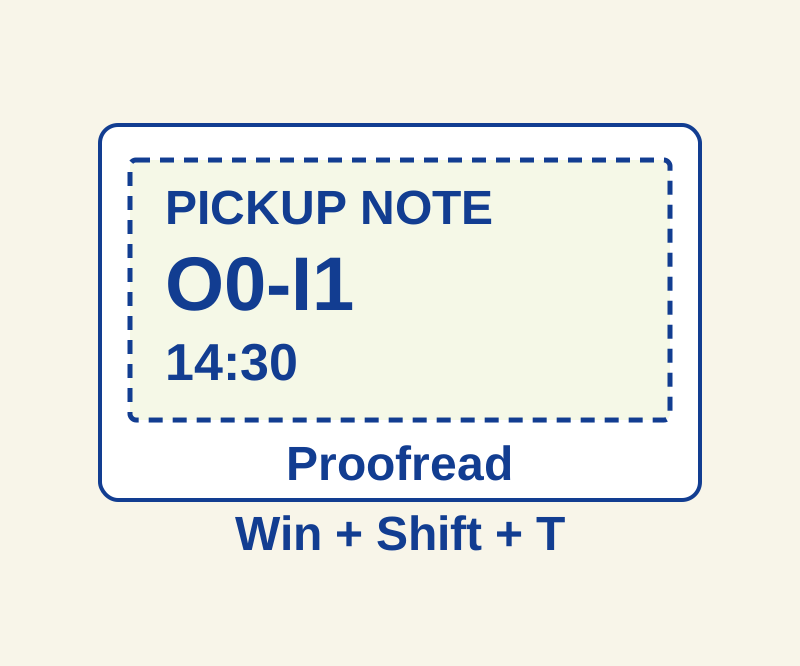
PowerToys Text Extractor lets you select text visible in an image and copy the recognized text to your clipboard. If you need PowerToys, start with Microsoft’s installation guide. Keep PowerToys running and enable Text Extractor in its settings before using the shortcut.
Select the text
Open the practice PNG at a readable size. Press Win+Shift+T, then drag with the primary mouse button around the note. According to Microsoft’s Text Extractor guide, the recognized text goes to the clipboard and the capture closes. Paste it into a scratch text document to inspect it. Press Esc if you want to cancel instead.
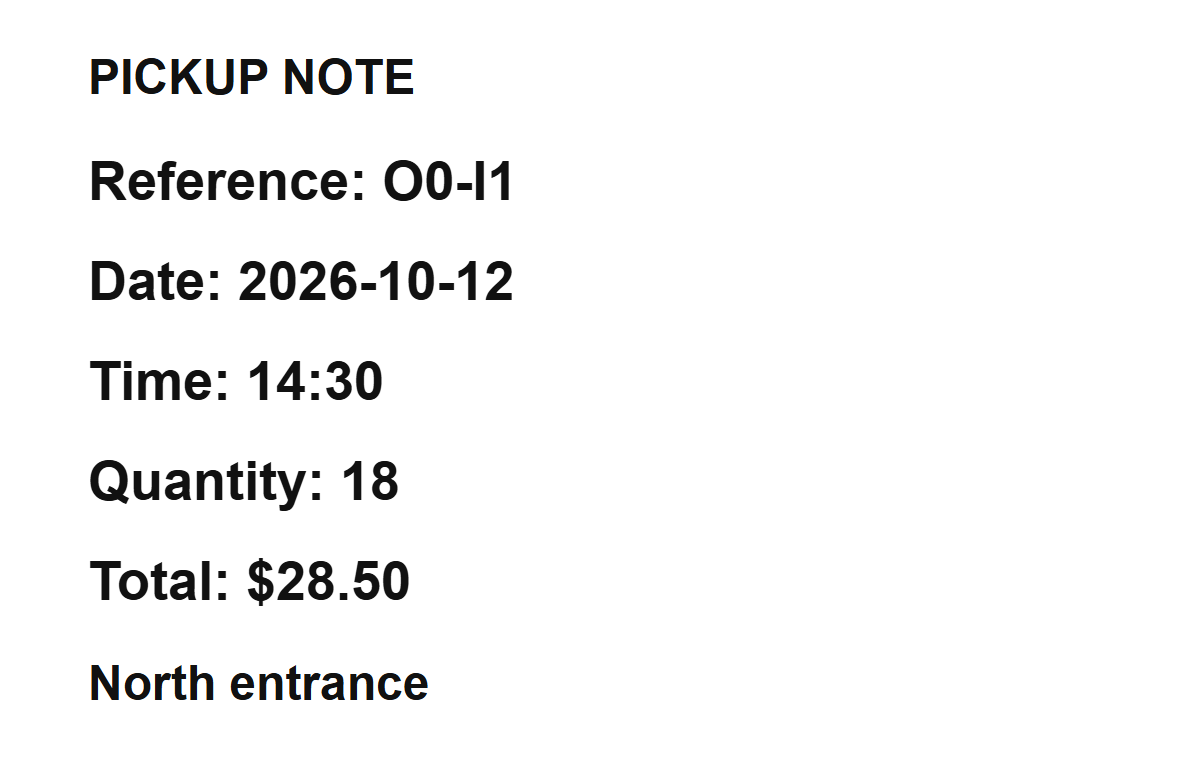
While selecting, hold Shift to move the selected region; release it to resize the region. Keep the rectangle close to the note so unrelated captions stay outside it.
Check the practice values
The PNG contains these known originals. They are source text to compare with your pasted result:
PICKUP NOTE
Reference: O0-I1
Date: 2026-10-12
Time: 14:30
Quantity: 18
Total: $28.50
North entrance
Compare the pasted text with the image before using it elsewhere. In O0-I1, the first character is the letter O, followed by the digit 0; after the hyphen come uppercase I and the digit 1. Also check the date’s hyphens, the time’s colon, the quantity, and the dollar sign and decimal point in the total. A change from 18 to 16, or from $28.50 to $2850, would change the meaning. Those are examples of errors to watch for, not errors observed in a test.
If the reference differs, try capturing that line alone and compare again. If lines paste in the wrong order, capture one line at a time. Text Extractor copies recognized text; it does not reconstruct the image’s page layout. Microsoft notes that OCR can make errors.
Check missing OCR languages
Text Extractor’s preferred language setting can use only installed OCR language packs. A keyboard layout does not establish that an OCR recognizer is installed. To list the available recognizers, open Windows PowerShell, rather than PowerShell 7, and run:
[Windows.Media.Ocr.OcrEngine, Windows.Foundation, ContentType = WindowsRuntime]
[Windows.Media.Ocr.OcrEngine]::AvailableRecognizerLanguages
If Text Extractor reports a missing language because no recognizers are available, follow Microsoft’s language pack instructions. For a screenshot you want to keep, Microsoft recommends Snipping Tool.
Source note: This how-to uses Microsoft’s documentation and the practice image’s known text. Text Extractor was not independently trialed.
KEEP GOING
More to explore.
TESTEDEveryday tech
Open an RTF file after WordPad disappears, and keep its formatting
A small book club RTF, its converted DOCX and a PDF reference show what to preserve when opening an old rich-text document.
SOURCE-CHECKEDEveryday tech
PowerToys Peek: preview Windows files with Space and fix the wrong shortcut
Preview the actual files you selected, with downloadable examples that separate shortcut trouble from preview-format trouble.