SOURCE-CHECKED · EVERYDAY TECH
PowerToys Peek: preview Windows files with Space and fix the wrong shortcut
Use PowerToys Peek with the current Space shortcut, compare real sample files, pin preview size, and diagnose activation or file-format problems.
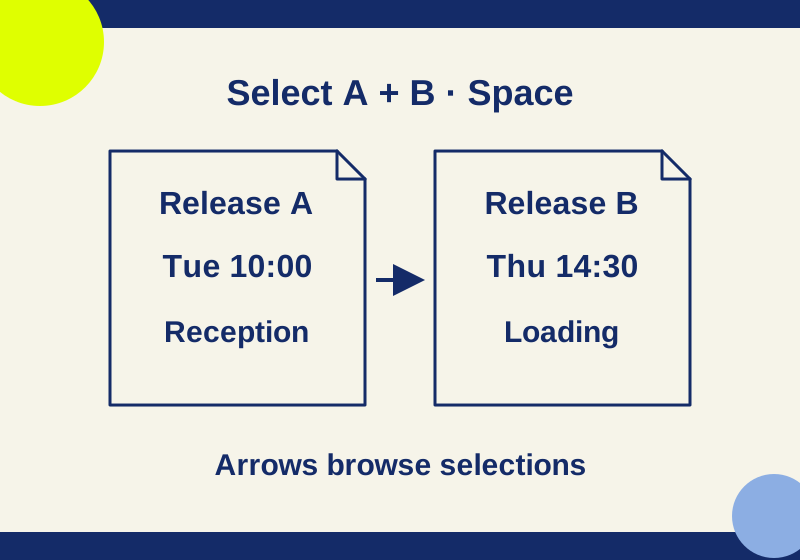
Select a file in File Explorer and press Space to open it in PowerToys Peek. Space became the default shortcut in PowerToys 0.95. If an older guide tells you to press Ctrl+Space and nothing happens, check the shortcut shown in your Peek settings: it is configurable. Peek must also be enabled and PowerToys running. Microsoft’s Peek guide describes the current controls.
Peek is useful when filenames do not tell you enough. You can inspect a file, move through nearby files with the arrow keys, and open the current one in its default app when you need to work on it.
Get Peek running
PowerToys is free and available through the recommended Microsoft Store and GitHub installation routes. It supports Windows 11 and Windows 10 version 2004 or later on x64 and ARM64; its setup installs WebView2. After installing an official version, open PowerToys settings, confirm Peek is enabled, and read the activation shortcut displayed there. PowerToys installation instructions cover the supported setup.
In File Explorer, select one file before pressing that shortcut. Make sure Explorer has focus rather than the filename rename field or a text box in another app. With a single selection, the arrow keys browse files in the current folder. If you select several files before opening Peek, arrow navigation is restricted to those selections. Selecting just the files you want to compare keeps unrelated downloads out of the preview sequence.
Try it with files whose contents you know
Download the Peek practice kit and extract it into a private practice folder. Its files are synthetic examples for personal or classroom use. They do not change your key bindings or delete anything.
Start with release-a.txt and release-b.txt. The first says “Release note A,” gives a Tuesday 10:00 pickup, and names the reception desk as the contact. The second says “Release note B,” gives a Thursday 14:30 pickup, and names the loading desk.
Select only those two files in File Explorer, activate Peek, and use the arrow keys. Their different contents let you tell whether the preview has moved to the other selection. If the window never appears, investigate activation first. If it opens and both text files display, activation and basic text preview worked in your check. You can then compare a file that fails against these known inputs. If you only see one version, close Peek, verify both files are selected in Explorer, and start the comparison again. This avoids confusing a navigation selection with a preview that never refreshed.
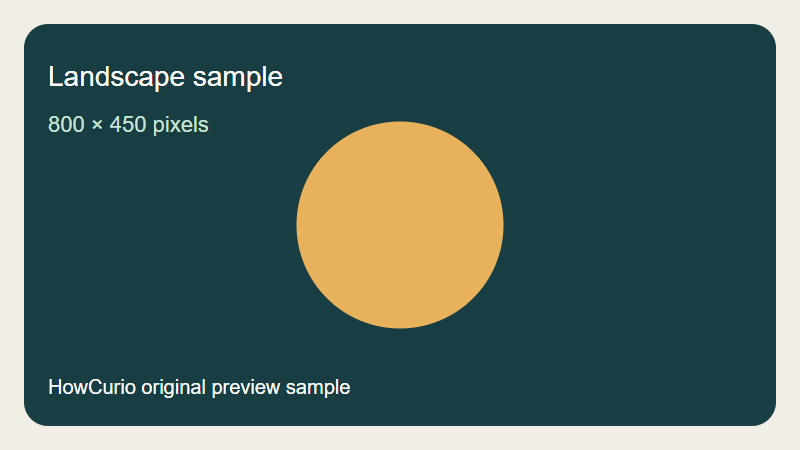
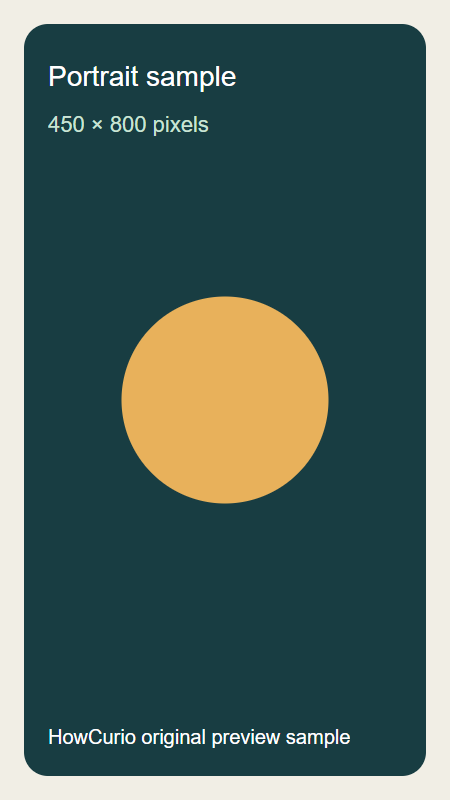
Next, compare peek-wide.png, an 800 × 450 landscape image, with peek-tall.png, a 450 × 800 portrait image. Both are original illustrations labeled with their actual dimensions. They are sample files, not screenshots of Peek. Select both images, activate Peek, and move between them. First leave Pin off and watch the window’s outline as you change images. Then turn Pin on and move back to the first image. Pin holds the preview window’s size and position; it does not keep the same file selected as you navigate. The pixel dimensions describe each image’s width and height. Peek’s hover details also include the file size in bytes; a smaller download is not necessarily a smaller image. The landscape file has an aspect ratio of 16:9, and the portrait file has a ratio of 9:16.
The kit also includes preview-note.md, with a two-row table for versions A and B, and preview-data.json, with two minified version objects containing the same fields. The Markdown table contains two rows: A, Tuesday, 10:00, reception; and B, Thursday, 14:30, loading. The JSON contains those same values on one line. Open each in your installation and compare the displayed values with these known contents. If the JSON extends beyond the view, try the source preview’s Wrap text setting. Readability and the presence of the right values are separate checks. Peek’s source preview settings include formatting, wrapping, font size and a minimap. Changing a preview preference is different from editing the file in its usual application. The format list does not establish the exact result on every installation.
Preview, open, or delete
Peek lists support for images, Office files, video, webpages, Markdown, text and developer files, and folder summaries. Treat that as a list of capabilities to try, rather than a promise that every file of each type will display on your PC. The Peek documentation also says hovering shows the current item’s filename, type, date, and size.
To edit a file, choose Open with or press Enter to open the current item in its default app. Peek’s Delete command sends the current file to the Recycle Bin, with confirmation on by default; it cannot delete folders. Check which file is current before using it.
When the preview does not behave as expected
- Nothing opens: Confirm PowerToys is running, Peek is enabled, a file is selected in File Explorer, and you are pressing the shortcut shown in your settings. An older Ctrl+Space instruction may be the source of the mismatch.
- Arrows do not reach another file: Check what you selected before activation. Selecting several files limits navigation to that group; selecting one allows browsing the current folder.
- Text works but another format does not: That points toward a problem with that file or its preview format, rather than the activation shortcut. Compare another file of the same type and review Peek’s applicable preview settings. Open the problem file in its usual app to check whether that app can read it. A single failing image or document does not establish that the entire format is unsupported.
- You want a preview that stays inside Explorer: Use File Explorer’s View > Preview pane and enable the specific preview handlers you need. Those handlers and thumbnails are separate from Peek, so toggling them does not repair Peek’s Space shortcut. Enabling handlers can override existing ones, with reported Outlook and PDF compatibility problems. Microsoft’s File Explorer add-ons guide explains that separate option.
The Windows instructions follow Microsoft’s linked documentation, checked October 7, 2026. The downloadable files contain known synthetic content; native Peek compatibility was not independently tested.
KEEP GOING
More to explore.
SOURCE-CHECKEDEveryday tech
Windows 11 Snap layouts: fix cramped split screens and missing layouts
A working width planner explains cramped split screens, while symptom-specific steps separate Snap settings from app limits.
SOURCE-CHECKEDEveryday tech
Copy text from an image on Windows with PowerToys Text Extractor
Extract image text, then check the characters that change its meaning.