SOURCE-CHECKED · EVERYDAY TECH
iPhone alarm too quiet? Check the right volume control, including iOS 27
Find the correct iPhone alarm volume slider for iOS 27 or older controls, check None and StandBy, and adjust a Sleep wake-up separately.
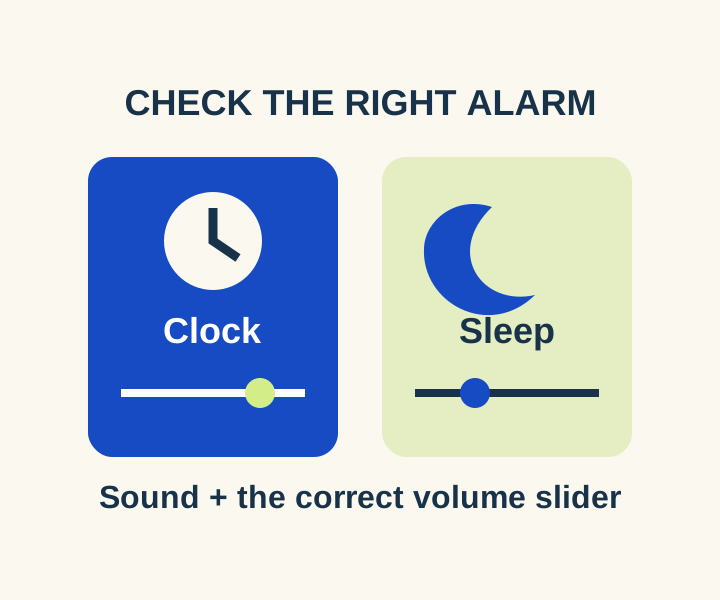
Silent mode and Focus do not mute Clock alarms. If an alarm is too quiet, check its selected sound and the alarm volume control shown on your version of iOS. Make any changes while you are awake, then test the alarm before relying on it.
Check the alarm’s sound
Open Clock > Alarms and select the alarm. Check its time, Repeat days, and Sound. If Sound is set to None, Apple says the alarm may only vibrate. Choose an audible sound if you expect to hear it. You can also give the alarm a Label so it is easier to identify during a test.
This matters especially if you use StandBy: Apple says alarm haptics are disabled in StandBy. An alarm set to None has no sound to fall back on there.
Find the volume control for your iOS version
In Apple’s iOS 27 iPhone guide, the path for a regular Clock alarm is Settings > Sounds & Haptics > Alarms and Timers. Turn off Match Ringtone Volume to adjust the alarm and timer volume with its slider. Turn matching on if you want that volume to follow the ringtone volume instead. The guide also says Change with Buttons lets the device’s volume buttons change alarm volume.
Apple’s April 2, 2026 alarm support article describes a different screen: Settings > Sounds & Haptics > Ringtone and Alerts, with a volume slider and Change with Buttons. Use the controls your iPhone actually displays. If music plays loudly but a regular alarm sounds soft, music volume does not tell you where the alarm control is set.
Apple also says that when headphones are connected, an alarm sounds through both the iPhone’s built-in speakers and the headphones.
Check Sleep wake-up separately
If a regular alarm sounds fine but the next Sleep wake-up alarm is quiet, inspect the wake-up alarm’s own options. In Clock > Alarms, tap Change for the wake-up alarm, then scroll to Alarm Options. Apple’s wake-up alarm guide lists Sounds & Haptics and an Alarm volume slider there.
After making a change, tap Done. Choose Change Next Alarm Only if you want to adjust the upcoming wake-up without changing the recurring sleep schedule. Change This Schedule updates the recurring wake-up alarm too.
Compare the preview with a timed alarm
For a daytime check, first note or screenshot the original sound and volume settings. Create a one-off Clock alarm about two minutes ahead, label it Volume check, and choose an audible built-in sound rather than None. Listen to its sound preview, then leave the phone in its normal intended placement and listen when the alarm actually goes off. Change one setting at a time so you can tell what affected the result.
That comparison can show whether the preview and timed alarm behave differently in your setup. It cannot guarantee a future alarm will wake you. If the preview is audible but timed alarms repeatedly fail, confirm that the alarm is enabled and has the intended time, day, and sound. Keep screenshots of those settings and a note of what happened when it was due, then seek Apple support.
Source and scope: Apple’s instructions were checked October 8, 2026. No physical iPhone alarm test was performed for this article.
KEEP GOING
More to explore.
SOURCE-CHECKEDEveryday tech
iPhone StandBy clock not staying on? Check setup and display settings
A missing clock, a dark screen and a silent alarm need different checks. Start with the symptom your iPhone actually shows.
SOURCE-CHECKEDFree digital life
Cancel an iPhone subscription, even when it is missing from Settings
Match the subscription to its receipt before changing accounts or looking for a missing Cancel button.