SOURCE-CHECKED · EVERYDAY TECH
iPhone StandBy clock not staying on? Check setup and display settings
Diagnose iPhone StandBy activation, clock views, display duration and alarm sound separately. Follow the documented iOS 26 controls and your model’s actual options.
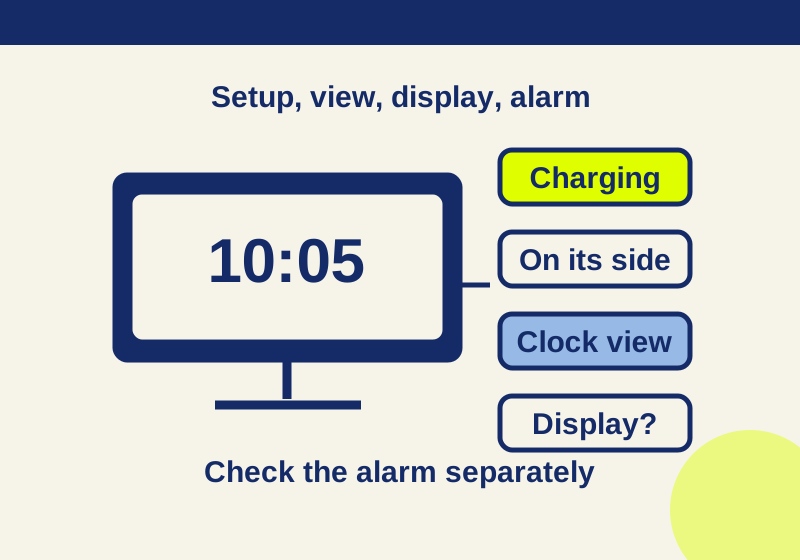
Start with what the phone actually does. If StandBy never appears, check how the iPhone is positioned and powered. If StandBy appears but shows photos or widgets instead of a clock, change the view. If the clock appears and then goes dark, check StandBy’s Display setting and your model’s display controls. If the clock looks right but the alarm is wrong, check the alarm in the Clock app.
These are separate problems. Changing Auto-Lock because a StandBy clock went dark, for example, skips the display controls meant for StandBy.
StandBy never appears
Apple’s setup instructions call for StandBy to be enabled, the iPhone to be charging, and the phone to be stationary on its side. Work through those conditions in order:
- Open Settings > StandBy and make sure StandBy is on.
- Connect the iPhone to a charger.
- Set it on its side in landscape orientation and keep it still.
- Press the Side button, then look for StandBy.
If it does not appear, repeat the check while changing one condition at a time. First confirm the StandBy switch, then charging, then position. That gives you a clearer result than changing display and alarm settings at the same time. Apple’s StandBy guide documents the setup conditions.
StandBy appears, but it is not a clock
StandBy has widgets, photos, and clocks views. Swipe left or right until you reach clocks. Swipe up or down within that view to choose a clock variant. A photo or widget appearing means you have reached StandBy; it does not, by itself, indicate a display problem. Apple’s StandBy guide describes those gestures.
Choose the clock you want before investigating whether the screen stays visible. Otherwise, a successful view change can be mistaken for a fix to the screen going dark.
The clock appears, then goes dark
Open Settings > StandBy > Display and check the option available on your iPhone. Apple describes three choices: Automatically, which can turn the display off when it is not in use and the room is dark; After 20 Seconds; and Never. If the clock is visible at a desk but goes dark in a bedroom, the dark-room behavior of Automatically is a useful first setting to check. Apple’s StandBy guide explains the Display options.
Do not read Never as a promise that every iPhone can show a continuously visible StandBy clock. Display behavior also depends on the model’s Always-On capability. On other models, Apple describes waking StandBy by tapping the screen, gently nudging the table, or using Siri. Check the controls on the phone you have. Apple’s StandBy guide; Apple’s display guide.
For a concrete model check, Apple’s linked Always-On information names iPhone 17 and iPhone 17 Pro/Pro Max, along with iPhone 14, 15, and 16 Pro/Pro Max; it says the iPhone Air’s Always-On setting is off by default. Look at your own iPhone’s Settings > Display & Brightness controls instead of assuming that a StandBy setting gives every model the same result. Apple’s Always-On display information.
A red-tinted clock in low light may be StandBy’s Night Mode. Treat its color as a separate observation from whether the screen stays on. Likewise, Auto-Lock and the Lock Screen’s Always-On setting are separate controls; do not transfer every Lock Screen display rule to StandBy. Apple’s StandBy guide; Apple’s display guide.
The clock is right, but the alarm is wrong
The StandBy clock view does not set the alarm you hear. Open Clock, check the alarm’s time, confirm it is active, and review its sound. Then check the volume under Settings > Sounds & Haptics > Ringtone and Alerts. Apple says Clock alarms still sound with Silent mode or Focus on, so those modes are not the first controls to change when an alarm’s time, sound, or volume is the issue. Apple’s alarm guide.
For a bedside setup, make two distinct checks: observe the chosen StandBy clock under the room lighting you expect to use, then check the alarm’s settings and audio separately. A clock remaining visible does not establish what an alarm will do later.
Compare two observations under the same setup
Keep charging, orientation and the clock view fixed while investigating the screen. Note the currently selected Display option before changing it. If your phone offers After 20 Seconds, observe whether the display goes dark and whether tapping it brings the same clock back. Then compare the available option you intend to use at night under the same lighting. Record the elapsed time you actually observe instead of treating the setting’s name as a measurement.
The useful distinction is whether StandBy remains available when awakened. A clock that returns after a tap points you toward display persistence; a phone that never enters StandBy sends you back to setup. Those are interpretations of possible observations, not recorded results from a particular iPhone.
For the alarm, choose a temporary time while you are awake, confirm its selected sound and volume, and observe the audible result separately. Remove the temporary alarm afterward. This checks your current configuration at that moment; it does not establish overnight reliability or the outcome after settings change.
Record what changed
If the result is unclear, copy this short record and fill it in after each single change:
iPhone model: ___ · iOS version: ___ · Charging: yes/no · StandBy ever appeared: yes/no · View shown: ___ · StandBy Display option: ___ · Result in a dark room: ___ · Alarm time/active/sound/volume checked: ___
Source scope: This walkthrough uses the linked Apple instructions. No iPhone interface check or overnight alarm trial was recorded for this article.
KEEP GOING
More to explore.
SOURCE-CHECKEDEveryday tech
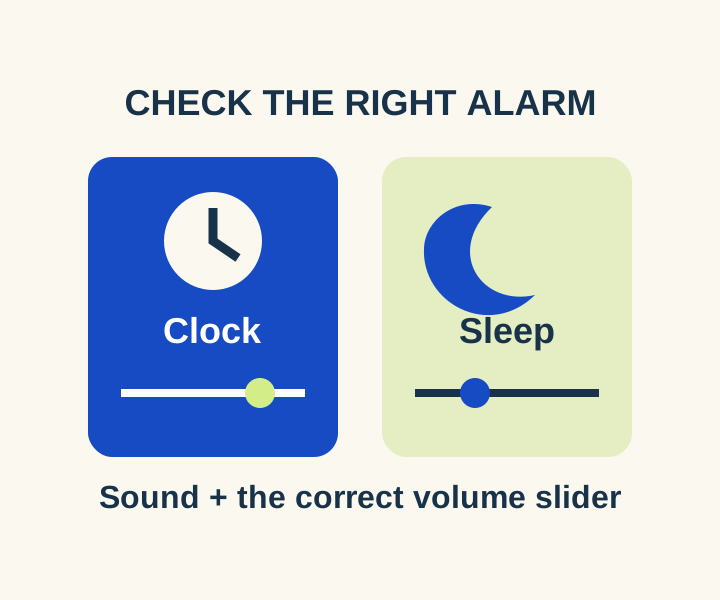
iPhone alarm too quiet? Check the right volume control, including iOS 27
Separate regular Clock volume from Sleep wake-up volume, then compare an audible preview with a timed daytime alarm.
SOURCE-CHECKEDEveryday tech
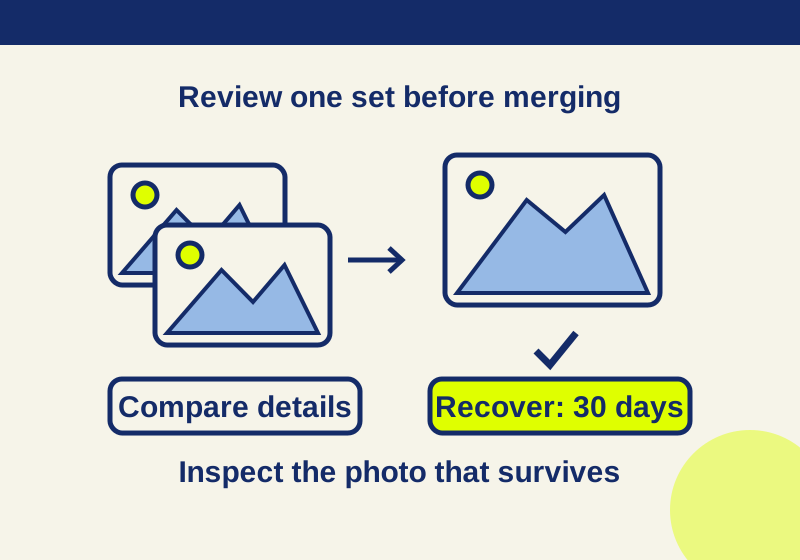
iPhone Duplicates missing or confusing? Check detection and merge one set safely
Merge detected photo duplicates and check indexing when the collection is missing.