SOURCE-CHECKED · EVERYDAY TECH
Get a Find My alert when you leave a device behind
Set a Find My separation alert and see how a Trusted Location changes when your iPhone alerts you.
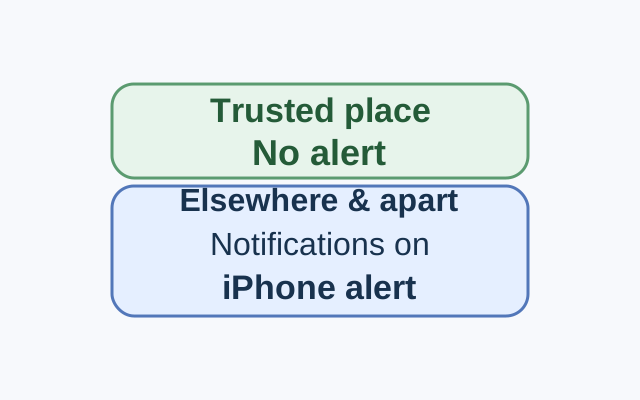
Find My can alert you when the device sharing your location separates from a device you have selected. A Trusted Location lets you leave that device in a chosen place without an alert.
Set the alert
On the iPhone sharing your location, open Find My and tap Devices. Select the device you might leave behind, tap More, then tap Notify When Left Behind under Notify Me. Turn it on and follow the onscreen instructions.
To add a Trusted Location, choose a suggested place or tap New Location, select a place on the map, and tap Done. Tap Done to finish. Allow notifications for Find My so you can receive alerts.
What a Trusted Location changes
Suppose your iPhone shares your location and you select a supported Mac with Apple silicon for the alert. If you make home a Trusted Location, you can leave the Mac there without an alert. If the Mac is left elsewhere and the devices separate, the alert goes to your iPhone.
If you expected an alert, check which device you selected, whether you set the alert from the device sharing your location, whether you marked that place as trusted, and whether Find My notifications are allowed. These checks cover the documented settings; they cannot establish why a particular alert did not arrive.
Apple supports separation alerts for iPhone and iPod touch with iOS 15 or later, iPad with iPadOS 15 or later, Mac with Apple silicon and macOS 12 or later, and AirPods with the Find My network turned on. A supported MagSafe iPhone Wallet has a separate Notify When Detached setting.
Source: Apple’s Find My guide. The steps are documented instructions; the Mac example was not tested.
KEEP GOING
More to explore.
SOURCE-CHECKEDEveryday tech
An unknown tracker alert on iPhone: find the item and keep its details
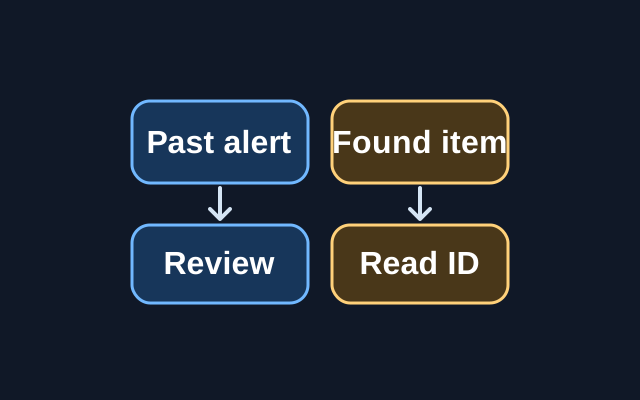
A previous alert can be reviewed in Find My, but Apple’s step for viewing a tracker’s serial number or device ID requires the physical item.
SOURCE-CHECKEDEveryday tech
iPhone Precise Location: change accuracy without changing when an app can use it
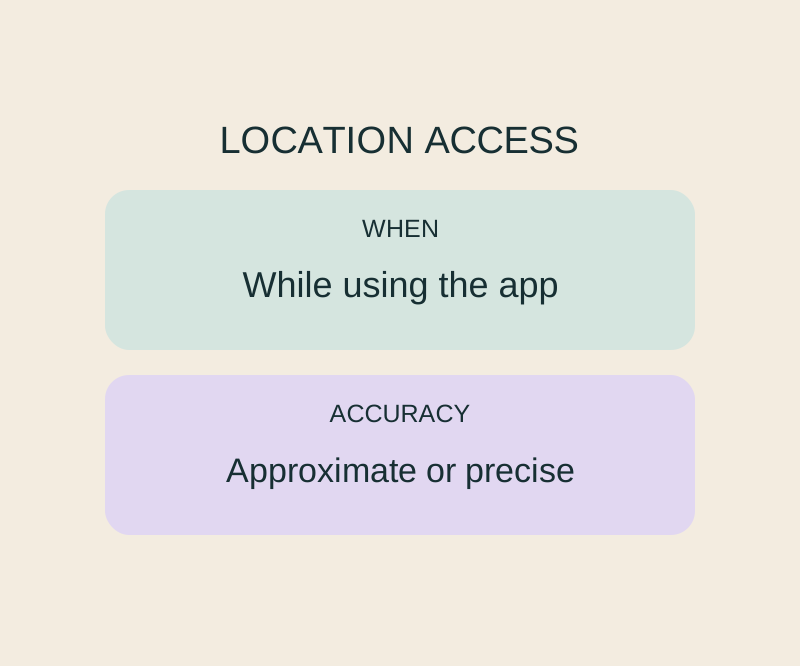
Precise Location and While Using the App control different parts of the same permission.