SOURCE-CHECKED · EVERYDAY TECH
Firefox Multi-Account Containers: use two logins on the same website
Open personal and club accounts in separate Firefox containers. Learn when automatic website assignments get in the way and how to reopen a link in the right context.
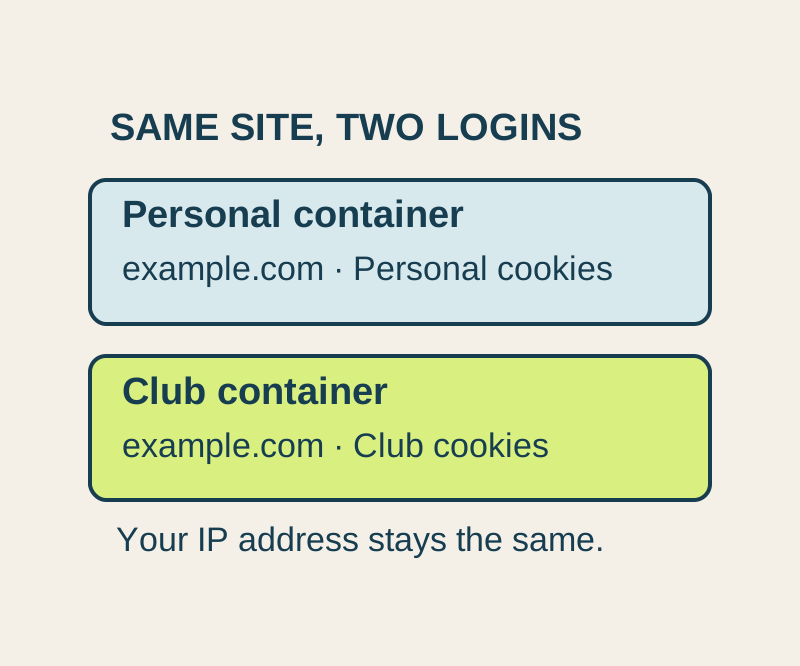
Firefox Multi-Account Containers lets you keep a personal account and a volunteer club account open in separate, color-coded tabs on the same website. Each container has its own website cookies, so you can choose which login context to open instead of repeatedly switching accounts.
Set up the two tabs
On desktop Firefox, install Multi-Account Containers from Mozilla’s Firefox add-on page. Select Add to Firefox, review the permission prompt, and agree if you want to install it.
Open Containers from the toolbar. If you do not see it, look under Extensions. Go to Manage Containers > New Container and create:
- Personal, with a teal color, for a household account
- Club, with an amber color, for a volunteer club account
These names and colors are examples; choose labels you can recognize at a glance.
For the illustration, example.com stands for the service where you have both accounts. Use your actual service address when following these steps. Open a Personal container tab, visit the site, and sign in to the household account. Then open a Club container tab, visit the same site, and sign in to the club account.
Use the container label and the account name or avatar shown by the site before replying to a message or changing account data. A new tab in Personal uses the Personal container’s login context; it does not create a third identity.
| What you want to do | Open it in |
|---|---|
| Check household mail | Personal |
| Check volunteer club mail | Club |
| Read a public page without choosing either named account | No Container |
No Container has its own context and may already be signed in to an account. Check the site’s account indicator if that matters for what you are doing.
Leave automatic routing off for a shared site
The extension can assign a website through Always open this site in…. For example.com, assigning the site to Personal would work against the plan to open that same hostname in Club. Choose the container manually for a site where you use both accounts.
If you assigned a site by mistake, open Containers > Manage Containers, choose the container, then remove the site from its Manage site list using the trash entry.
An option to limit routing to designated sites also exists. Sites without an assignment open in No Container under that setting. If a sign-in journey takes you through more than one hostname, check where your own login pages open before relying on an assignment.
Fix a tab opened under the wrong account
First check the tab’s container label, then check the identity displayed by the website. Open a new tab in the intended container and go to the site there. If an automatic site assignment keeps sending you to the wrong container, remove that assignment.
For a link, Firefox also documents Open Link in New Container Tab in the right-click menu. Choose the intended container when opening the link; do not assume the link will stay in the context of the tab where you found it.
Container tabs separate website cookies within Firefox. Your profile still contains the browser’s other settings. Container tabs do not change your IP address or operating-system details. The extension is also unavailable in Private Browsing and when Firefox is set to Never Remember History.
Source note: The setup and routing steps come from Mozilla’s Multi-Account Containers guide, its add-on listing, and Mozilla’s Firefox Containers guide. The Personal and Club example was not tested through an extension installation or live sign-in.
KEEP GOING
More to explore.
TESTEDEveryday tech
Chrome profiles: keep bookmarks and browsing settings separate
Two Chrome profiles kept a bookmark called Reference after reopening. Their addresses differed, showing why a familiar title alone cannot identify the intended link.
TESTEDEveryday tech
Why one MP4 plays and another does not: read the codec with MediaInfo
The MP4 suffix does not identify the video codec inside. Inspect two original files and see why renaming one does not convert it.