TESTED · EVERYDAY TECH
Chrome profiles: keep bookmarks and browsing settings separate
Keep separate Chrome bookmark libraries and use a two-profile persistence example to distinguish matching bookmark titles by their saved addresses.
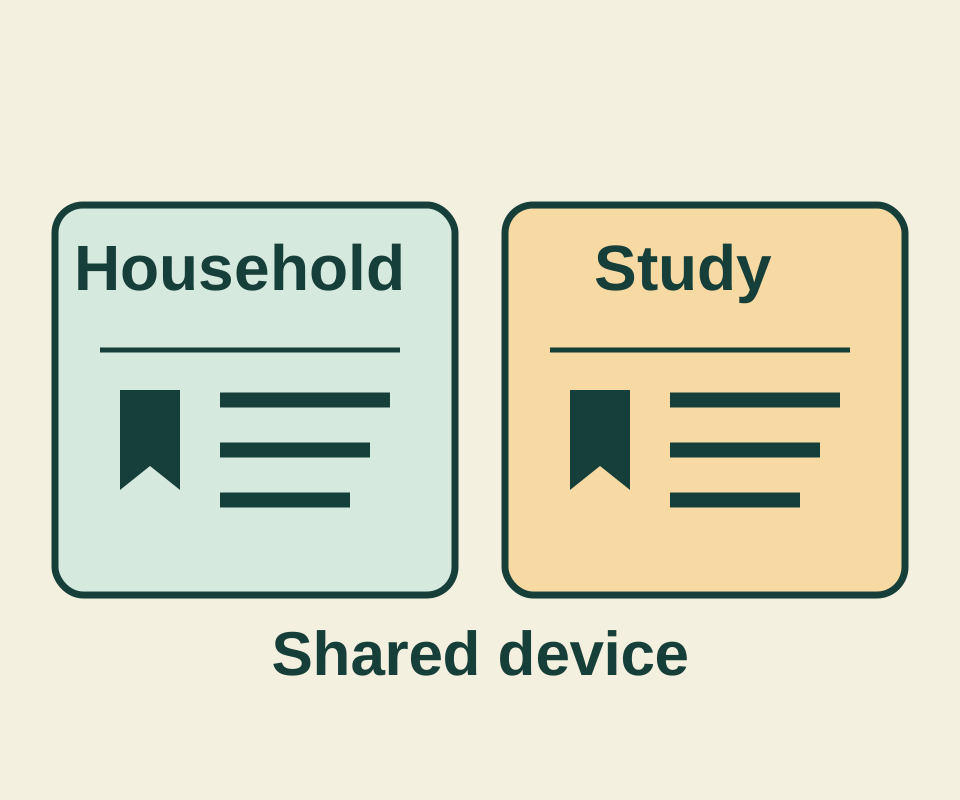
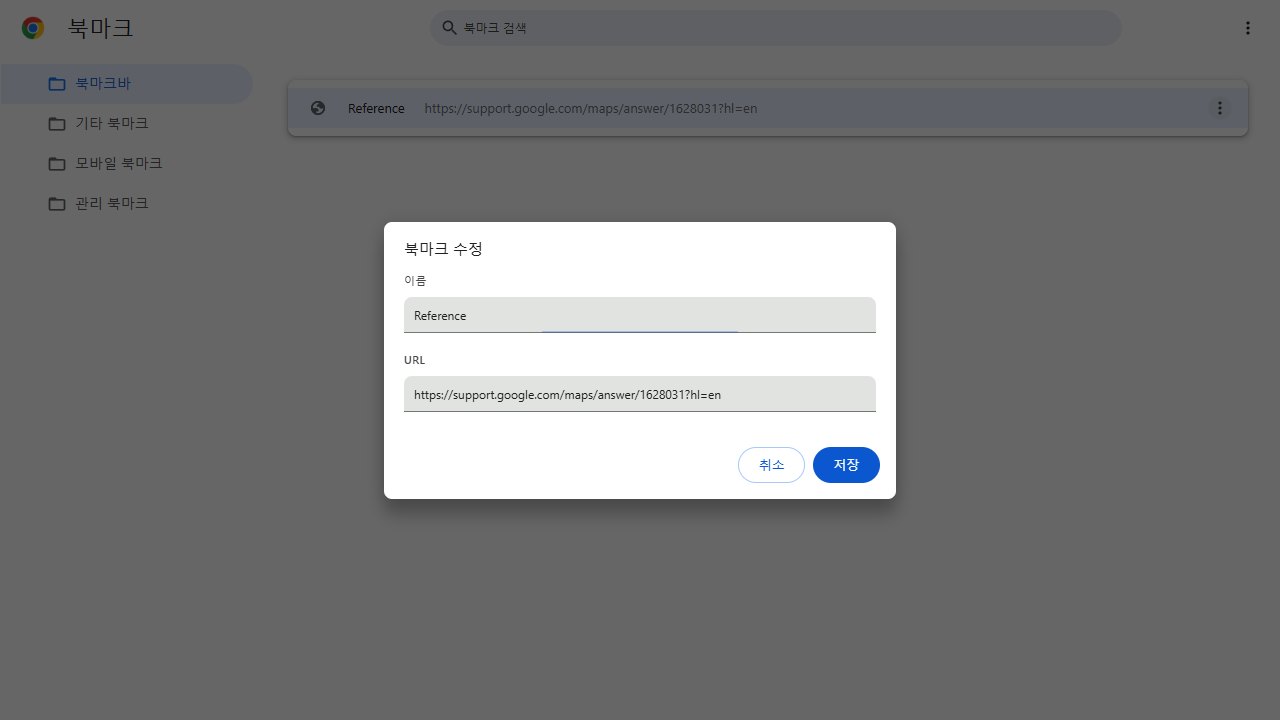
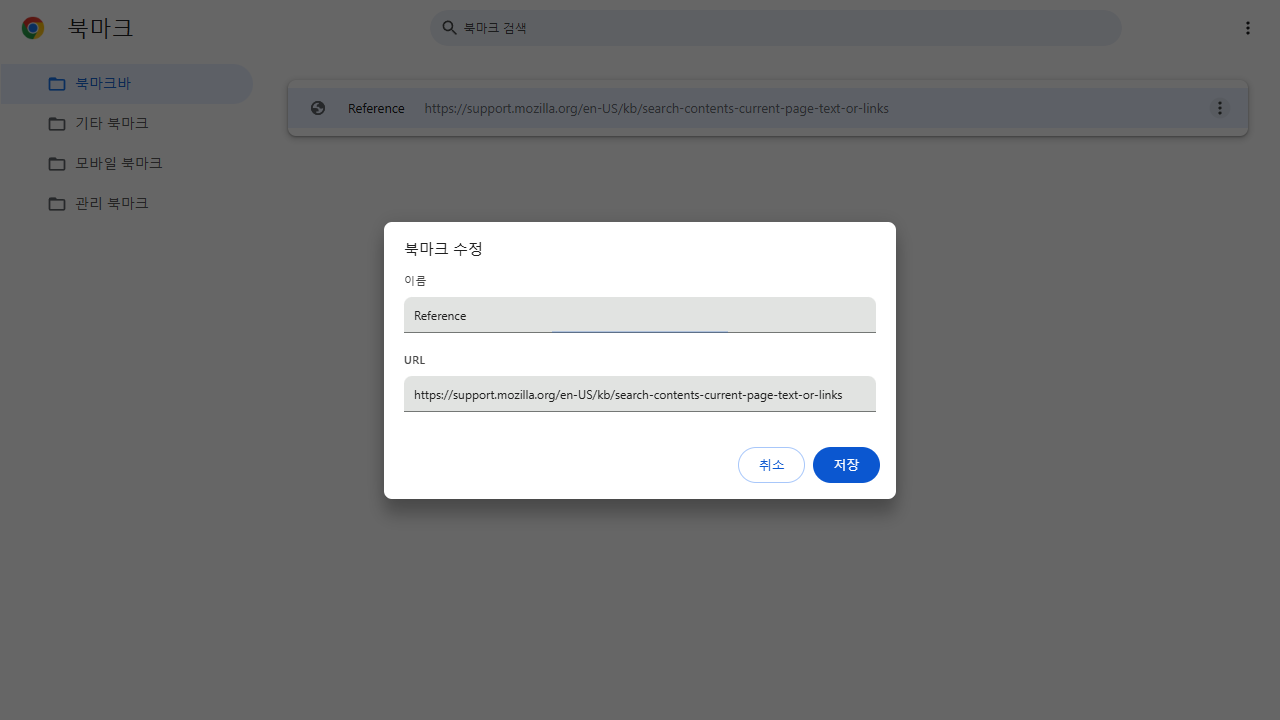
Chrome profiles give you separate, persistent environments for bookmarks, history, passwords, and settings. In a two-profile Chrome check, both profiles kept a bookmark titled Reference after Chrome was closed and reopened. Each bookmark led to a different page. The title alone did not identify the destination.
What the two profiles kept
| Profile | Bookmark title | Saved destination |
|---|---|---|
| Household | Reference | Google Maps distance help |
| Study | Reference | Mozilla Find help |
On reopening, each profile had one Reference bookmark. Its Edit dialog still showed that profile’s saved URL. The reopened dialogs are visible in the Household screenshot and Study screenshot.
Try it with two profiles
Use Profile > Add Chrome profile to create a profile for each purpose. Chrome lets you choose a name, photo, and color; signing in is optional. Switch between them through Profile > the profile you want. You can also choose whether to Show on startup when managing profiles. These menu steps come from Google’s profile instructions.
For a repeatable exercise, open the Google Maps help page in one profile and the Mozilla Find help page in the other. In each, use the star beside the address bar to save the page, then give both bookmarks the title Reference. Close and reopen Chrome. In each profile, open More > Bookmarks and lists > Bookmark Manager, edit Reference, and read its URL. Google’s bookmark instructions cover saving and editing bookmarks.
Check that URL before you merge, import, or delete bookmarks with matching titles. Once you know which is which, you can give the bookmarks clearer names, such as Maps distance help and Firefox Find help.
Someone else using your device can switch to a Chrome profile and see its history. Removing a profile erases its local bookmarks, history, passwords, and settings. Google’s profile instructions explain these limits.
Source and test note: The persistence check used Windows Chrome 154.0.8037.98 with two private profiles selected at launch and no sign-in. It did not test the Add profile menu, menu switching, sync, Guest mode, deletion, other operating systems, or personal accounts. The screenshots show the native Korean interface with the English bookmark title and URLs. The linked Google instructions were checked October 11, 2026.
KEEP GOING
More to explore.
TESTEDEveryday tech
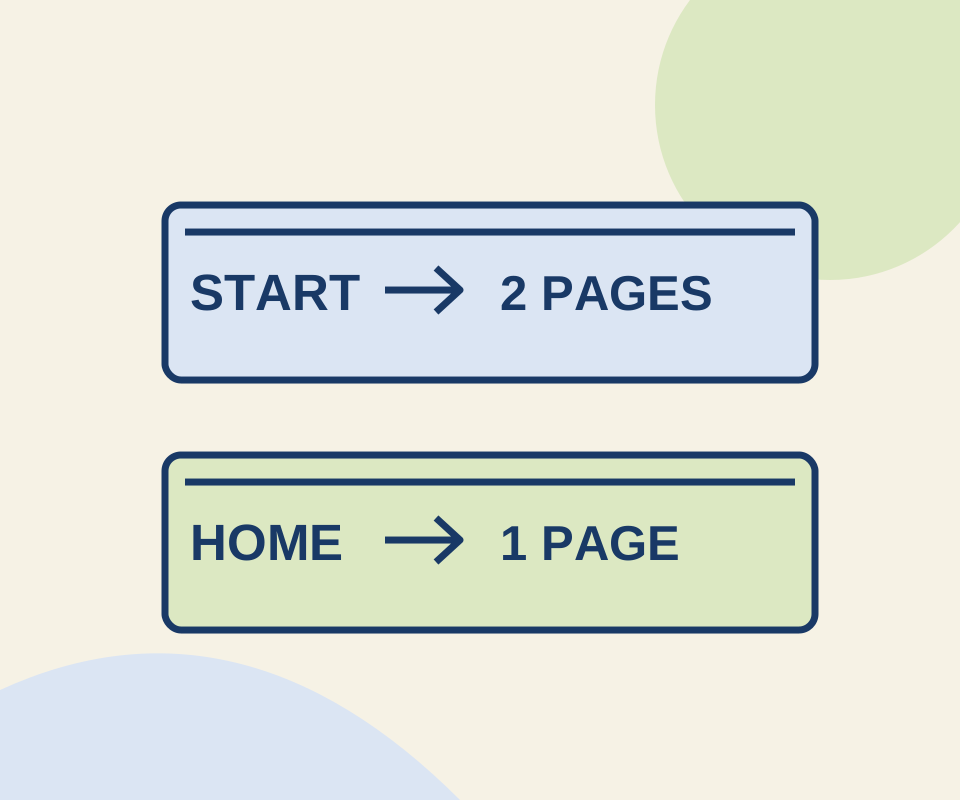
Chrome startup pages and Home button: set the page that opens at the right time
Two configured pages reopened after a full Chrome relaunch. Use the same small exercise to distinguish a startup set from the Home button's destination.
TESTEDEveryday tech
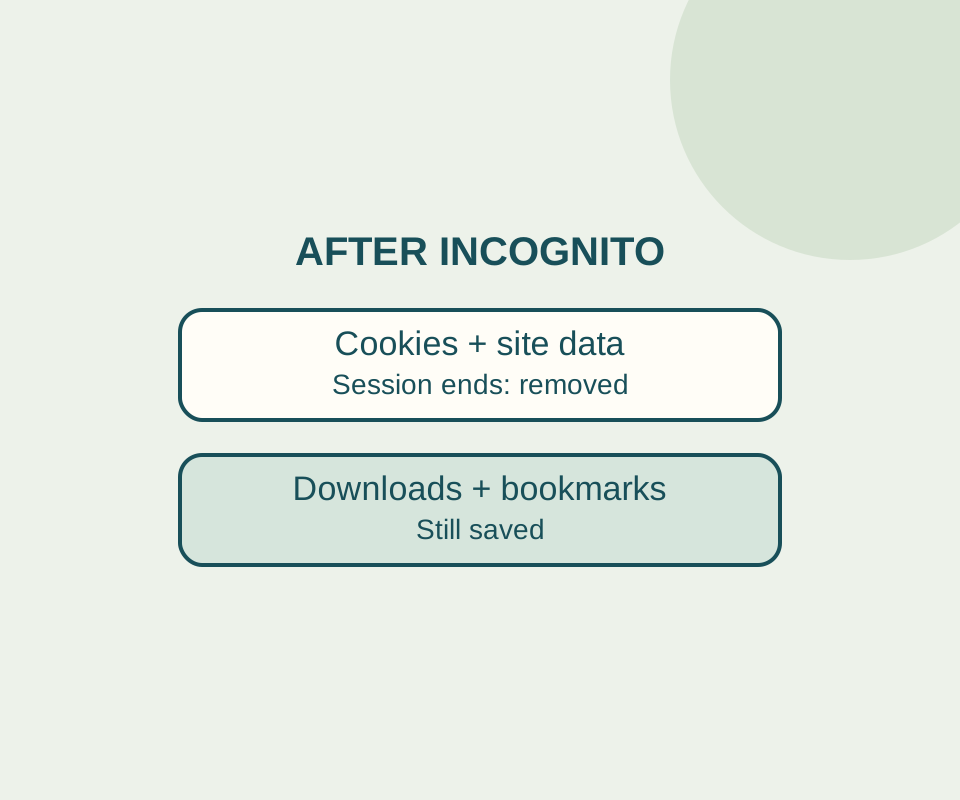
Incognito downloads do not disappear when you close Chrome
Closing every Incognito window ends the private session. Downloaded files and saved bookmarks still need separate attention.